Pop out the call (picture-in-picture)
Keep the people you're talking to in a small window on top of your other work.
Last updated:
What is the pop-out call?
The pop-out call is a small window that stays on top of your other tabs and apps. It shows the people you're talking to, with buttons for your microphone, your camera, and leaving. You can keep an eye on the room while you work somewhere else. It works in Chrome and Edge on a computer.
How to pop out the call
- 1Join a room in Chrome or Edge
Use Chrome or Edge on a computer. In browsers that don't support it, such as Safari and phone browsers, the button doesn't appear.
- 2Click Pop out call
In an Open Spatial room, Pop out call is in the call bar next to Share screen. In a Conference room, it's in the toolbar. In a Conference room you can also press ⌘/Ctrl+K and choose "Pop out the call".
- 3Work in another tab or app
The small window floats on top. Mute or unmute and turn your camera on or off right from it. The sound keeps playing from the flat.social tab, so keep that tab open.
- 4Go back or leave
Click Back to tab to return to the room and close the small window, or Leave call to hang up.
What the window shows
- Open Spatial rooms: up to four of the nearest people you can hear. People inside a private area you're not in don't appear. If nobody is close enough, it says "No one within earshot".
- Conference rooms: up to four people, with whoever is speaking first.
- Screen shares: when someone shares their screen, the share takes over the window with a caption like "Sam is presenting".
If you're a listener in a webinar, the microphone and camera buttons are hidden, the same as in the main toolbar.
Pop out automatically when you switch tabs
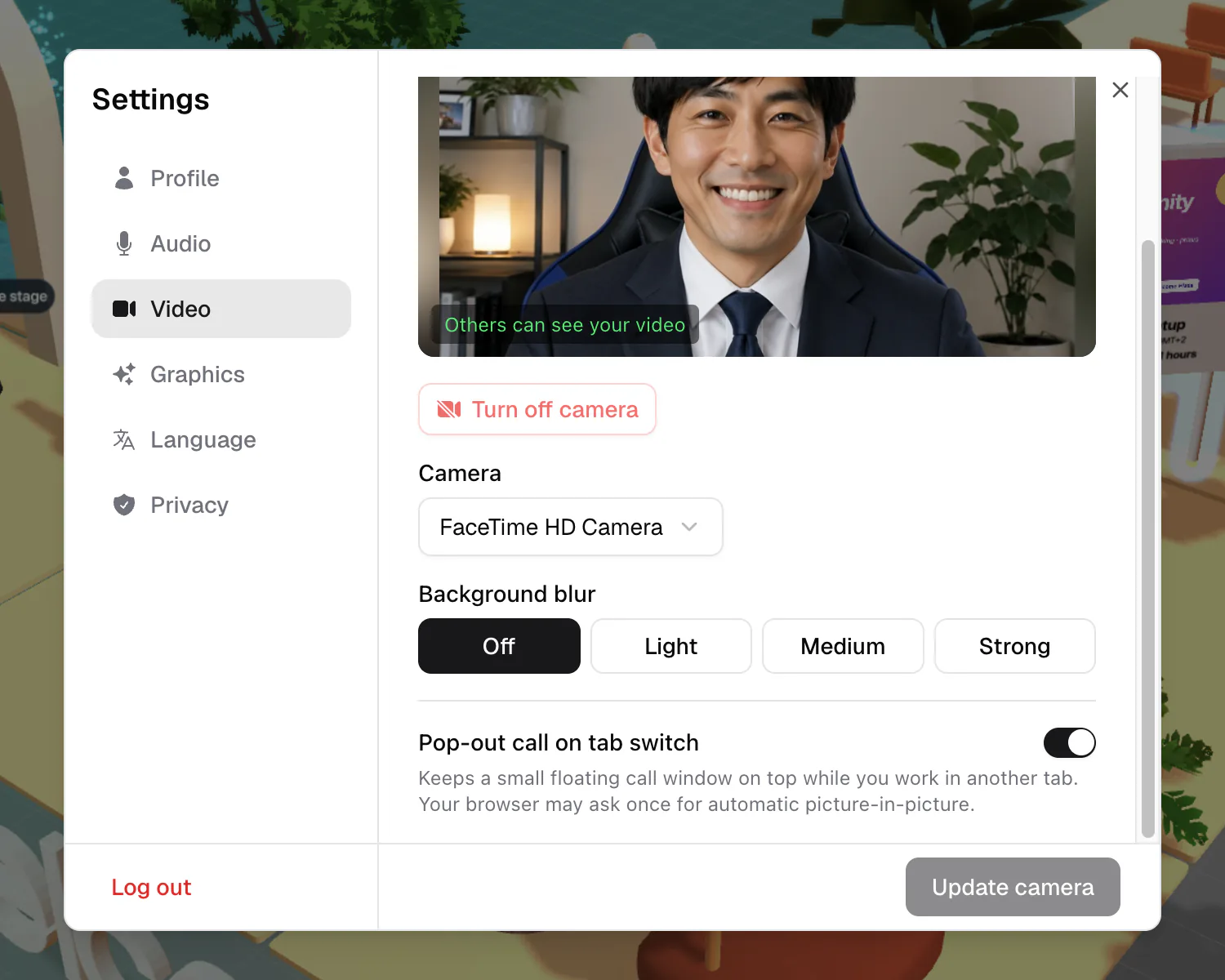
The Pop-out call on tab switch setting "Keeps a small floating call window on top while you work in another tab." It's on by default. When you switch to another tab during a call, the window opens by itself, and it closes again when you come back. The first time, your browser may ask you to allow automatic picture-in-picture.
To turn it off or on:
- Open Spatial rooms: open Settings (your profile chip at the top right, or the gear that appears when you hover the camera button), go to Video, and switch Pop-out call on tab switch.
- Conference rooms: click Settings in the toolbar to open Device Settings, and switch it there.
The setting is saved in this browser.
While a screen is being shared, the pop-out window shows the share instead of faces. That includes your own share, so while you present, the window shows your screen. See Share your screen.