Chat and direct messages
Post to the room, mention people, and message individuals privately.
Last updated:
How does chat work in a room?
Click the round speech-bubble button at the bottom right of the room (on a phone, Open chat in the bar at the bottom). The chat opens with the room's name at the top. Type in "Message {room}..." and press Enter to send. Everyone in the room can read it, no matter where their avatar stands, so it's the right place for a link, a meeting time, or a quick "back in five".
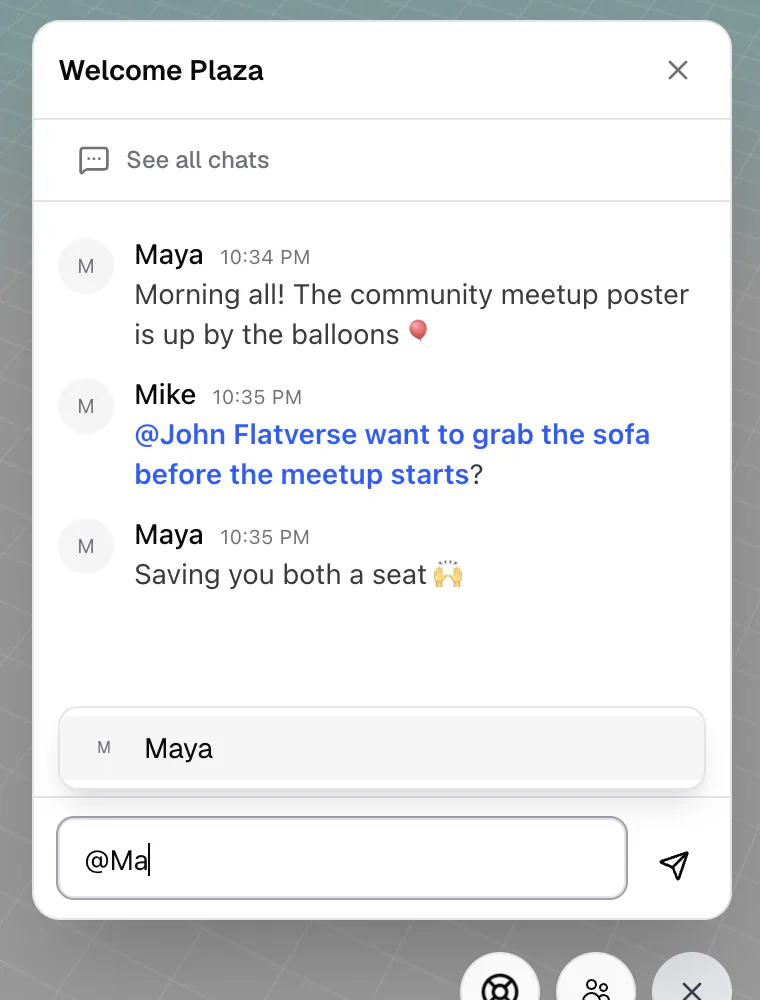
Mentions
Type @ to see suggestions. Pick a person to mention them, or use @room to notify everyone in the room and @flat to notify everyone in the flat. Use ↑ ↓ and Enter or Tab to choose. Shift+Enter adds a new line.
Notifications and unread messages
When the chat is closed, a small dot on the chat button tells you there's something new. Direct messages and mentions also pop up as a notification ("Direct message", "Mentioned you", "@room", or "@flat"); click it to open the conversation.
When people join or leave the room you'll see a short notice for a few seconds; these aren't saved in the chat.
Send a direct message
For something private, message one person:
- In an Open Spatial room, click their avatar and choose Private message.
- Open the people panel, click the person, and choose Send message.
- In a Conference room, click their tile and choose Message.
Direct messages open in the chat window, next to the Lobby and Rooms chats. Guests can send and receive them too. Click See all chats at any time to switch between conversations.
Use room chat for anything the whole room should see, and a direct message for anything meant for one person. Room chats are kept, so people who arrive later can scroll back.