Graphics quality and performance
Choose how much your computer draws, and keep rooms running smoothly.
Last updated:
What does the Graphics setting do?
In Open Spatial rooms, the Graphics setting controls how much work your computer does to draw the 3D room. Lower tiers switch off effects, draw at a lower resolution, and play fewer live video feeds at once, so the room runs smoothly on older computers. It only changes what you see on your own screen, and changes apply instantly.
How to change graphics quality
- 1Open Settings
In an Open Spatial room, click your profile chip at the top right (your picture and name, Profile settings).
- 2Go to Graphics
Click Graphics in the left sidebar. The tier in use is marked Active. An Auto-detected tag means flat.social chose it for you.
- 3Pick a tier
Click High, Normal, Basic, or Low performance. The room updates right away, with no reload.
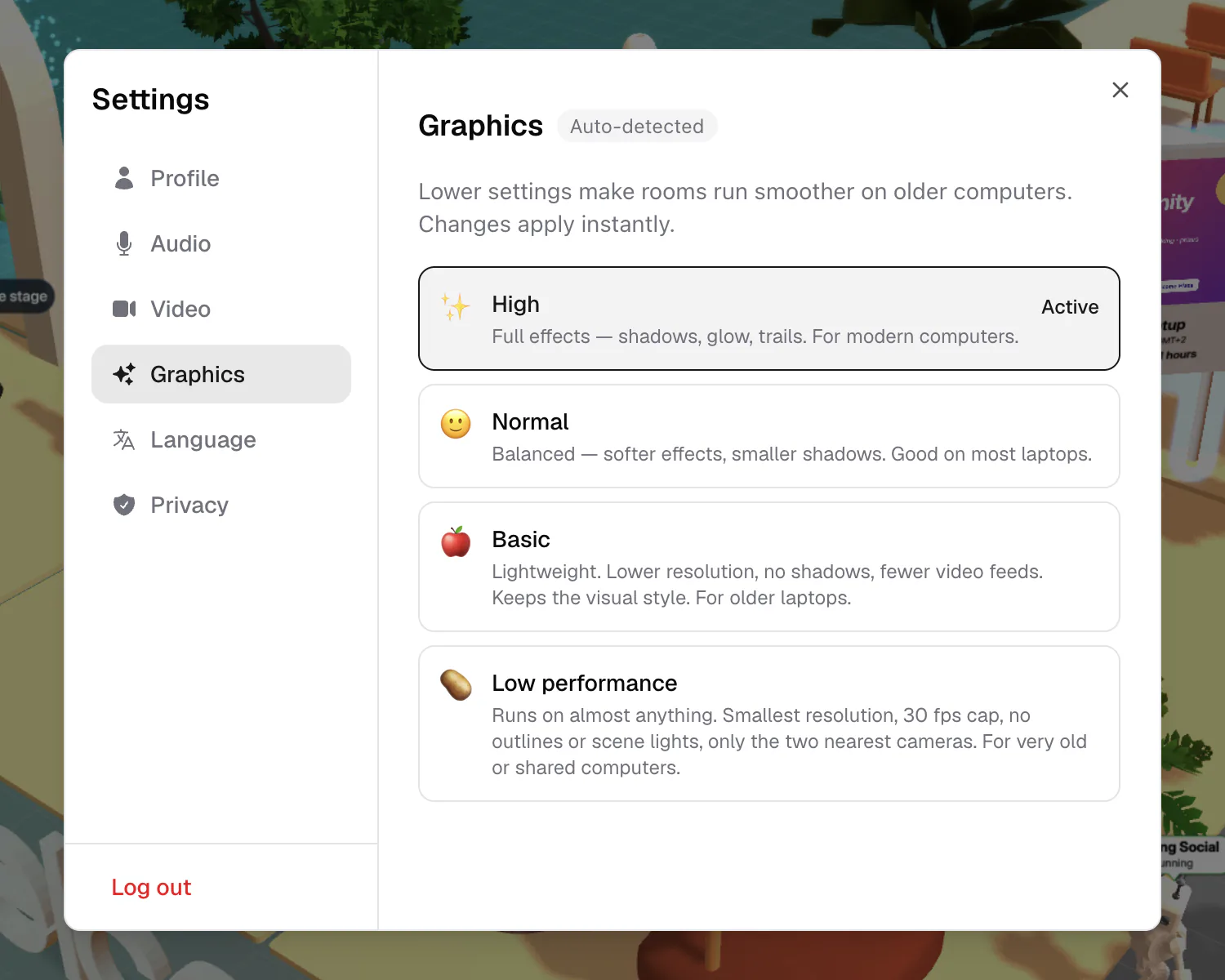
The four tiers
| Tier | What the app says | Live cameras at once |
|---|---|---|
| ✨ High | "Full effects — shadows, glow, trails. For modern computers." | 12 |
| 🙂 Normal | "Balanced — softer effects, smaller shadows. Good on most laptops." | 8 |
| 🍎 Basic | "Lightweight. Lower resolution, no shadows, fewer video feeds. Keeps the visual style. For older laptops." | 4 |
| 🥔 Low performance | "Runs on almost anything. Smallest resolution, 30 fps cap, no outlines or scene lights, only the two nearest cameras. For very old or shared computers." | 2 |
In plain words:
- High draws everything at full resolution with no frame-rate cap.
- Normal and Basic cap the room at 60 frames per second. Basic also drops shadows and draws at a lower resolution.
- Low performance caps the room at 30 frames per second, uses the smallest resolution, and only builds far-away objects when you walk closer.
"Live cameras at once" is how many people's camera video your screen plays at the same time, nearest first. It doesn't change what you hear: voices work the same on every tier.
How flat.social picks a tier for you
Until you choose a tier yourself, flat.social looks at your graphics hardware when you join an Open Spatial room and picks one for you. That's when you see the Auto-detected tag. If it can't tell, it starts at Normal. If the room runs with plenty of room to spare on an auto-detected Normal, it may move you up to High on its own.
Once you pick a tier yourself, that choice is saved in this browser and replaces the automatic one. Another browser or computer detects its own tier.
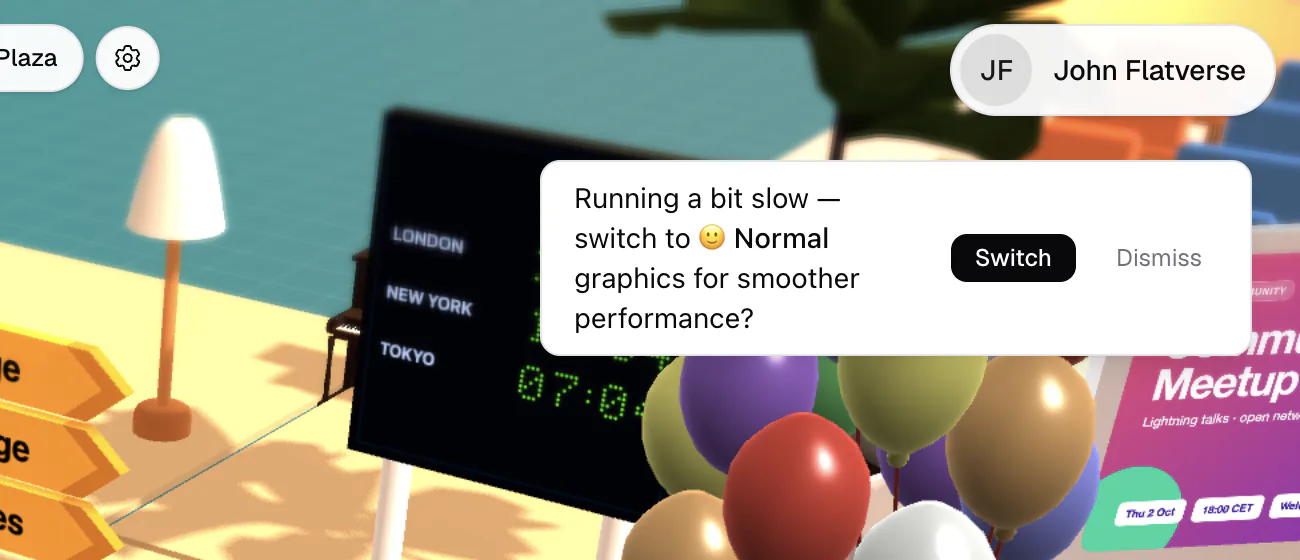
"Running a bit slow"
If the room runs slowly for a while, a message appears at the top right: "Running a bit slow — switch to 🍎 Basic graphics for smoother performance?" It always suggests the tier just below yours.
- Switch moves you down one tier right away.
- Dismiss hides the message for the rest of your time in that room.
It shows at most once every five minutes, and never when you're already on Low performance.
What happens while a room loads
After you join an Open Spatial room, the loading screen steps through "Initializing scene", "Loading assets", "Connecting to room", "Loading room data", "Loading elements", "Preparing graphics", and "Ready".
On big maps, the objects nearest to you are built first, so the space around you is ready before the far corners finish. If a room seems stuck on one step for a long time, see Connection issues.
Tips for slow computers
- Drop to Basic or Low performance in Settings → Graphics.
- Close other heavy tabs and apps, especially other video calls.
- If you switched on Noise cancellation (Settings → Audio), try turning it off. It "uses extra CPU".
- Make sure graphics acceleration (also called hardware acceleration) is turned on in your browser's settings.
- Use an up-to-date Chrome or Edge. See Supported browsers and System requirements.
- Still too heavy? Meet in a Conference room, which is a plain video grid with no 3D scene.
This means your browser couldn't start WebGL, which Open Spatial rooms need to draw the 3D room. It can happen on virtual machines, remote desktops, or when the browser blocks graphics acceleration. Click Reload to try again. If it keeps happening, turn on graphics acceleration in your browser, or use Chrome or Edge on a regular computer. Conference rooms don't need 3D and still work.