Announcements
Post a notice in the lobby and push it to everyone online.
Last updated:
What are announcements in flat.social?
Announcements are notices you post to your flat. Each one has a title, a Markdown body, and optional images. They live in the lobby's News tab, and with the notify option they pop up for everyone who is online right now, in the lobby and inside rooms.
What you can put in an announcement
An announcement is a short post that lives in your lobby, where members see it when they arrive. Use it for a schedule, a welcome message, or a "the keynote starts in five minutes" nudge.
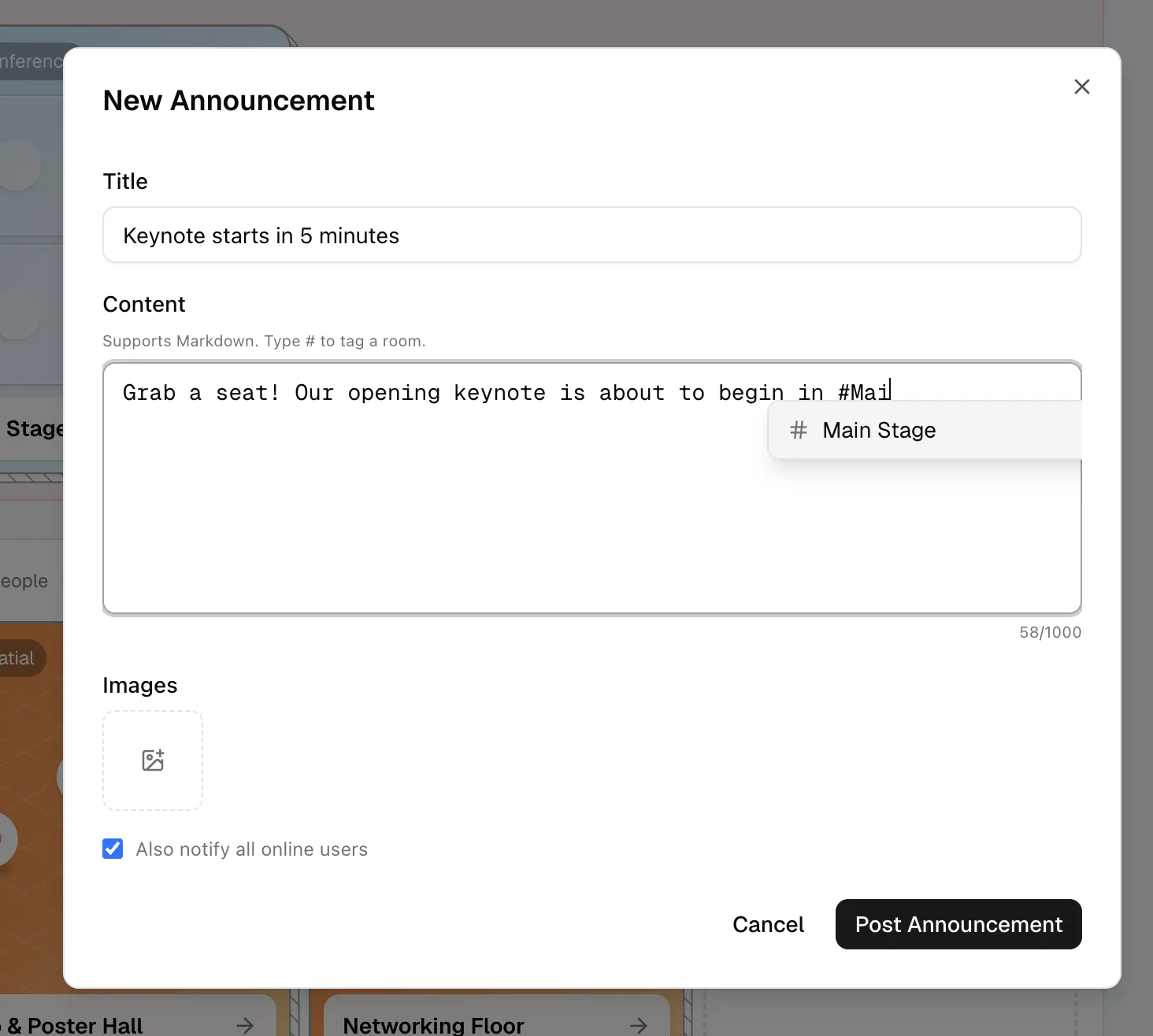
Each announcement has three parts: a title (up to 200 characters), a content body that supports Markdown (up to 1,000 characters), and up to 10 images you can upload. Images are inserted into the body, so they count toward the 1,000 characters. You can edit or delete any announcement later.
How to post an announcement
- 1Open the announcement editor
In the lobby sidebar, open the News tab and click New Announcement. Inside a room, open Quick Access (⌘/Ctrl+K) and run Send announcement. The editor opens with fields for the title, content, and images.
- 2Write the title and body
Add a title, then write your content. The body supports Markdown for headings, bold, lists, and links; a counter shows how many of the 1,000 characters you have used.
- 3Tag rooms with #
Type # in the body to bring up a room autocomplete list, then pick a room to insert its #room-slug tag. This links people straight to that room.
- 4Add images
Upload up to 10 PNG, JPEG, GIF, or WebP images (up to 10MB each). They are inserted into the body.
- 5Choose whether to notify
Turn on "Also notify all online users" to push the announcement to everyone in your flat right now. Leave it off to post quietly to the News tab. Then click Post Announcement.
Where announcements show up
- News tab: every announcement, newest first, with a search box and a Latest/Oldest sort.
- Lobby banner: the latest announcement appears at the top of the lobby until each person dismisses it.
- With notify on: people inside rooms get a banner at the top of the screen that hides after about 15 seconds, people in the lobby see it in a pop-up, and the Lobby chat gets a "📢 New announcement" message.
Type # and pick a room to drop in a #room-slug tag. It turns a "join us" line into a one-click path to the right room, which is great for guiding people during a live event.
The notify toggle only appears when you create a new announcement, not when you edit one. Editing an existing post never re-notifies people. Posting needs the Send Announcements permission (the built-in Moderator role has it). The author or anyone with that permission can edit or delete a post. See Roles and permissions.