Host tools: run the room
Move people, control audio, and handle trouble without leaving the room.
Last updated:
What are host tools?
Host tools are commands in Quick Access that let you run a live room: bring everyone together, split them into groups, mute the room, stop screenshares, and remove or ban someone. Each command needs a permission. The owner has all of them, and so does the built-in Moderator role.
How do I open the host tools?
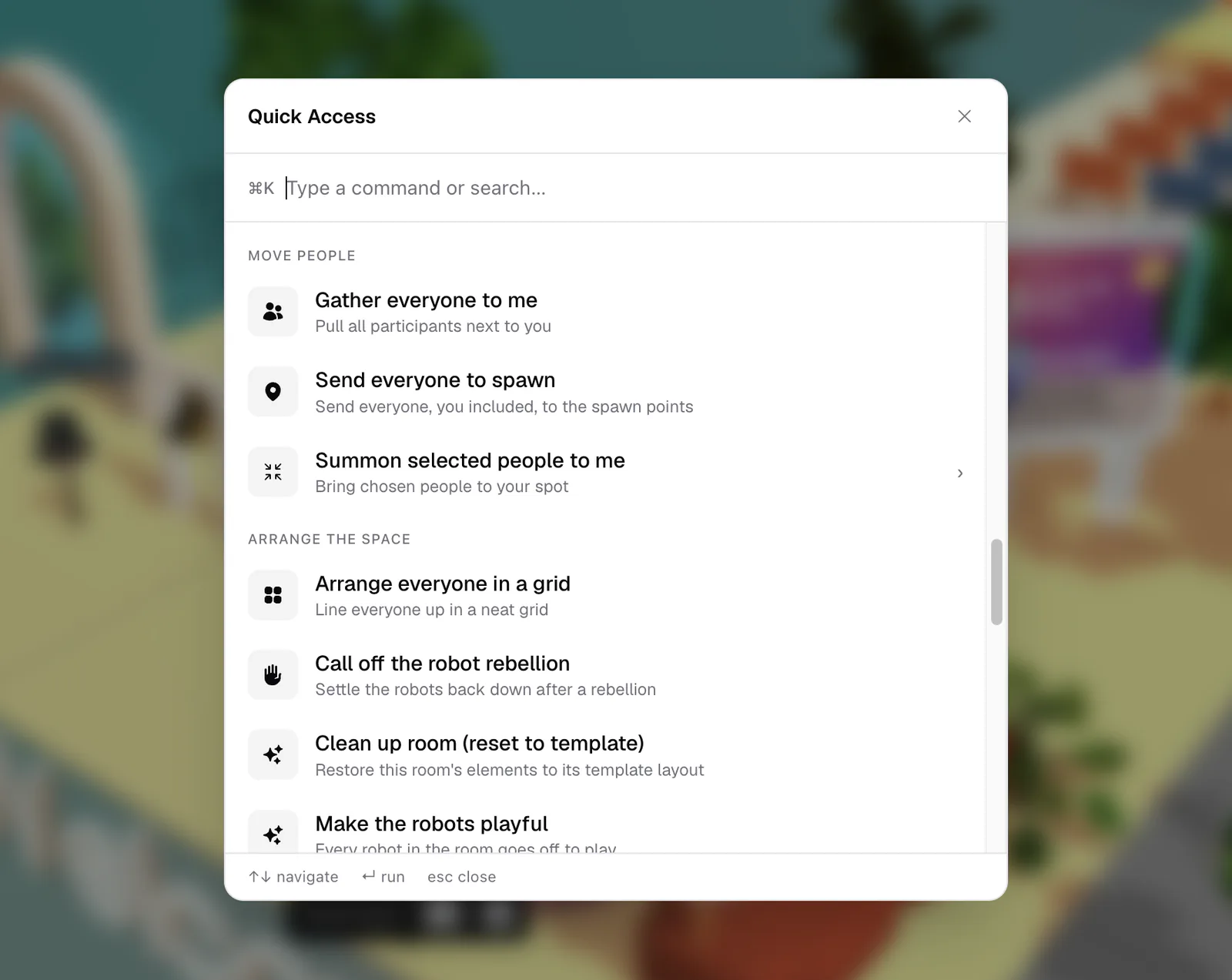
In a room, press ⌘/Ctrl+K to open Quick Access and type what you want, such as "mute" or "gather". Host commands are grouped under Move people, Arrange the space, Audio control, Moderation & safety, and Run the session, plus two "invite everyone" commands under People & chat.
Commands you don't have permission for stay in the list, dimmed, with "Need permission". Commands that could disrupt the room explain what will happen and wait for Confirm or Cancel. Commands that act on people open a list where you pick who. See Quick Access for everything else it can do.
Which permission does each command need?
| Command | Group | Rooms | Permission |
|---|---|---|---|
| Gather everyone to me | Move people | Open Spatial | Move Participants |
| Summon selected people to me | Move people | Open Spatial | Move Participants |
| Send everyone to spawn | Move people | Open Spatial | Move Participants |
| Arrange everyone in a grid | Arrange the space | Open Spatial | Move Participants |
| Split everyone into 2 / 3 / 4 groups | Arrange the space | Open Spatial | Move Participants |
| Clean up room (reset to template) | Arrange the space | Open Spatial | Build Map |
| Mute everyone (audio & video) | Audio control | All | Mute Participants |
| Mute everyone's microphones | Audio control | All | Mute Participants |
| Turn off everyone's cameras | Audio control | All | Mute Participants |
| Turn off mic & camera for selected | Audio control | All | Mute Participants |
| Stop all screenshares | Moderation & safety | All | Mute Participants |
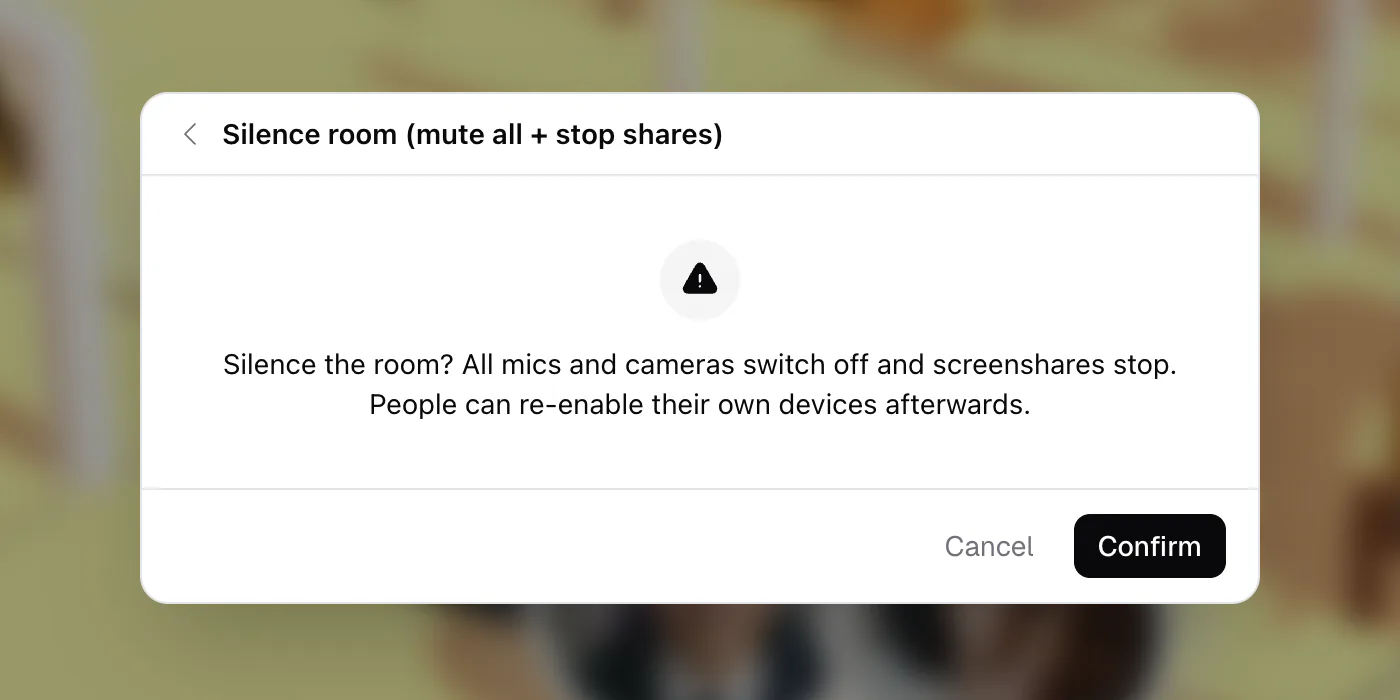
| Silence room (mute all + stop shares) | Moderation & safety | All | Mute Participants |
| Remove someone from the room | Moderation & safety | All | Remove Participants |
| Ban someone from the flat | Moderation & safety | All | Remove Participants |
| Send announcement | Run the session | All | Send Announcements |
| Invite everyone to this room | People & chat | All | Move Participants |
| Invite everyone to another room | People & chat | All | Move Participants |
Give these permissions to a role in Roles & permissions.
Move people (Open Spatial rooms)
- Gather everyone to me pulls everyone in the room next to you. Handy before a toast or an announcement.
- Summon selected people to me lets you pick people (Space to select, Enter to confirm) and brings just them over.
- Send everyone to spawn sends everyone, you included, back to the room's spawn points.
Gather and Summon never move you. A short message confirms how many people moved.
Arrange the space (Open Spatial rooms)
- Arrange everyone in a grid lines everyone up in a neat grid around you, which works well for a group photo.
- Split everyone into 2 groups (or 3, or 4) places people in that many clusters around you, so breakout conversations can start.
- Clean up room (reset to template) puts every element back to the room's template layout. It asks: "Reset this room to its template layout? Every element change made in this room will be replaced. This can't be undone." It only works in rooms created from a map template; otherwise you see "This room has no template to reset to". It needs Build Map.
Audio control (any room)
- Mute everyone (audio & video) switches off every mic and camera in the room except yours.
- Mute everyone's microphones switches off mics only.
- Turn off everyone's cameras switches off cameras only.
- Turn off mic & camera for selected does both for the people you pick.
These are one-time switches, not locks. The confirmation says it plainly, for example "Switch off every microphone? People can unmute themselves afterwards." If someone keeps interrupting, remove them instead.
Moderation & safety (any room)
- Stop all screenshares ends every screen share in the room.
- Silence room (mute all + stop shares) is the quick fix when things get out of hand: "Silence the room? All mics and cameras switch off and screenshares stop. People can re-enable their own devices afterwards." It doesn't stop new people from joining.
- Remove someone from the room: "Remove this person from the room? They can rejoin unless banned."
- Ban someone from the flat: "Ban this person? They'll be removed and blocked from rejoining this flat."
The room chat records it, for example "Sam was kicked by Alex" or "Sam was banned and kicked by Alex". The flat owner can't be removed or banned. To review or lift bans, see Ban and moderate users.
Run the session
- Send announcement opens the announcement editor, the same one as in the lobby. See Announcements.
- Invite everyone to this room sends everyone who is online in your flat a prompt to join you: "Invite everyone who is online in this flat to come here? Each person gets a prompt they can accept or dismiss."
- Invite everyone to another room does the same for a room you pick, even if you're not in it.
- Invite people to another room lets anyone pick a room and then the people to invite. No permission needed.
People see a prompt like "Alex invited you to Main Stage" with Join and Dismiss. Nobody is moved without agreeing. In Conference rooms, Run the session also holds stage and activity commands; see Conference rooms.
Act on one person
You can also moderate someone directly:
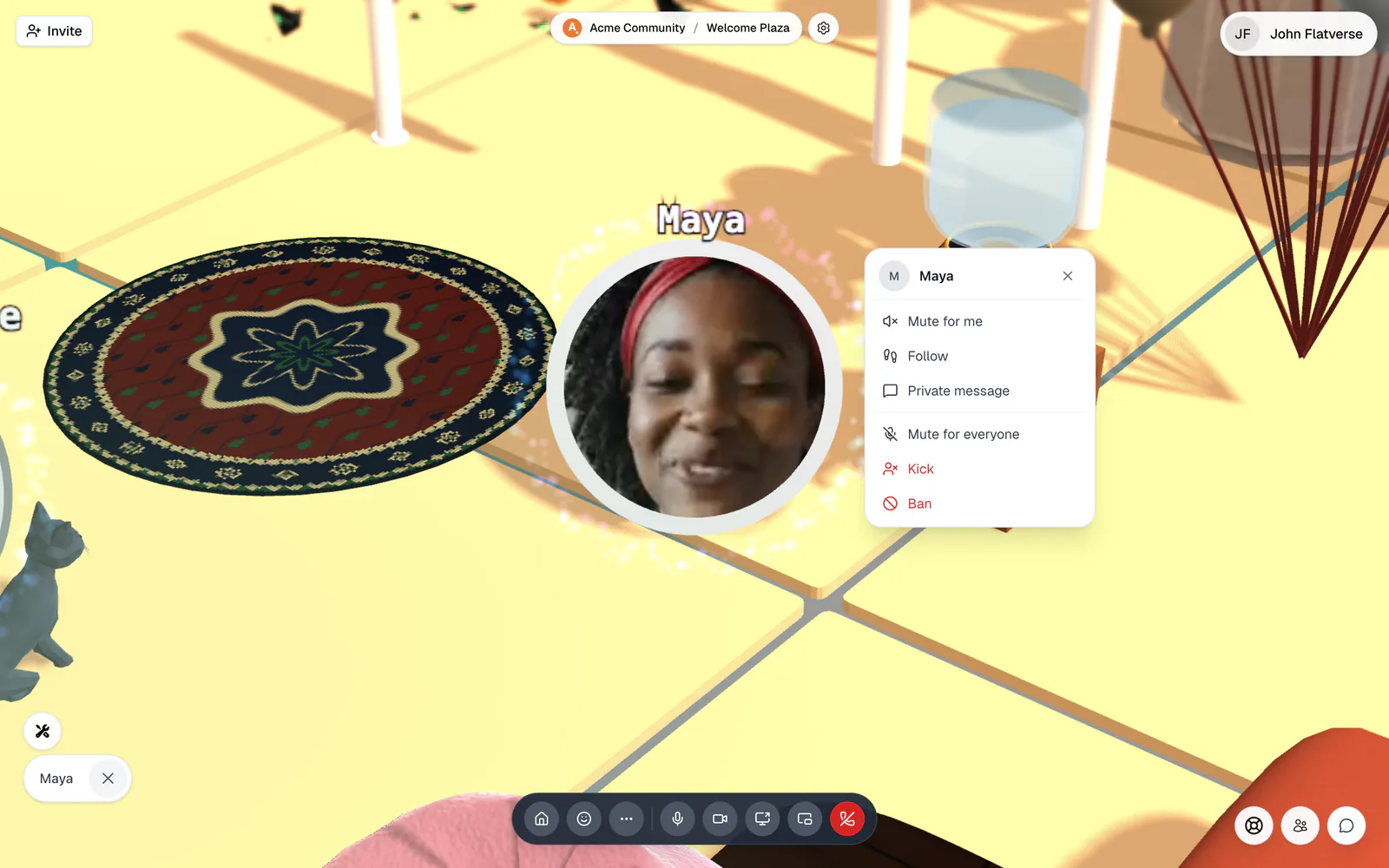
- Open Spatial room: click their avatar. The menu has Mute for everyone (needs Mute Participants) and Kick and Ban (need Remove Participants).
- Conference room: click their video tile. The panel has Mute mic, Camera off, and Stop their share (Mute Participants), plus Remove and Ban (Remove Participants).
- Owner only: the Users panel (the people icon in a room) has Kick and Ban & Kick, with an optional message.
A kicked person sees "You have been kicked" and can click Rejoin. A banned person sees "You have been banned" and can't come back to your flat.
Quick Access keys
The built-in Moderator role includes Move, Mute, and Remove Participants, Build Map, and Send Announcements, so it covers every command on this page. Assign it in Settings → Users → User Roles, or invite people straight into it. See Invite people by email or role link.