Roles and permissions
Decide who can manage your flat and what people can do in a room.
Last updated:
What are roles and permissions in flat.social?
A role is a named set of permissions, such as Member or Moderator. Each permission switches one ability on, like building the map or muting others. You give people a role by assigning it to the email they sign in with, or by inviting them into it. As the owner you always have every permission.
Where are roles managed?
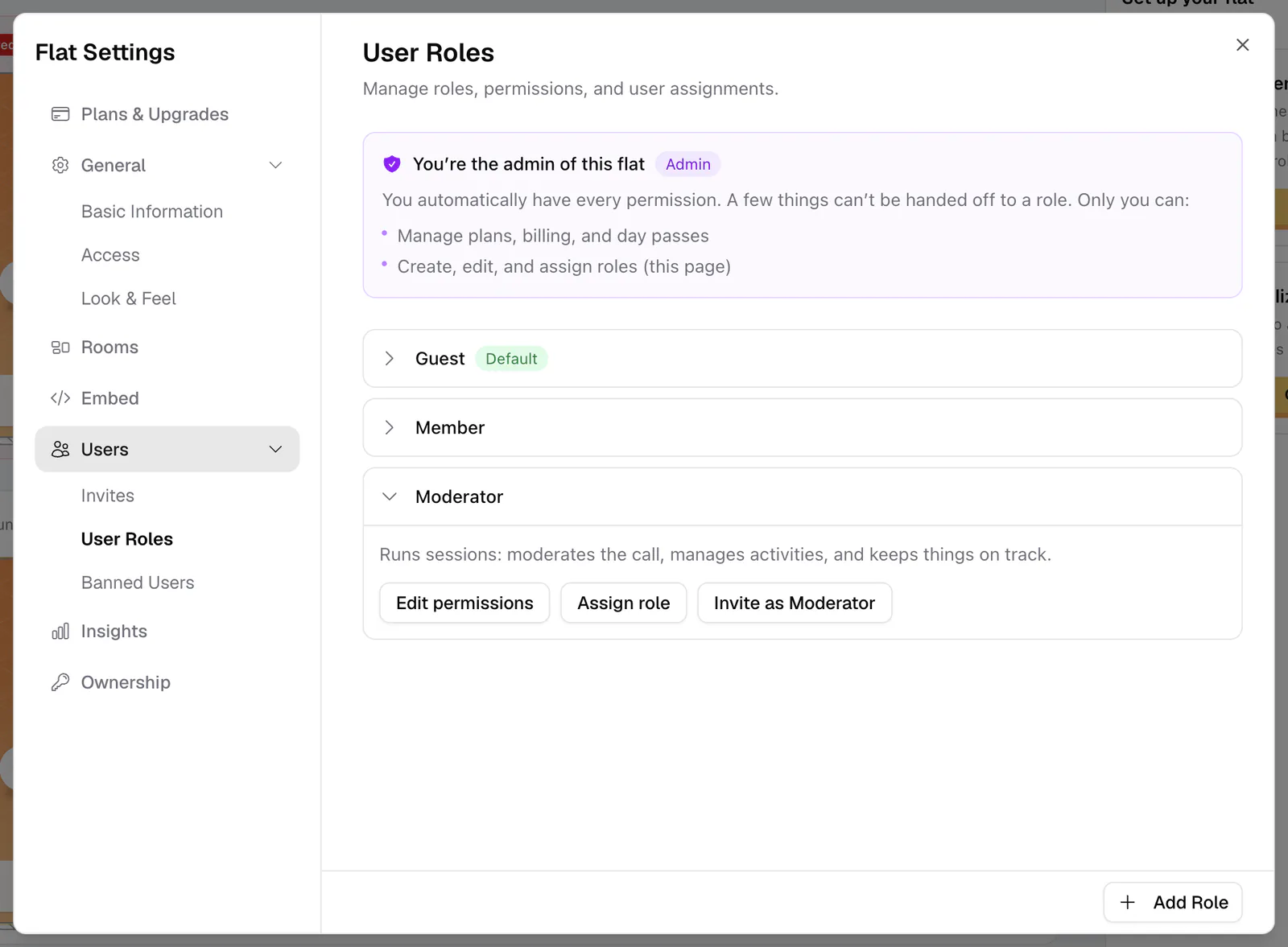
Roles live in your flat's settings under Users → User Roles. Only the flat owner can create, edit, and assign roles; this can't be handed to anyone else. The page opens with a reminder that you're the admin of this flat and that only you can manage plans and billing and manage roles.
Every flat comes with three built-in roles:
- Guest (marked Default): the in-meeting basics, like using a camera and mic, reacting, and screen sharing.
- Member: everything a Guest can do, plus Build Map. "Trusted regulars who can join in and help arrange the space."
- Moderator: everything a Member can do, plus all Call Moderation permissions, Send Announcements, Always Access Flat, and Invite People. "Runs sessions: moderates the call, manages activities, and keeps things on track."
You can edit these, delete Member and Moderator, or add your own.
How to create and assign a role
- 1Open User Roles
Go to Settings → Users → User Roles. Your roles are listed as cards; the default role has a green Default badge.
- 2Add a role
Click Add Role, type a name (2 to 32 characters) such as Speaker or Student, and click Create.
- 3Pick permissions
Click Edit permissions, add a short description (up to 200 characters), and switch on each ability the role should have. Use Search permissions... to find one, or flip a whole group at once. Click Save.
- 4Assign people
Click Assign role, type one or more emails (separated by spaces, commas, or semicolons), and click Add. Use the email each person signs into flat.social with. Assigning a role does not send an email.
- 5Or invite them into the role
Click Invite as {role} on the role card to email people a personal invite link. They join with that role when they accept. See Invite people by email or role link.
What each permission does
Permissions are grouped into Management, In-Meeting, and Call Moderation.
Management
| Permission | What it allows |
|---|---|
| Edit Basic Info | Edit the flat name, URL, and description |
| Edit Access | Edit Closed Flat, the domain allowlist, and guest access |
| Edit Look & Feel | Change the flat logo and card cover |
| Edit Rooms | Create, edit, and delete rooms, manage lobby categories, rearrange rooms, and feature rooms |
| Build Map | Use build mode to place and move room elements |
| Invite People | Invite people by email or link, into roles no stronger than their own |
| Send Announcements | Create, edit, and delete announcements |
| View Insights | See the Insights dashboard |
| Always Access Flat | Get in regardless of access restrictions, including a closed flat |
In-Meeting
| Permission | What it allows |
|---|---|
| Camera | Turn the camera on |
| Audio | Turn the microphone on |
| Reactions | Send reactions |
| Guest List | See the guest list |
| Chat Window | Use chat |
| Screenshare | Share a screen, including onto stage screens |
| Present Slides | Present slide decks |
Call Moderation
| Permission | What it allows |
|---|---|
| Moderate Slides | Present pinned slide decks and moderate responses in any presentation |
| Move Participants | Gather, summon, arrange, and split people in spatial rooms |
| Mute Participants | Mute others' mic or camera and stop screen shares |
| Remove Participants | Remove people from a room or ban them from the flat |
| Stop Presentations | End any live slide presentation in the flat |
| Manage Activities | Pin, lock, and end room activities like the whiteboard, webinar, and standup |
| Manage Banned Users | Ban people by email and review or lift bans |
| Moderate Chat | Delete other people's messages in lobby and room chats |
Each Management permission also opens the matching settings page (for example, Edit Rooms opens Rooms, Invite People opens Invites). Plans & Upgrades, Embed, User Roles, and Ownership are always owner-only.
A role applies when someone signs in with a verified email that matches the assignment. Google and Facebook sign-ins are verified automatically; email-and-password users need to click their verification link (accepting an email invite verifies it too). Guests who join through a plain link without signing in have no role.