Quickstart: join a space
The fast path for guests: open a link, walk in, and start talking.
Last updated:
How do I join a space in flat.social?
Open the link your host shared, connect your microphone, and join. Then walk up to someone to talk: use the W A S D keys, or click the floor where you want to go. There is nothing to install, and most people are in within a minute.
How to join a space
The guest happy path, start to finish.
- 1Open the link
Click the link your host shared. It opens in your browser. If it opened inside Instagram, LinkedIn, or a similar app, tap Open in browser first.
- 2Connect your mic
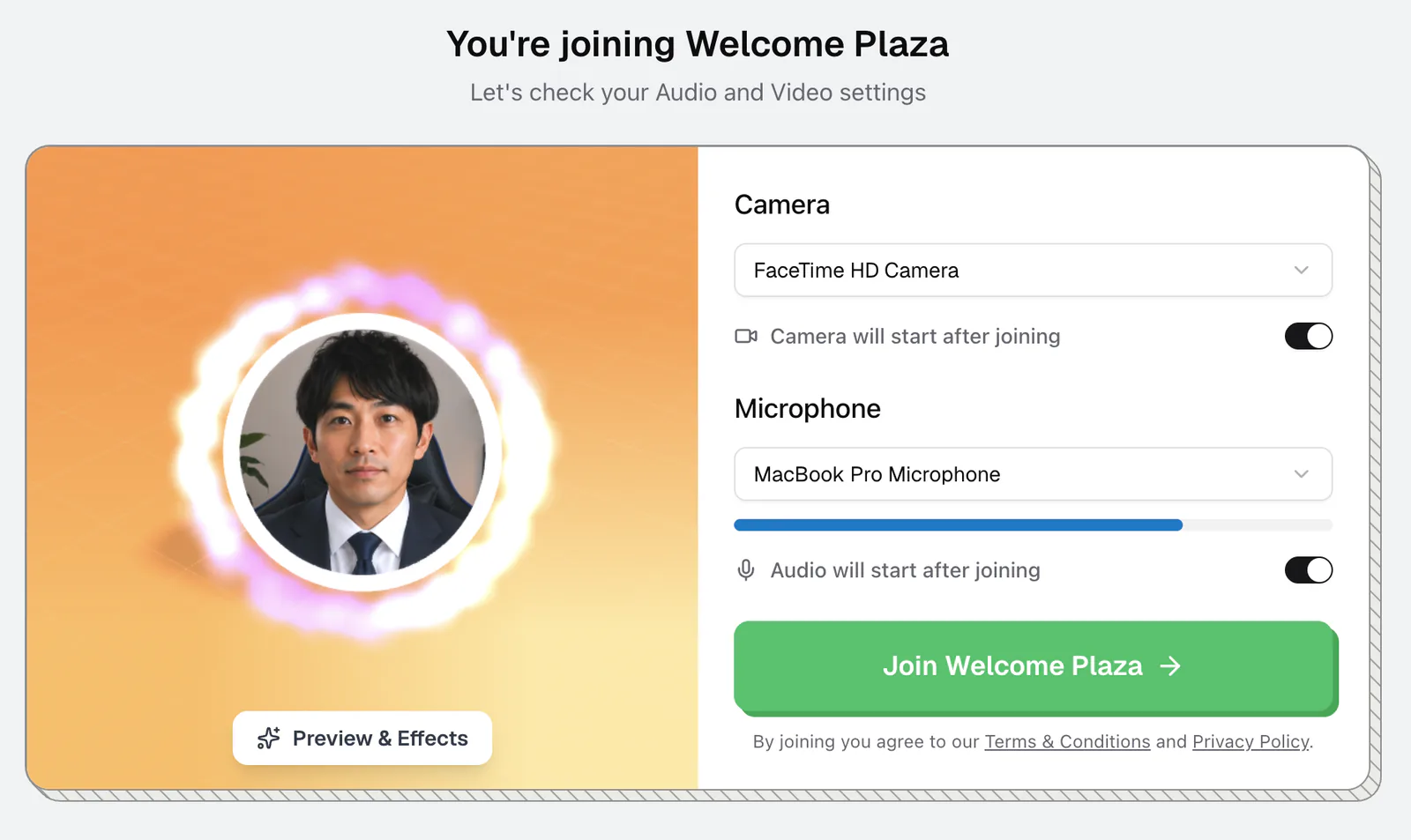
Click Connect Audio & Video and allow your microphone (and camera, if you want video) when the browser asks. More: Camera and mic setup.
- 3Join the room
Check the right devices are selected and click Join {room name}.
- 4Pick your name
Joining as a guest? Type a name of 2 to 10 characters when asked "How can others call you?". More: Set name and avatar.
- 5Move around
Walk with W A S D or the arrow keys, or click the floor to walk there. On a phone, tap the floor or drag to steer. More: Move your avatar.
- 6Walk up to someone to talk
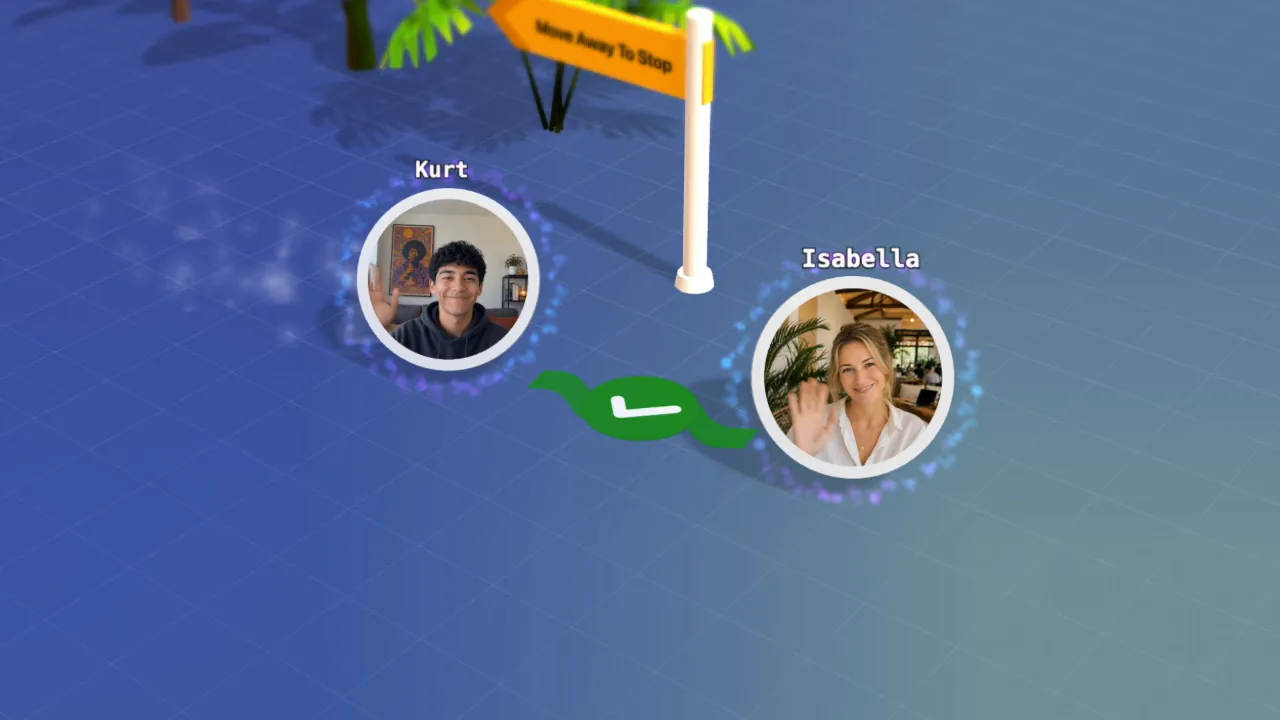
Get close to another avatar and their voice grows louder, just like real life. Step away and it fades. More: How spatial audio works.
You can join with your camera off and turn it on later from the call bar at the bottom of the room. Stuck somewhere? The house button (Teleport home) takes you back to the start.
If you blocked the mic by accident or picked the wrong device, people will not hear you. See Can't hear or be heard.