Camera and mic setup
Pick your devices, check the preview, and walk in sounding right.
Last updated:
How do I set up my camera and mic in flat.social?
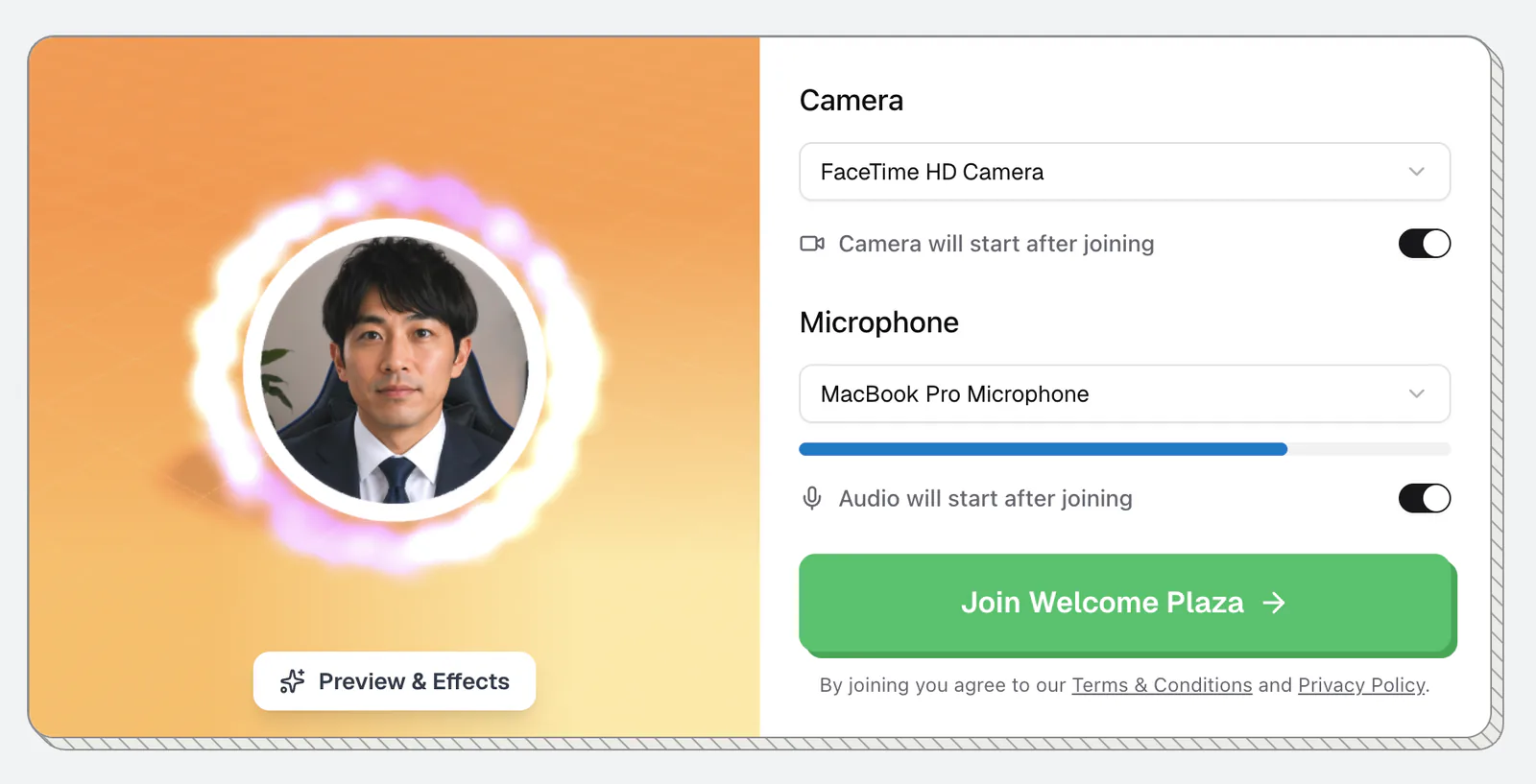
Before you enter a room, the join screen lets you connect your devices, pick your camera and microphone, check the mic level, and decide whether each starts on or off. When everything looks and sounds right, join. You can change all of it later from inside the room.
How to set up your camera and mic
- 1Connect your devices
On the join screen, click Connect Audio & Video. Your browser asks for permission to use your camera and microphone.
- 2Allow access
Choose Allow. Block it and nobody will hear you, though you can still join to listen.
- 3Pick your camera
Open the Camera dropdown and choose the right one. In Open Spatial rooms your video appears on the avatar preview on the left.
- 4Pick your microphone
Open the Microphone dropdown, talk for a second, and watch the level bar move to confirm it picks you up.
- 5Choose how you start
The switch under each device reads "Camera will start after joining" or "Camera will be off when joining" (and the same for audio). Flip it to join with that device off.
Blur your background
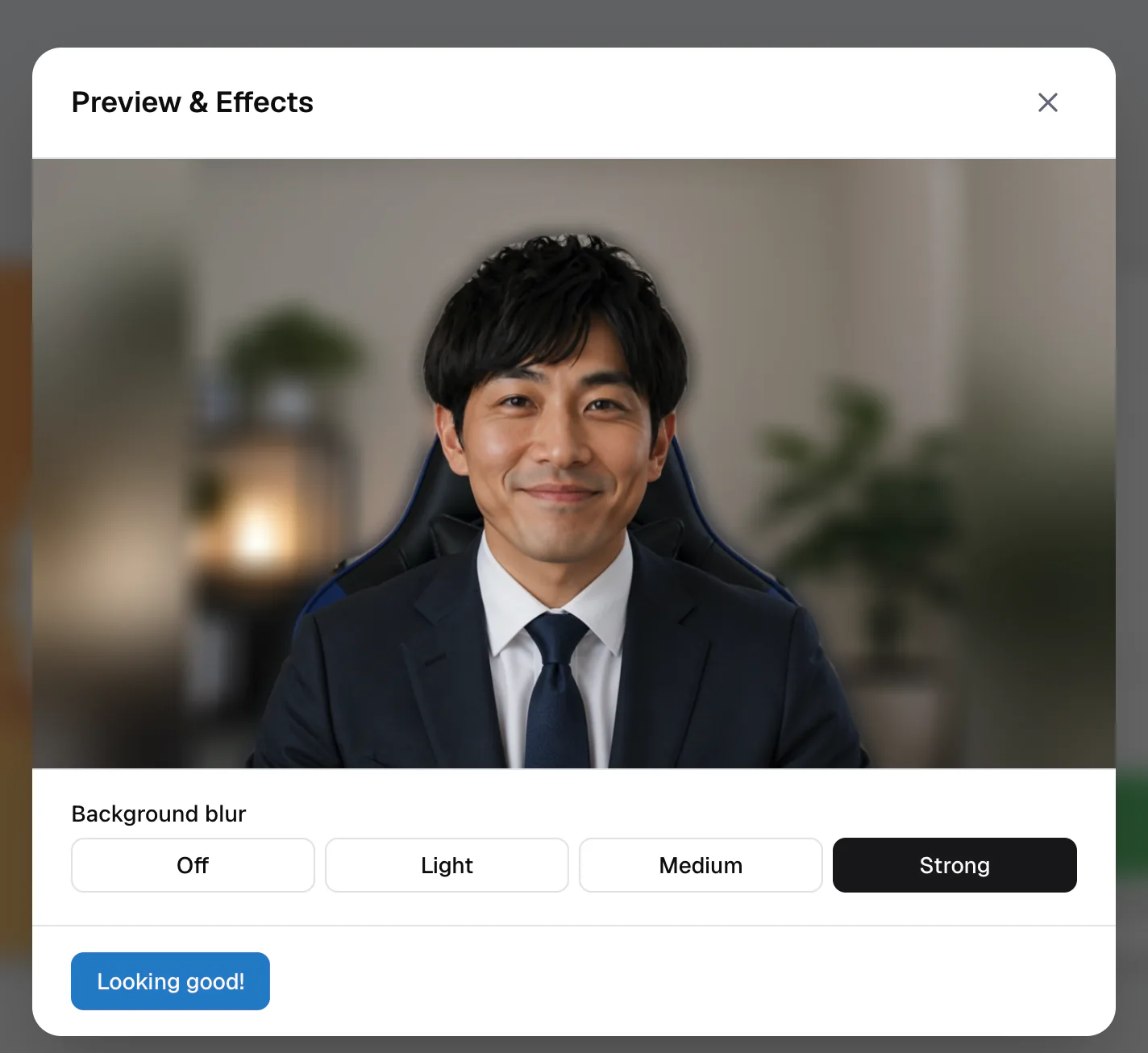
Click Preview & Effects on the join screen to see yourself larger and set Background blur to Off, Light, Medium, or Strong. Click Looking good! when you're happy. You can change it later in the room's Video settings. Background blur isn't available on phones or in some browsers.
The mic level bar is your quick test. If it stays flat while you talk, you picked the wrong microphone or it is muted in your system settings.
Why is my browser asking for permission?
Browsers block camera and mic access until you say yes. The first time you join, pick Allow. If you clicked Block by mistake, flat.social shows "Camera and microphone access was denied" and you can Join without camera or mic.
To undo a block, open the site permissions (usually the icon to the left of the address bar), set camera and microphone to Allow, and reload the page. On iPhone, go to Settings ▸ Apps ▸ Safari ▸ Microphone (and Camera). See Camera or mic not working.
Can I change devices after joining?
Yes.
- Open Spatial room: hover the mic or camera button in the call bar and click the gear. Settings opens on the Audio tab (Microphone, Speaker, Noise cancellation) or the Video tab (Camera, Background blur, and Pop-out call on tab switch).
- Conference room: click the gear to open Device Settings, with the same options.
- Phone: tap More → Audio & video.
The Speaker option only appears in browsers that let websites choose your audio output (such as Chrome and Edge). Elsewhere, switch output in your system sound settings.
Turn on Noise cancellation in the Audio settings to filter background noise like music and chatter out of your mic. It uses extra CPU and downloads about 24 MB the first time. It isn't available on phones.