Camera or mic not working
Fix blocked permissions, wrong devices, and apps holding your camera.
Last updated:
Why is my camera or mic not working in flat.social?
It almost always comes down to permission: your browser asked once, you missed it or clicked block, and now flat.social can't reach the device. The other common causes are the wrong device, another app holding the camera, or your operating system blocking access. flat.social tells you which one it is with a message such as:
- "Camera access was denied. Please allow access in your browser settings."
- "Camera couldn't start — it may be in use by another app."
- "No camera found on this device."
(and the same for the microphone). Work through the fixes below in order.
Click the icon at the left of your browser's address bar (a lock, sliders, or a camera). If Camera or Microphone is blocked, set it to Allow and reload the page.
Allow camera and mic in your browser
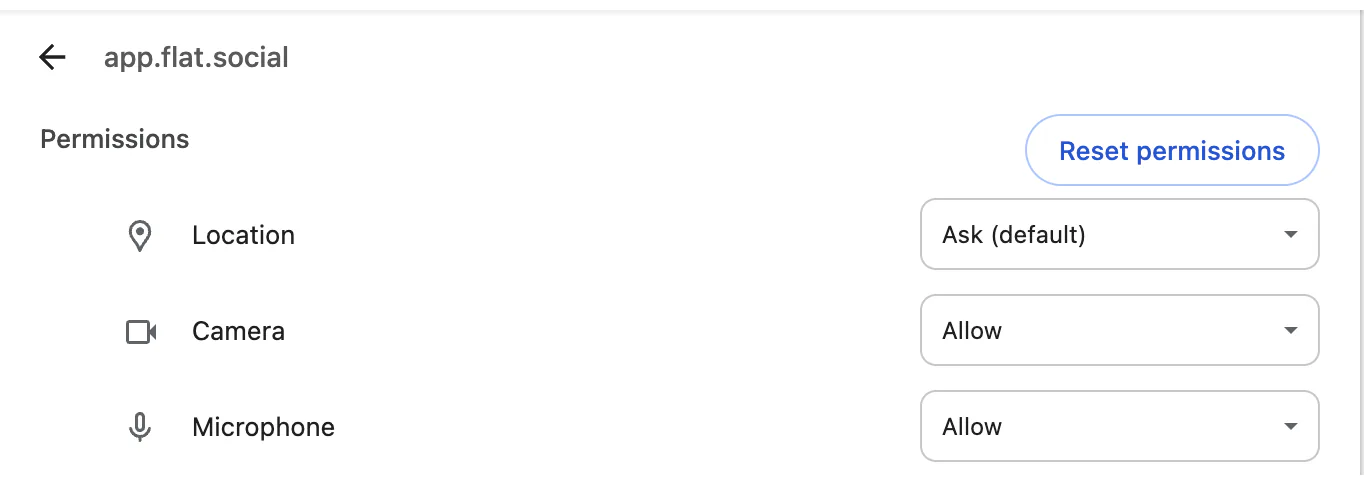
Reset the site permission and select the correct device.
- 1Open the site settings
Click the icon at the left of your browser's address bar to open the site settings for app.flat.social (where rooms run).
- 2Set Camera and Microphone to Allow
Change both from Block or Ask to Allow.
- 3Reload the page
Refresh flat.social so it asks for the devices again, and accept the prompt if one appears.
- 4Pick the correct device
On the join screen, choose your devices in the Camera and Microphone dropdowns. Inside a room, hover the mic or camera button and click the gear.
On an iPhone or iPad
Safari doesn't ask twice. If you denied access, open Settings ▸ Apps ▸ Safari ▸ Microphone (and Camera), allow it, then reload the page. Until then you can still join and listen.
If you opened the link inside an app like Instagram or LinkedIn, its built-in browser can't use your camera or mic at all. Tap Open in Safari (or Open in browser) on the flat.social page.
Another app is holding the camera or mic
Most computers let only one app use the camera at a time. If you left a Zoom, Teams, or FaceTime call running, flat.social can't start the camera. Close every other app and browser tab that uses the camera or mic, then reload flat.social.
Check your operating system privacy settings
Even with browser permission granted, your computer can still block the camera, especially on managed work laptops or after a system update.
- macOS: System Settings → Privacy & Security → Camera and Microphone, and turn on your browser.
- Windows: Settings → Privacy & security → Camera and Microphone, and allow apps and your browser to use them.
After changing a system setting, quit and reopen your browser.
You don't have to be stuck on the join screen. Click Join without camera or mic to listen in, then fix your devices and turn them on from the call bar. Still failing? Try another supported browser to rule out a profile or extension problem.