Monitor who's online
See everyone in your flat at a glance, room by room, in real time.
Last updated:
How do you see who is online in flat.social?
In the lobby, open the People tab in the sidebar: it lists everyone online and which room they're in, followed by offline members. Inside a room, click the people icon at the bottom right to open the Users panel, which shows who's in this room or anywhere in the flat.
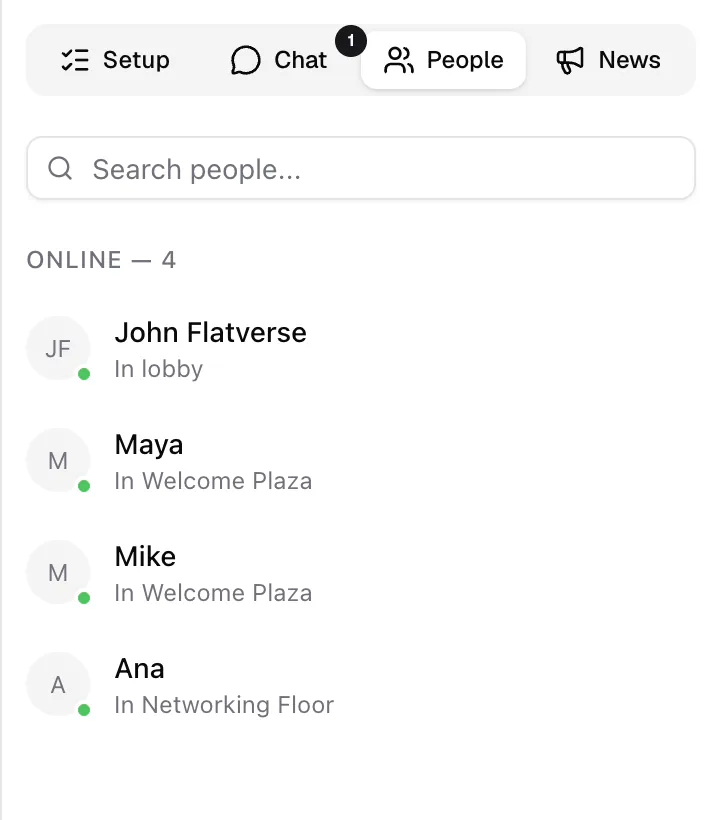
The lobby People tab
The People tab in the lobby sidebar is your live view of the flat. It has a Search people... box and two sections:
- Online — N: everyone connected right now, with a green dot and where they are: In lobby or In {room name}. People sharing a screen get a Presenting badge.
- Offline — N: members who aren't connected, including people you invited who haven't visited yet.
Click a person to open their profile and Send direct message. On a phone, the People tab is in the bar at the bottom of the lobby.
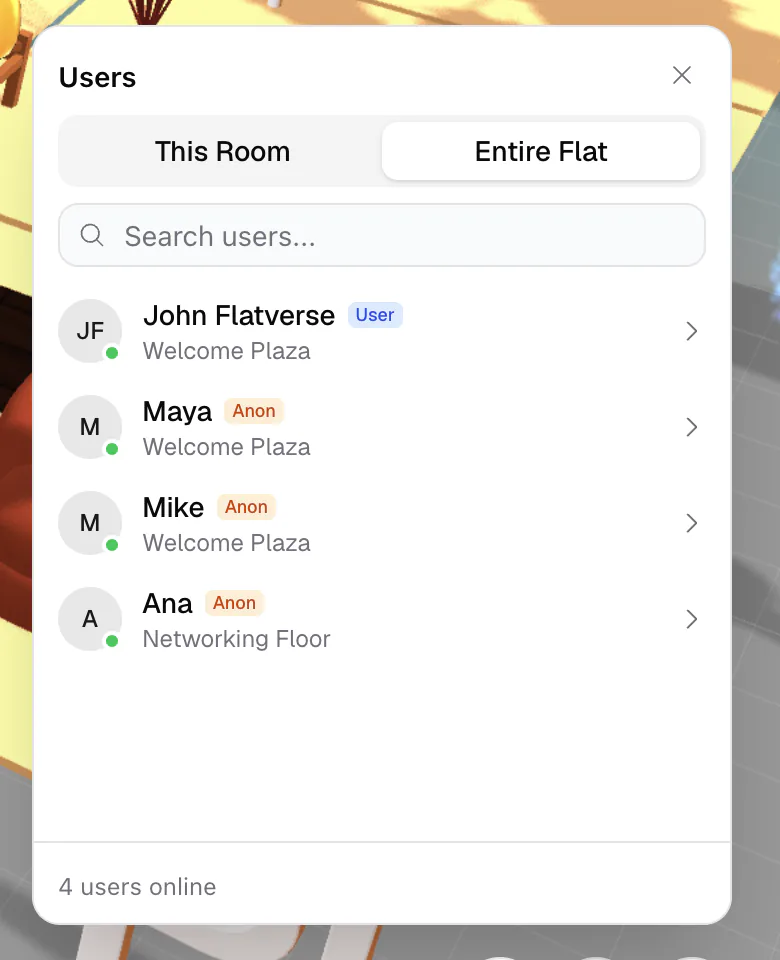
The in-room Users panel
Inside a room, click the people icon at the bottom right (on a phone: More → People). The Users panel has two tabs:
- This Room: who is in the same room as you.
- Entire Flat: everyone online in the flat, with the room each person is in.
Each person is marked User (signed in) or Anon (anonymous guest), and the footer shows how many users are online. Click someone to Send message; flat owners also get Kick and Ban & Kick here. You can also open it from Quick Access (⌘/Ctrl+K) with Show people in this room.
Room cards in the lobby also show a Live tag and how many people are inside, which is the fastest way to spot crowded and empty rooms during an event. Nudge people toward quiet rooms with an announcement or Invite everyone to another room in Host tools.