Build mode
Place elements, paint the floor, and shape your Open Spatial room live.
Last updated:
What is build mode?
Build mode is the in-room editor for Open Spatial rooms. Everything in a room is an element (rooms, chairs, plants, games, even the floor), and in build mode you can add, move, and remove elements while everyone in the room sees the changes in real time.
Build mode needs the Build Map permission. The default Member role has it, the default Guest role does not. Grant it in Roles & permissions. Build mode works on computers only, not on phones.
How do I open build mode?
In an Open Spatial room, click the wrench at the bottom left (Build mode). The Build Mode panel opens; you can drag it by its header and resize it from the corner. The first time you build, a short three-step tour explains the basics, then the element library opens. You can replay the tour any time from the ? button (How building works) in the panel header.
The panel has four tabs:
- Add New: a quick palette of elements, plus Add 3D Text and a way into the full library
- Elements: a searchable list of everything placed in the room
- Floor: paint and erase floor tiles and walls
- Vibes: the room's lighting presets
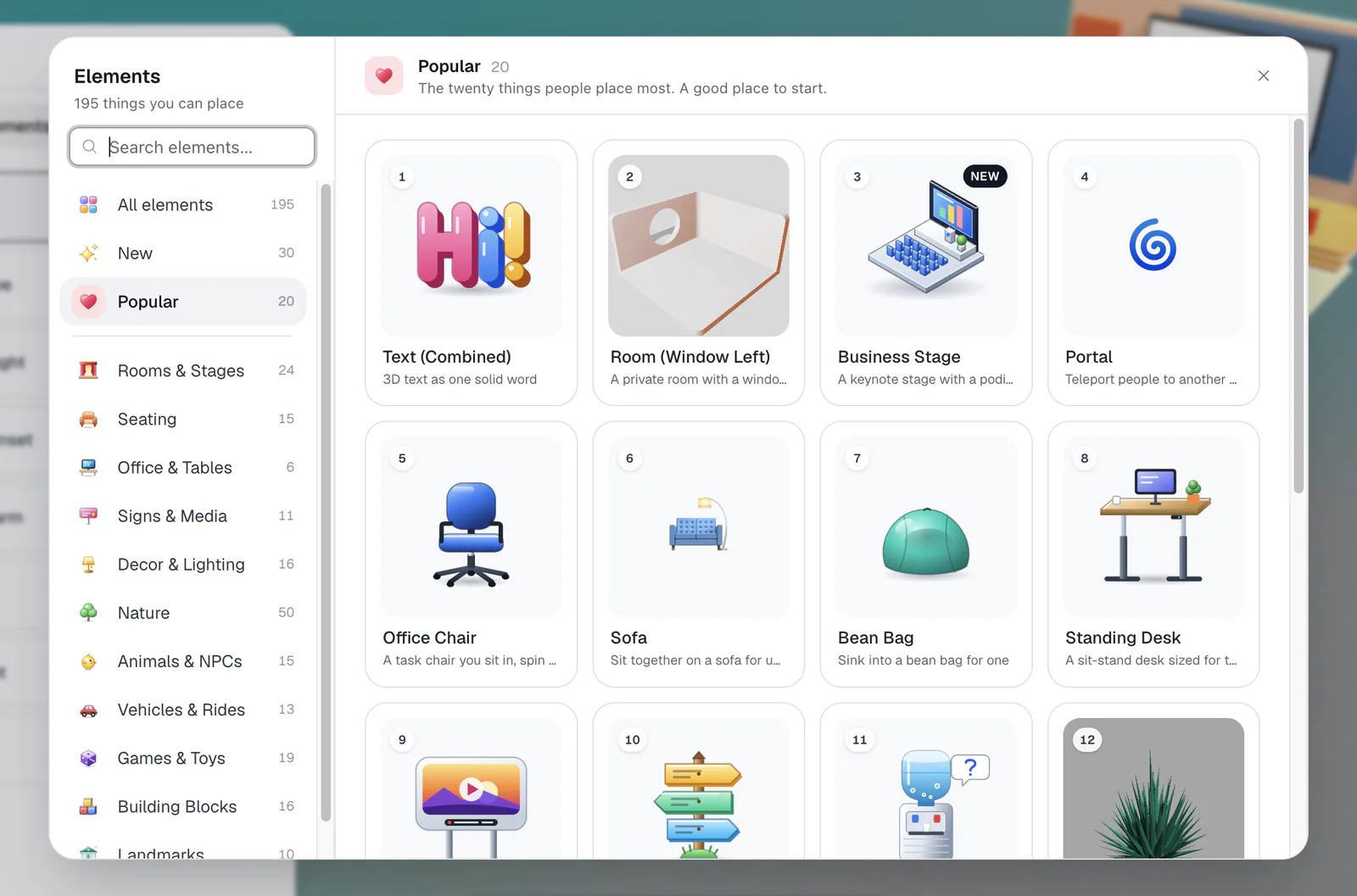
Add elements from the library
The library groups everything you can place into categories: Rooms & Stages, Seating, Office & Tables, Signs & Media, Decor & Lighting, Nature, Animals & NPCs, Vehicles & Rides, Games & Toys, Building Blocks, and Landmarks. The New and Popular shelves are good places to start, and search finds anything by name.
Badges on each card tell you what an element does, such as Sit, Drive, Play, Teleport, Shows content, Private audio, or Customisable. See the Element catalog for an overview.
To place an element, pick it and click in the room ("Click to place · Esc to cancel"). Drag across the floor to place one per grid cell, hold Shift to stack on top of other elements, and press Esc when you're done. You can also drag a tile from the Add New tab straight into the room.
Build with building blocks
Building blocks are simple shapes for when no finished element fits:
- Brick: a box for walls, steps, and platforms
- Divider: a thin panel to split or screen off space
- Column: a vertical pillar
- Sphere: a ball
- Ramp and Curved Ramp: slopes people can walk up, for stages and level changes
- Arch: a semicircular archway
- Doorway: a wall panel with a door opening
- Corner Wall: two walls meeting at a corner
Blocks resize along each axis and take any color from the material palette. They can be pushed around by avatars by default; set Physics body to Fixed ("Stays in place") to lock them.
Move, rotate, and scale
Click any element to select it. The element panel shows Transform with Move, Rotate, and Scale, and the on-screen handles do the rest.
- Move snaps to a 1-unit grid while Snap to grid is on (it is by default).
- Rotate snaps in 15-degree steps.
- Scale resizes building blocks and terrains along each axis in 1-unit steps; other elements scale evenly.
- Billboards and flags have Align to front to face the camera in one click.
To select several elements, drag a box on empty space or ⌘/Ctrl+click elements one by one. The panel then shows how many are selected and lets you delete them together.
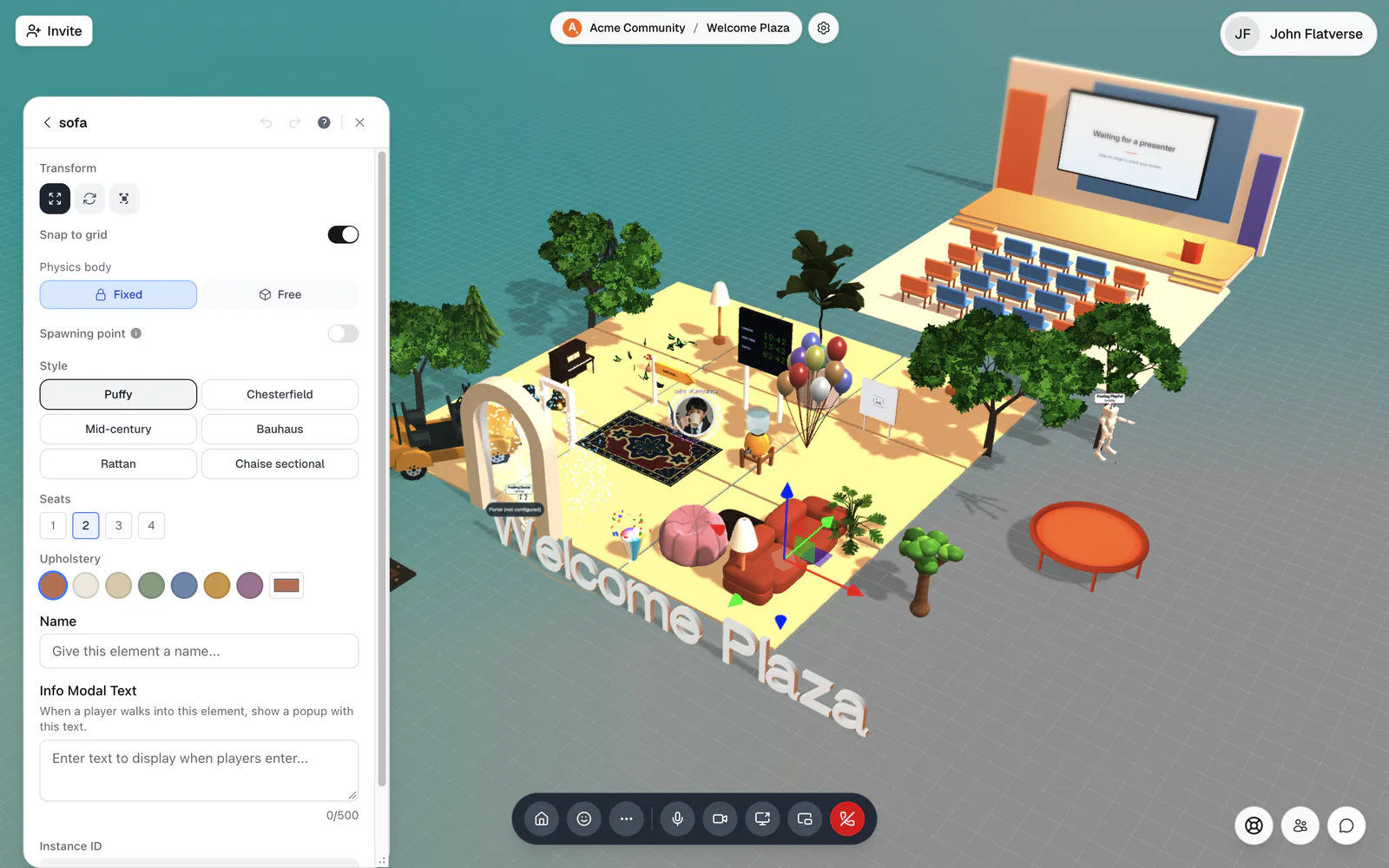
Element settings
Most elements have extra settings in the element panel, such as colors, styles, seat counts, or media. Every element also has:
- Name: shows up as a destination for portals and teleports
- Info Modal Text (fixed elements): text of up to 500 characters; when someone walks into the element they see a prompt with its name and press Enter to read it
- Spawning point: people joining the room appear on top of it
- Physics body: Fixed (stays in place) or Free (falls, can be pushed)
Moving, placing, and deleting save instantly for everyone. Changes to these settings need Save; closing the panel with unsaved edits asks "Discard unsaved changes?"
Paint the floor
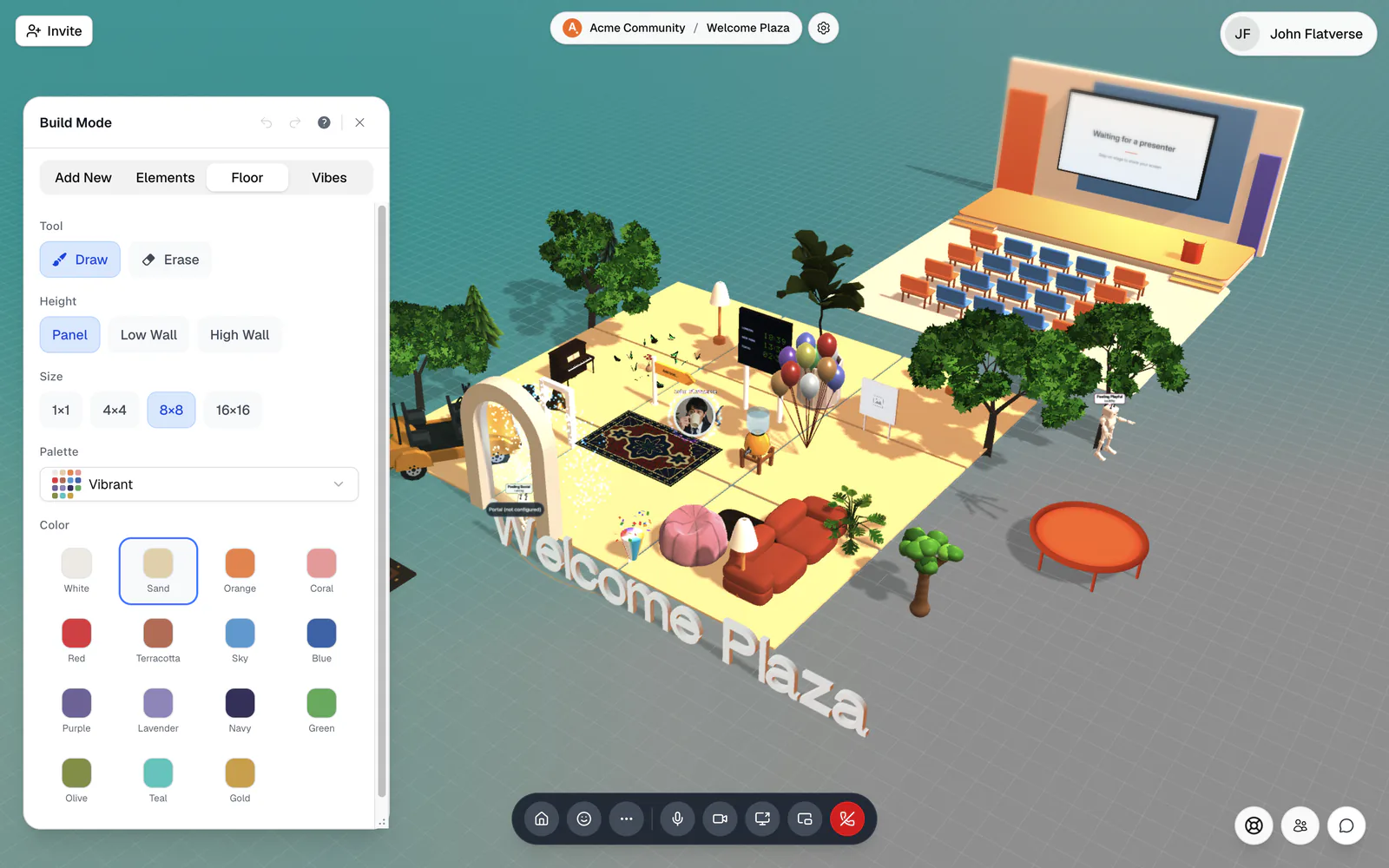
Open the Floor tab. Choose Draw or Erase under Tool, then a Height: Panel (a flat tile), Low Wall, or High Wall. Panels can be painted with a brush Size of 1×1, 4×4, 8×8, or 16×16; walls always paint one tile at a time. Pick a Palette (grass, water, sand, snow, wood flooring, bricks and concrete, glass, glow, and more) and a Color, then click or drag on the ground.
Add text, billboards, and signs
Click Add 3D Text in the Add New tab to place words in the room: type up to 50 characters, then choose the Font, Size, Depth, and Color. Use it for room labels, welcome messages, or stage signage.
Billboards show an image, GIF, or video that you upload, with optional legs and an optional countdown. Visitors can like and comment on them. Flags show a PNG or JPEG. For signs, sticky notes, social buttons, and clocks, see Show content in your room.
Set the mood with a vibe
The Vibes tab holds the room-wide lighting presets: Daylight, Synthwave, Island Bright, Island Sunset, Island Warm, Sunset, Soft Night, and Matrix. A vibe sets the light, fog, glow, and color grade in one click and saves for everyone. See Customize rooms.
Build mode shortcuts
Undo covers placing, moving, deleting, and floor painting, so experiment freely. Walk up to anything you placed and press Enter to try it: sit on a sofa, drive a car, or play a game.