Invite people by email or role link
Bring specific people in with a role, and keep track of who accepted.
Last updated:
How is an invitation different from sharing a link?
Your plain flat link lets anyone in as a guest, as long as your access settings allow it. An invitation brings a person in with a role you choose, such as Member or Moderator, and shows up in a list where you can track, resend, or cancel it. There are two kinds: personal email invites and role links you can share. People need a flat.social account to accept either one.
Who can send invitations?
The flat owner, and anyone whose role has the Invite People permission. The built-in Moderator role has it. You can only invite people into roles whose permissions are no stronger than your own. Everyone else can still share the plain link; see Invite people.
You'll find invitations in several places:
- The Invite button in the lobby header or in a room opens the invite dialog, which has an Email tab and a role link section.
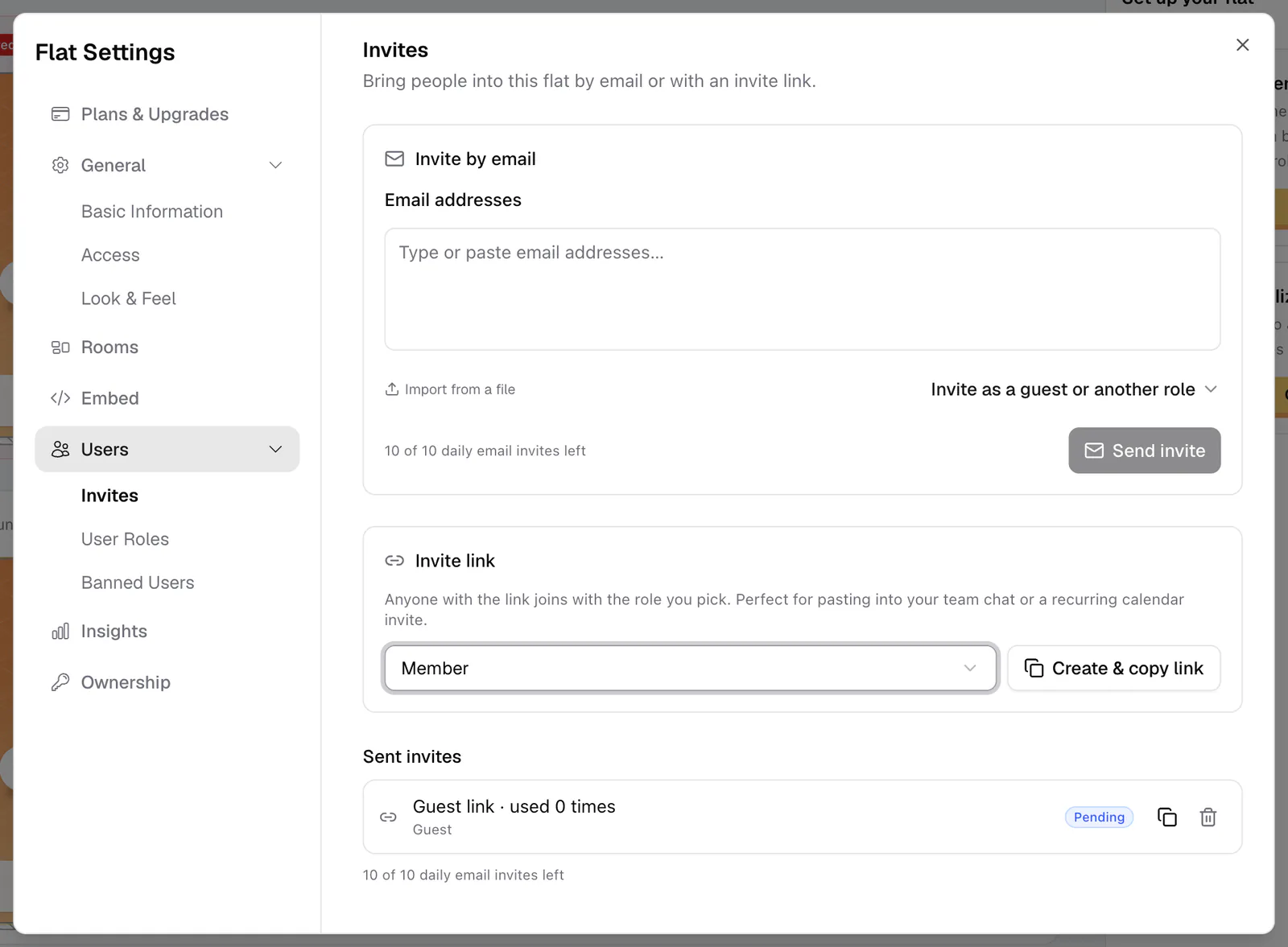
- Settings → Users → Invites has everything in one place, including the list of sent invites.
- Settings → Users → User Roles has an Invite as {role} button on each role (owner only).
- The lobby's Setup checklist has an Invite members step with Invite now.
How to invite people by email
- 1Open the Email tab
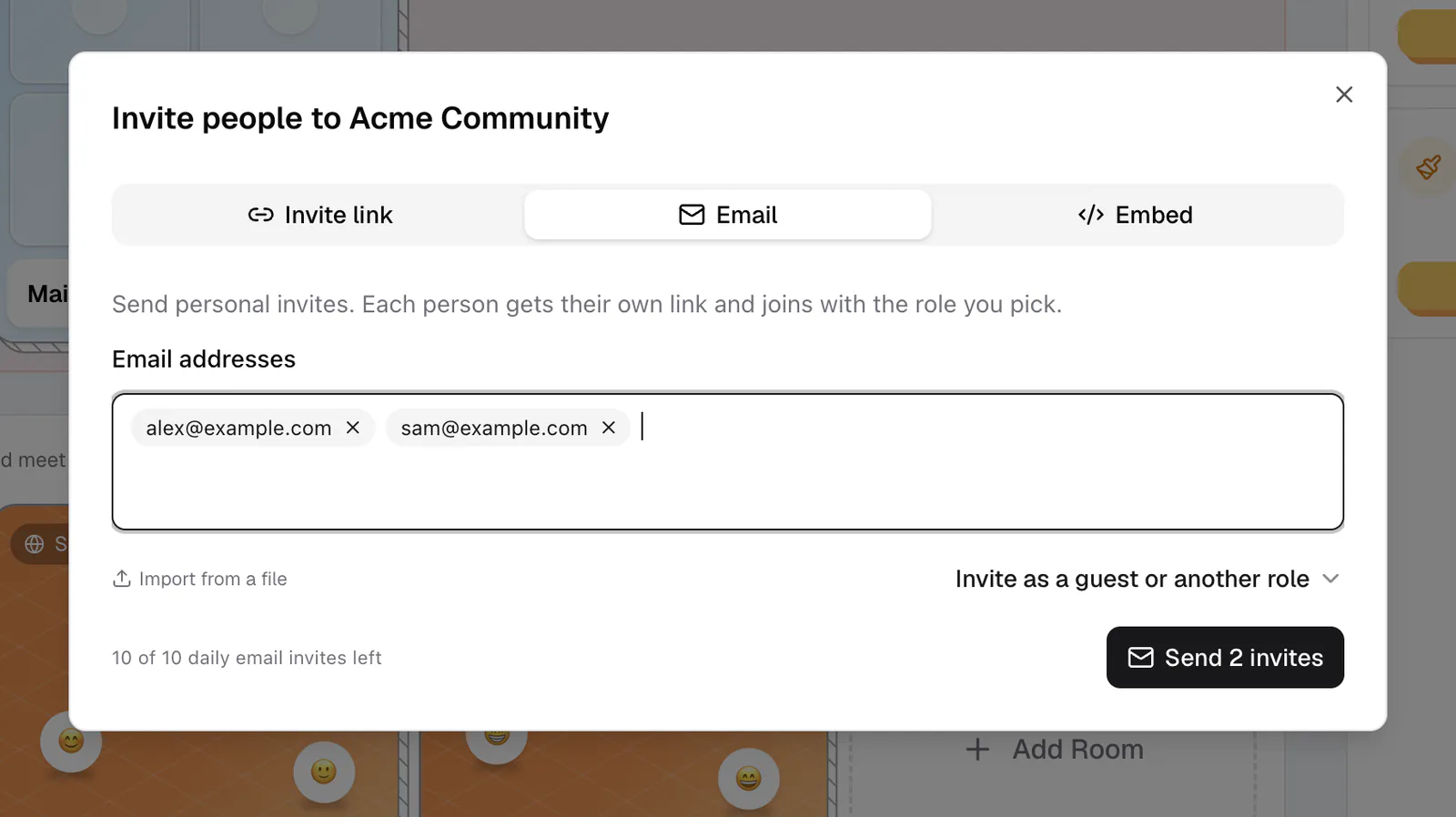
Click Invite and switch to the Email tab, or open Settings → Users → Invites.
- 2Add addresses
Type or paste addresses into Email addresses. You can paste a whole list, drop a file, or click Import from a file (CSV, TXT, TSV, EML, VCF, or MD, up to 2 MB). Invalid addresses turn red; fix or remove them before sending.
- 3Pick the role
Click Invite as a guest or another role and choose a role. The link then reads Inviting as {role}. If you skip this step, invites go out as Member when your flat has that role.
- 4Send
Click Send invite (or Send N invites). You see "Invitation sent!", plus separate notes for anyone who is "Already in this flat" or "Already invited".
Daily email limit
You can send 10 email invites per rolling 24 hours on the Free plan and 100 on the Monthly plan. The composer shows what's left, for example "8 of 10 daily email invites left". Cancelled invites still count toward the limit. If you paste more addresses than you have left, click Keep the first N to send the ones that fit. Role links don't count toward this limit.
Create a role link
A role link is one link that many people can use, which suits a team chat or a recurring calendar invite. In the invite dialog, go to the Invite link tab and find "Or create an invite link for a specific role" (or use Invite link in Settings → Users → Invites). Choose a role and click Create & copy link.
- Anyone who opens the link and signs in joins with that role.
- A link works for 30 days.
- In your list it reads "{role} link · used N times". In the dialog, "See N invite links you made before" lets you copy an earlier one.
Treat a role link like a key. Share a Moderator link only with people you'd trust to run your sessions, and cancel it when you no longer need it.
Track, resend, or cancel invites
Settings → Users → Invites lists everything under Sent invites, with a status on each row:
- Pending: sent, not yet used.
- Accepted: the person joined ("joined as {name}").
- Cancelled: you withdrew it.
- Expired: 30 days passed.
- Not delivered: "Email not delivered. Check the address, then resend or cancel."
The buttons on each row:
- Copy link on a role link that is still active.
- Resend on an email invite that is pending, expired, or not delivered. It sends the same link again and gives it another 30 days. You can resend an invite up to 5 times.
- Cancel invite on anything still open. The link stops working right away.
What the people you invite see
An email invite arrives with the subject "{your name} invited you to {flat} on flat.social" and an Accept invitation button. It notes that the invitation expires in 30 days.
The button (or a role link) opens a page that says "{your name} invited you to join {flat}" and "Your spot is ready. You will join as a {role}." They sign in or create an account ("Already have an account? Sign in" / "New here? Create an account"), then click Accept invitation. Guests without an account can't accept.
Once they accept:
- They get the role. If they already had a role in your flat, the new one replaces it.
- Your flat appears in their My Flats.
- If they accept with the address the invite was sent to, their email counts as verified.
If something is off, the page says so: "This invitation has expired", "This invitation was cancelled", "This invitation was already used", "This invite link is full", or "Invitation not found".
If Closed Flat is on, only the owner and people whose role has Always Access Flat can get in, and the invite dialog warns you. Invite people into a role with that permission (the built-in Moderator role has it) or open the flat. The same goes for Allowed Domains: an invitee whose email is not on the list is turned away unless their role has Always Access Flat. See Privacy & access control.