Invite people
Share a link, send personal invites, or pull people into your room.
Last updated:
How do I invite people to my flat?
The quickest way is to share a link. Click Invite in your lobby header (or the person-plus icon at the top of a room) and copy the link from the Invite link tab. Anyone who opens it gets in, as long as your access settings allow them. Paste it in a calendar invite, an email, or a chat message.
When you want people to arrive with a specific role, for example as Members who can help build, send them a personal invite instead. See Invite people by email or role link.
What does a flat link look like?
A flat link is flat.social/f/{flat}, which opens your lobby. A room link is flat.social/f/{flat}/{room}, which takes people straight into that room.
How to share your flat
- 1Open the Invite dialog
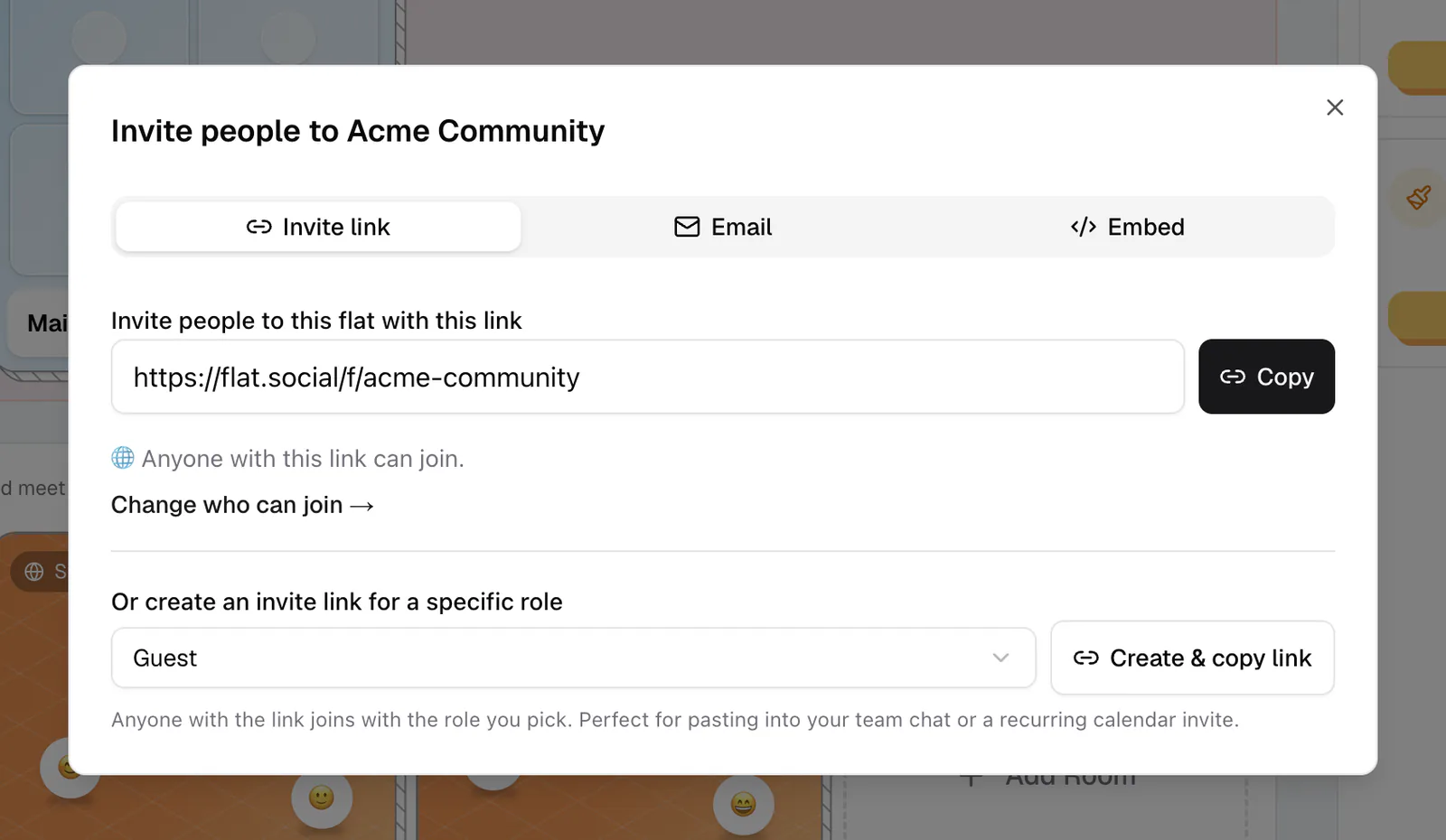
Click Invite in the lobby header, or the person-plus icon in a room. The dialog is titled "Invite people to {your flat}".
- 2Copy the link you need
On the Invite link tab, copy the flat link ("Invite people to this flat with this link"). Inside a room you also get a link that brings people directly into that room.
- 3Check who can join
The dialog shows who the link works for, for example "Anyone with this link can join." Click Change who can join → to adjust your access settings.
- 4Share it anywhere
Paste the link into a calendar event, email, Slack, or your event page. Anyone who clicks it lands in your space.
Plain link or personal invite?
- Plain link: anyone who opens it joins as a guest, subject to your access settings. No account needed if Allow Anonymous Users is on.
- Email invite or role link: people sign in or create an account, then join with the role you picked (Guest, Member, Moderator, or your own). You can track who accepted in Settings → Users → Invites.
The Email tab in the Invite dialog and the Embed tab (a join button for your website) are available to people who manage the flat.
Bring in people who are already online
Inside a room, open Quick Access (⌘/Ctrl+K) to ask people elsewhere in the flat to come over: Invite someone to join me, Invite people to this room, or, with the Move Participants permission, Invite everyone to this room. Each person gets a prompt they can accept or dismiss. See Host tools.
What do guests see when they open your link?
Guests open the link in their browser, with nothing to install. A flat link shows your lobby, where they pick a room; a room link takes them straight to that room's join screen. There they type a display name, check their camera and mic, and join. See Join a space.
For a workshop that starts at a set time, share the direct room link so attendees skip the lobby. Point first-timers to Join your first space so they know what to expect.