Create & configure rooms
Add a room, name it, choose its style, and pick a map.
Last updated:
How do I create a room on flat.social?
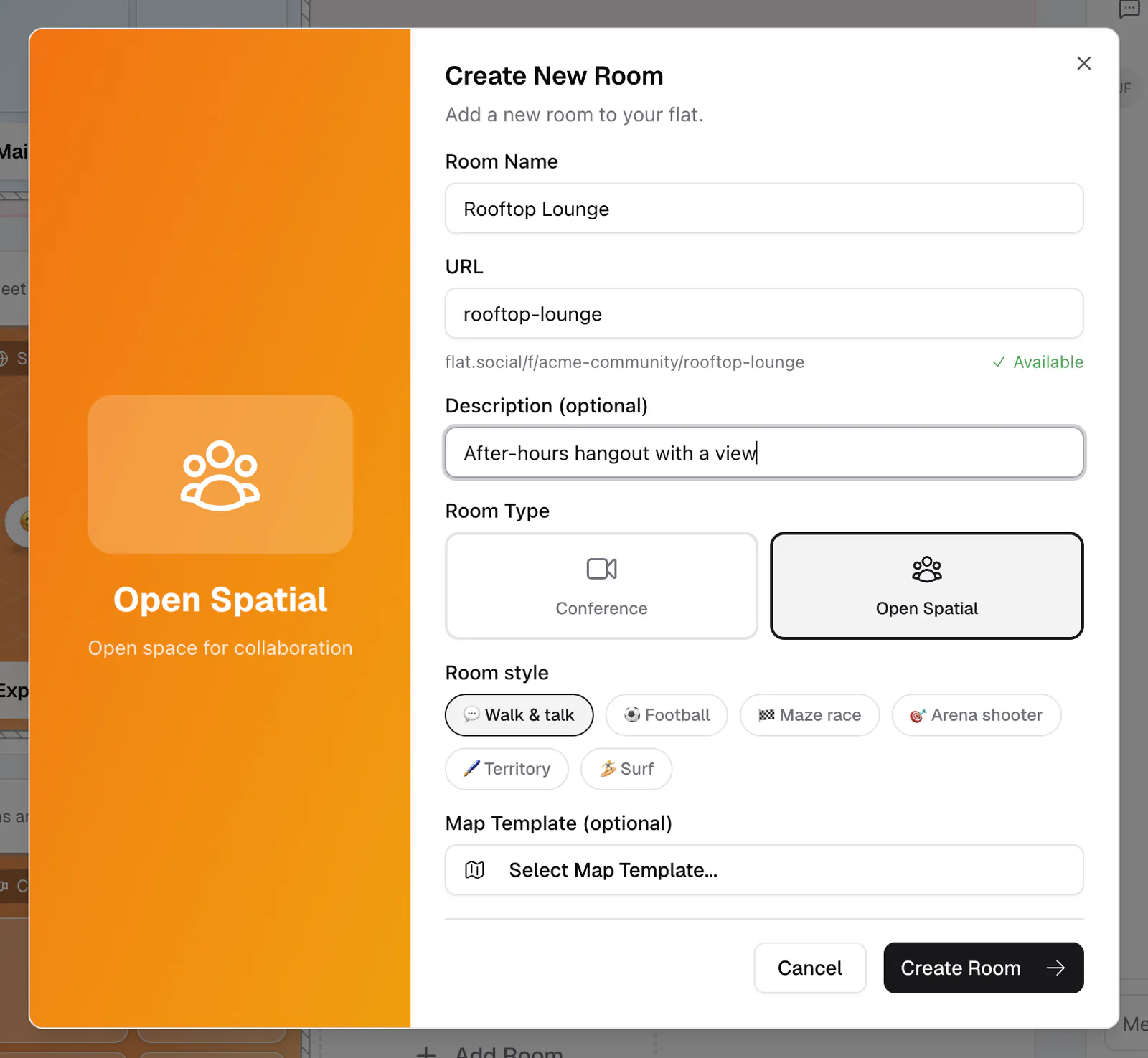
In your lobby, click the dashed Add Room card at the end of any category. The new room is added to that category. You can also go to Settings → Rooms and click Add Room; rooms created there land in your first category. Either way the Create New Room dialog opens.
You need the Edit Rooms permission to add rooms. Before you start, decide which room type fits: Open Spatial for mingling and games, Conference for talks.
How to create a room
- 1Open the create dialog
Click Add Room in a lobby category (or Settings → Rooms → Add Room). The Create New Room dialog opens.
- 2Name the room
Type a Room Name (2 to 32 characters). This is the label guests see in your lobby, like "Main Floor" or "Q&A Stage".
- 3Check the URL
The URL fills in from the name (2 to 32 characters, lowercase letters, numbers, and dashes). The preview shows flat.social/f/your-flat/your-room, and flat.social marks it Available or Already taken. Choose carefully: a room URL cannot be changed later.
- 4Add a description (optional)
Write a short Description (up to 150 characters) so guests know what the room is for.
- 5Choose the room type
Pick Conference or Open Spatial under Room Type. The type cannot be changed later.
- 6Choose a room style (Open Spatial only)
Keep 💬 Walk & talk for a social room, or pick a game: ⚽ Football, 🏁 Maze race, 🎯 Arena shooter, 🖌️ Territory, or 🏄 Surf. Game styles come with a ready-made arena that you can still edit in build mode.
- 7Pick a map template (optional)
For Walk & talk rooms, click Select Map Template... under Map Template (optional), choose a layout, and click Select. Skip it to start from an empty floor with a single spawn point.
- 8Create the room
Click Create Room. It appears in your lobby right away, ready for guests.
How do I edit a room later?
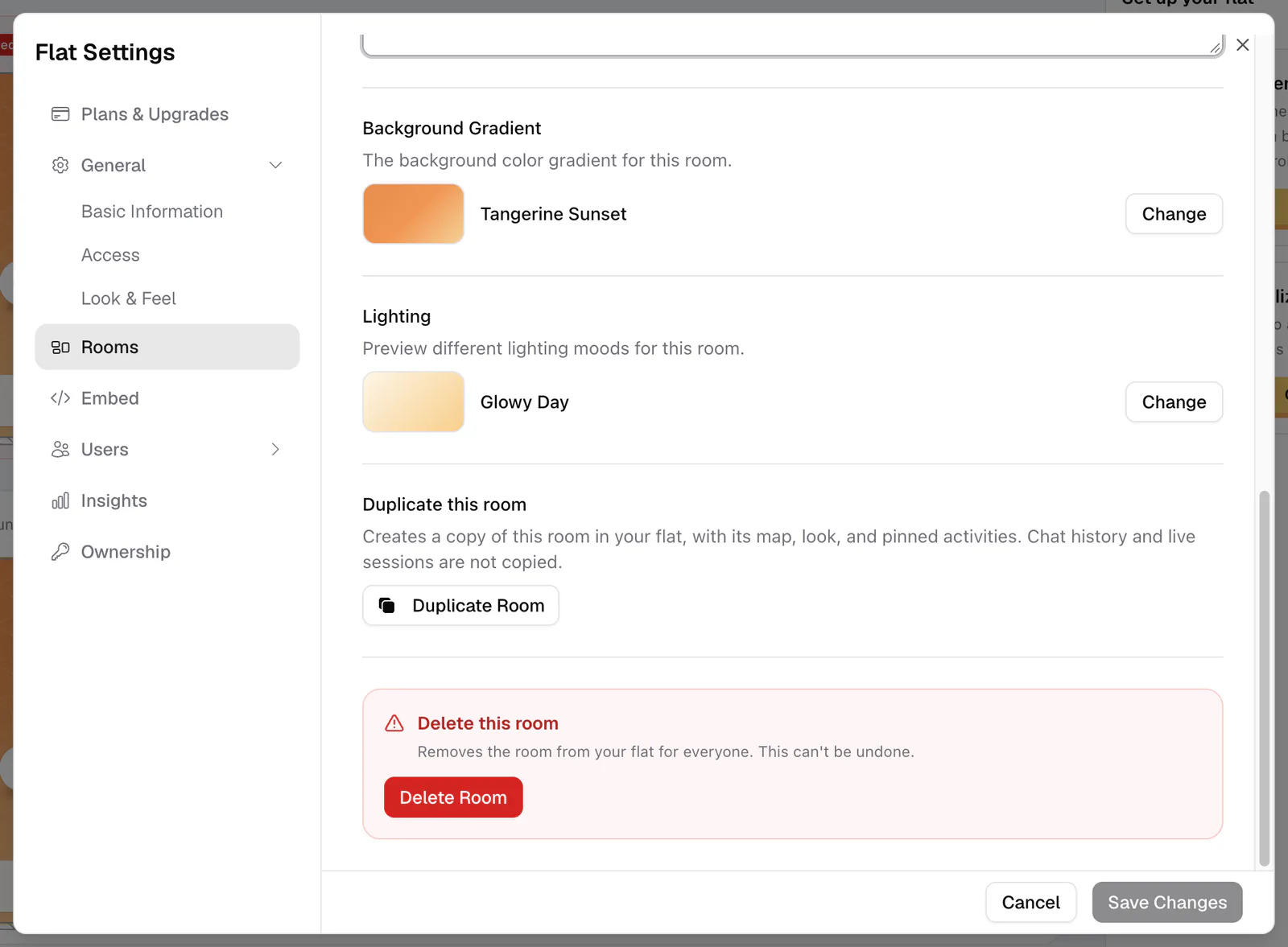
Hover over a room card in the lobby and click the pencil (Edit room), or open Settings → Rooms and click the room. The edit panel has:
- Card Cover: the artwork on the room's lobby card (see Customize rooms)
- Room Name and Description
- Background Gradient for the room's sky
- Duplicate this room and Delete this room
Click Save Changes when you're done. To rearrange rooms, drag their cards in the lobby. See Organize your lobby.
Duplicate a room
Duplicate Room makes a copy with the same map, look, and pinned activities, which is the fastest way to create several identical breakout rooms. Chat history and live sessions are not copied.
Delete a room
Delete Room asks you to confirm and then removes the room and its map for everyone. Links to the room stop working.
A room's address is flat.social/f/{flat}/{room}, and the room part can't be changed after you create the room. If you need a different address, create a new room (or duplicate this one) with the URL you want. See Invite people.