Conference rooms
A familiar video-grid call, with a stage for screens, slides, and activities.
Last updated:
What is a Conference room in flat.social?
A Conference room is a video-grid call, like a standard meeting. There are no avatars and no walking around: everyone appears as a tile, and audio is shared rather than spatial. It is the right format for a talk, a standup, or any session where one group focuses together.
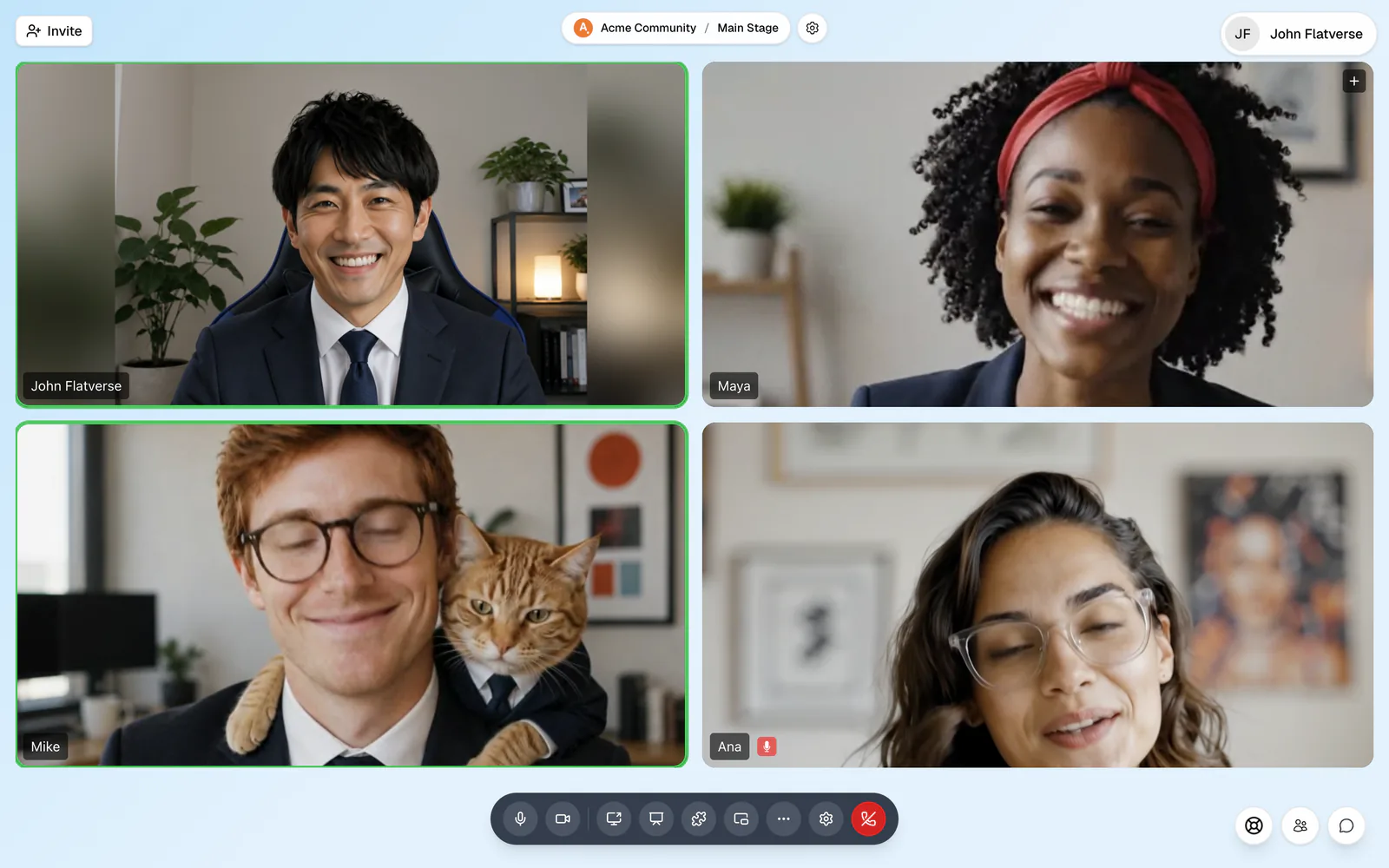
The toolbar
From left to right: Microphone, Camera, Share screen, Present slides, Activities, Pop out call, Quick Access (…), Settings, and the red Leave call. Chat and the people list are round buttons at the bottom right.
Switch the layout
Click your profile picture at the top right, open Settings, and go to the View tab (or press ⌘/Ctrl+K and run Change view). There are three layouts:
- Gallery: equal tiles in a grid. Best for discussions.
- Speaker: the active speaker large, others small.
- Dynamic: active speakers large, everyone else in a mini grid.
Speaker and Dynamic need at least two people. The View tab also has Follow active speaker and Show recent speakers. Your layout only changes your screen.
Read and use the tiles
Each tile shows a person's video, or their photo or initials if their camera is off, and their name. A red microphone icon means they are muted, and a green ring shows who is talking. Hover a tile to pin it in place. Click a tile to open that person's card with Pin, Mute for me, and Message; hosts also get options like mute, Stop their share, Invite to stage, Remove, and Ban.
With five or more people you can search ("Find someone…") and sort the grid. Large calls show 25 tiles per page.
Share, present, and run activities
- Share screen: one person shares at a time. If someone else is sharing, you're asked "Take over the screen share?" See Share your screen.
- Present slides: put a slide deck on the stage for everyone.
- Activities: start a whiteboard, a standup, or a webinar. See Activities.
Only one thing can be on the stage at a time, so end the current share or activity before starting another.
Webinars: speakers and an audience
In a webinar, only the people on stage can speak and show video. Everyone else is in the audience and sees Raise hand to speak instead of the mic and camera buttons. A host can invite someone up; they see "{name} invited you to the stage" with Join the stage or Not now. Speakers can step down with Leave stage.
Phones get their own layout: other people fill the screen, your own video is a small tile you can drag to any corner, and large calls page in groups of six. Anything on the stage sits on top, with Expand and Collapse to resize it. Sharing your screen and presenting slides need a computer. See Phones and tablets.