Ban and moderate users
Remove people who break your rules and keep them out.
Last updated:
What is the difference between kick and ban?
Kick removes someone from the room right now; they can rejoin. Ban removes them and blocks them from coming back to your flat. Both are reversible: you can unban anyone from Settings → Users → Banned Users.
Remove someone who is in a room right now
You need to be the owner or have the Remove Participants permission.
- Open Spatial room: click the person's avatar to open their menu, then choose Kick or Ban.
- Conference room: click their video tile, then choose Remove or Ban.
- Anywhere in a room: open Quick Access (⌘/Ctrl+K) and run Remove someone from the room or Ban someone from the flat, then pick the person.
Flat owners can also use the Users panel (the people icon at the bottom right of a room): click a person and choose Kick or Ban & Kick. You can add an optional message explaining why.
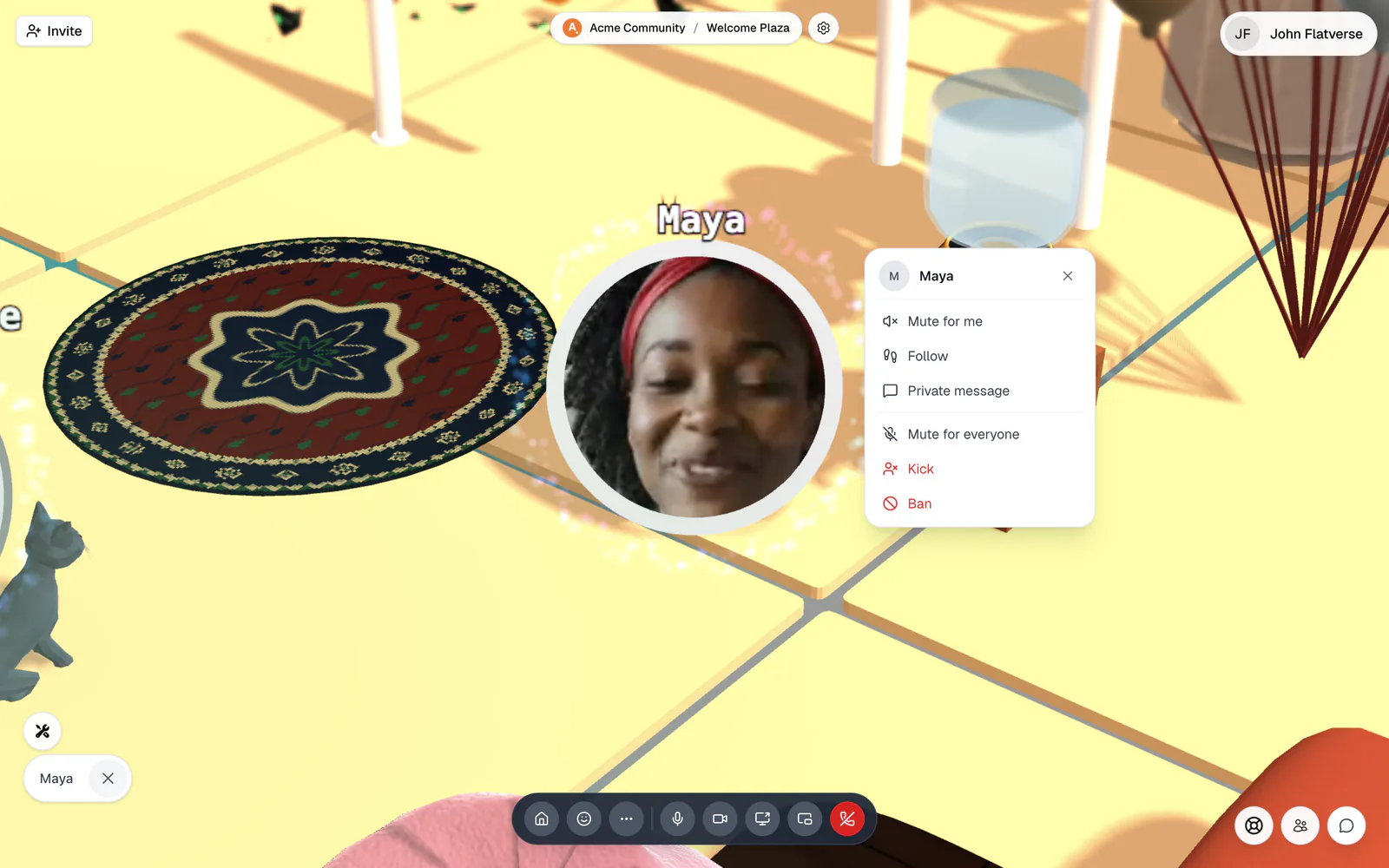
What happens when you ban someone
They are disconnected at once and see "You have been banned". The room chat shows that they were banned. They land on your ban list and can't get back into your flat until you lift the ban. A kicked person sees "You have been kicked" with a Rejoin button.
Bans made in a room are tied to the person's account (or, for anonymous guests, to their browser identity). The flat owner can't be banned.
How to ban someone by email
Useful for keeping someone out before they arrive.
- 1Open Banned Users
Go to Settings → Users → Banned Users. You need to be the owner or have Manage Banned Users.
- 2Enter the email
Under Ban by Email, type the address the person signs in with and click Ban. It only matches verified email addresses.
- 3Unban when needed
Find the person under Banned Users and click Unban user (the ×). They can get back in right away.
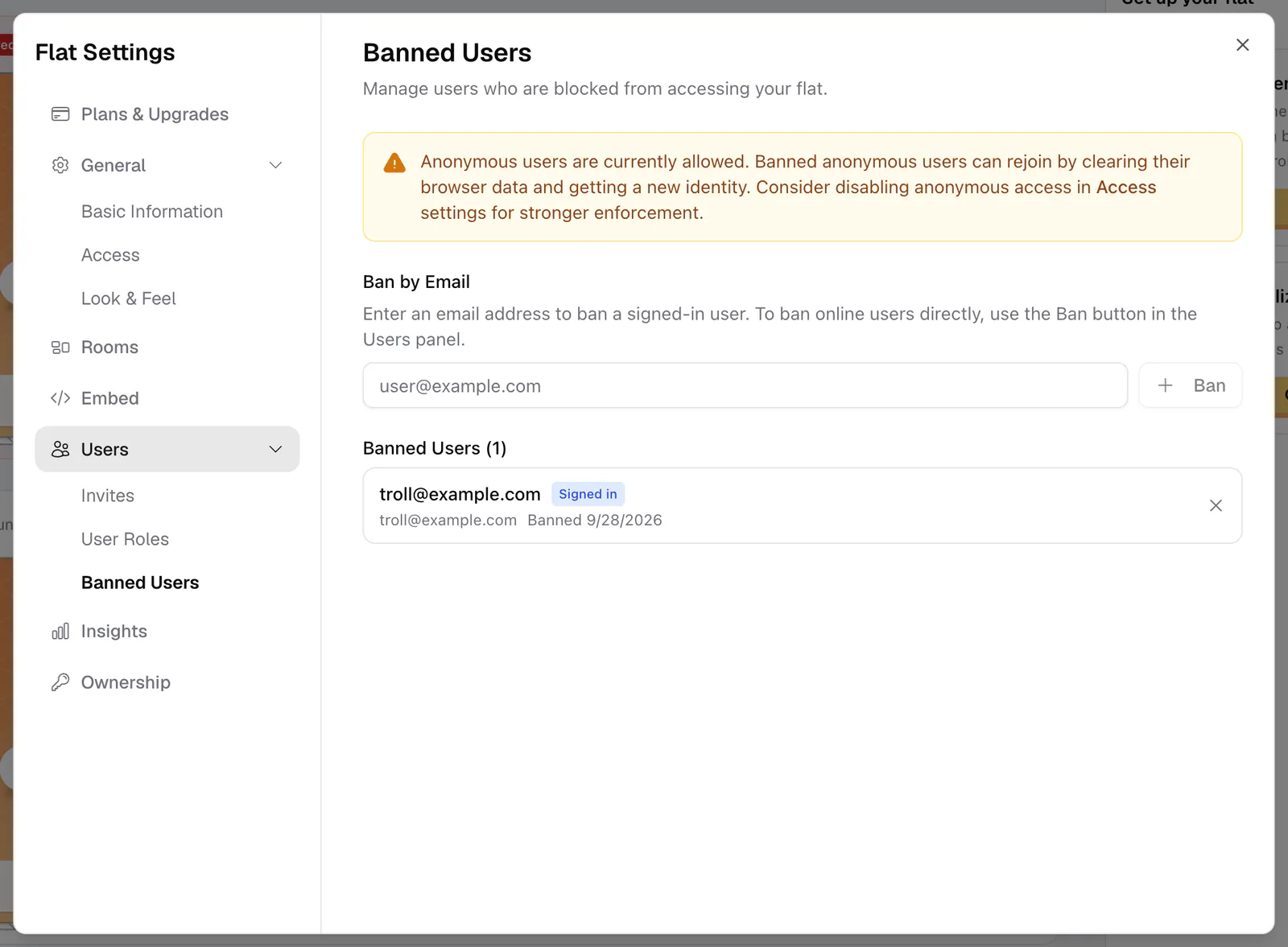
A banned anonymous guest can clear their browser data, get a new identity, and rejoin. If a ban has to stick, turn off Allow Anonymous Users so everyone needs an account, and optionally add a domain allowlist or close the flat. See Privacy & access control.
Other moderation tools
- Mute for everyone: switch off someone's microphone (needs Mute Participants). They can turn it back on.
- Mute for me: silence one person just for yourself. Anyone can do this.
- Remove message: delete someone else's message in lobby or room chat (needs Moderate Chat). Direct messages can't be moderated.
- Filter Profanity: mask swear words in guest names and chat, in Access settings.
For room-wide actions like muting everyone or stopping all screen shares, see Host tools.