Portals
Link places in a room, other rooms, and other flats.
Last updated:
What is a portal?
A portal is a glowing arched doorway you place in an Open Spatial room. People walk up to it and press Enter to travel to wherever you pointed it: another spot in the same room, another room in your flat, the lobby, or a different flat.
Placing and configuring portals needs the Build Map permission, and build mode works on computers only. Anyone in the room can travel through a portal once it has a destination. See Roles & permissions.
How to add a portal
- 1Place the portal
Open build mode, find Portal ("Teleport people to another spot") under Rooms & Stages or by searching, and click where it should stand.
- 2Open the destination settings
Select the portal. In the element panel, under Portal destination, click Configure destination…. You can also walk up to the portal outside build mode and click Configure portal.
- 3Choose where it goes
Pick a tab: A place in this room, Another room in this flat, or A flat, then choose the destination (see below).
- 4Add a label
Type a short Label (up to 50 characters), like "The stage". Visitors see it as "Travel to The stage". Picking a place, a room, or a flat fills the label in for you.
- 5Save
Click Save. The portal works for everyone in the room right away.
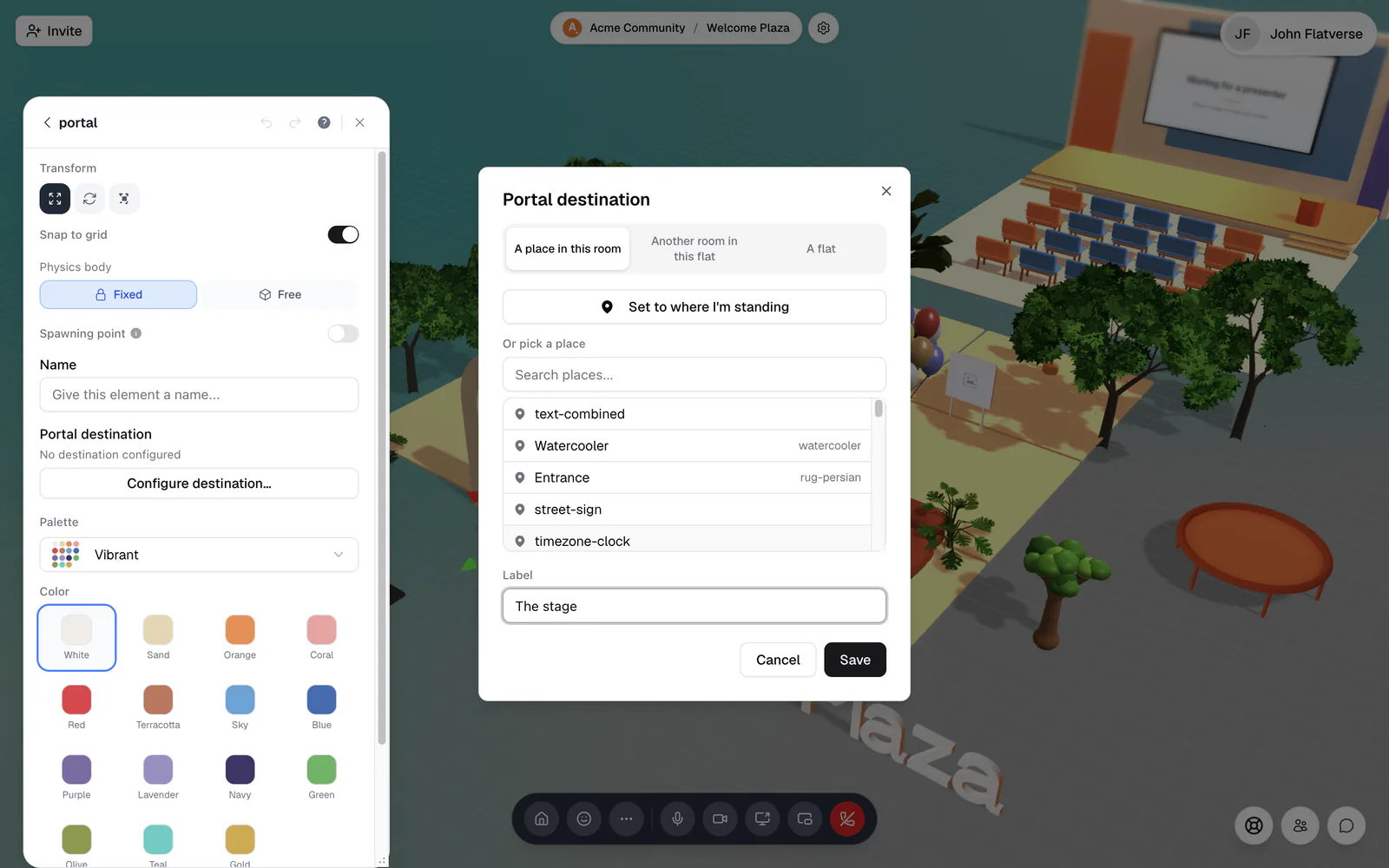
Where can a portal lead?
A place in this room
- Set to where I'm standing saves your current position. Walk to the exact spot first, then click it. The dialog confirms "Destination set to (x, y)".
- Or pick a place lists elements in the room, such as a stage, a pod, or a sign. Search by name or type. If the list says "No named places in this room yet", give your key elements a Name in build mode first. See Spawn points & getting around.
Another room in this flat
Pick a room from the Room list. Travelling takes people out of this room and into that one, like opening it from the lobby.
A flat
- This flat always leads to the lobby of the flat the visitor is in. Because it stores no flat address, a copy of this room in another flat leads to that flat's own lobby.
- Another flat takes a Flat link or name (for example flat.social/f/flat-name/room, or just flat-name) and an optional Room (optional). Click Check. When it shows "Found: {name}", Save unlocks. The other flat's access rules still apply to anyone who travels there.
What do visitors see?
A pill floats above every configured portal: "Travel to {label}". When someone walks up, the prompt "Travel to {label}" appears under their avatar. They press Enter (or tap the prompt on a phone) and go.
- Before a destination is set, the portal shows "Portal (not configured)". Only people with Build Map get a prompt at an unconfigured portal, with the Configure portal button.
- People with Build Map also see Configure portal next to the travel prompt on a working portal, so you can fix a destination without opening build mode.
- If the destination was deleted, travellers see "Destination unavailable" and "Sorry, your destination doesn't exist anymore." Point the portal somewhere else to fix it.
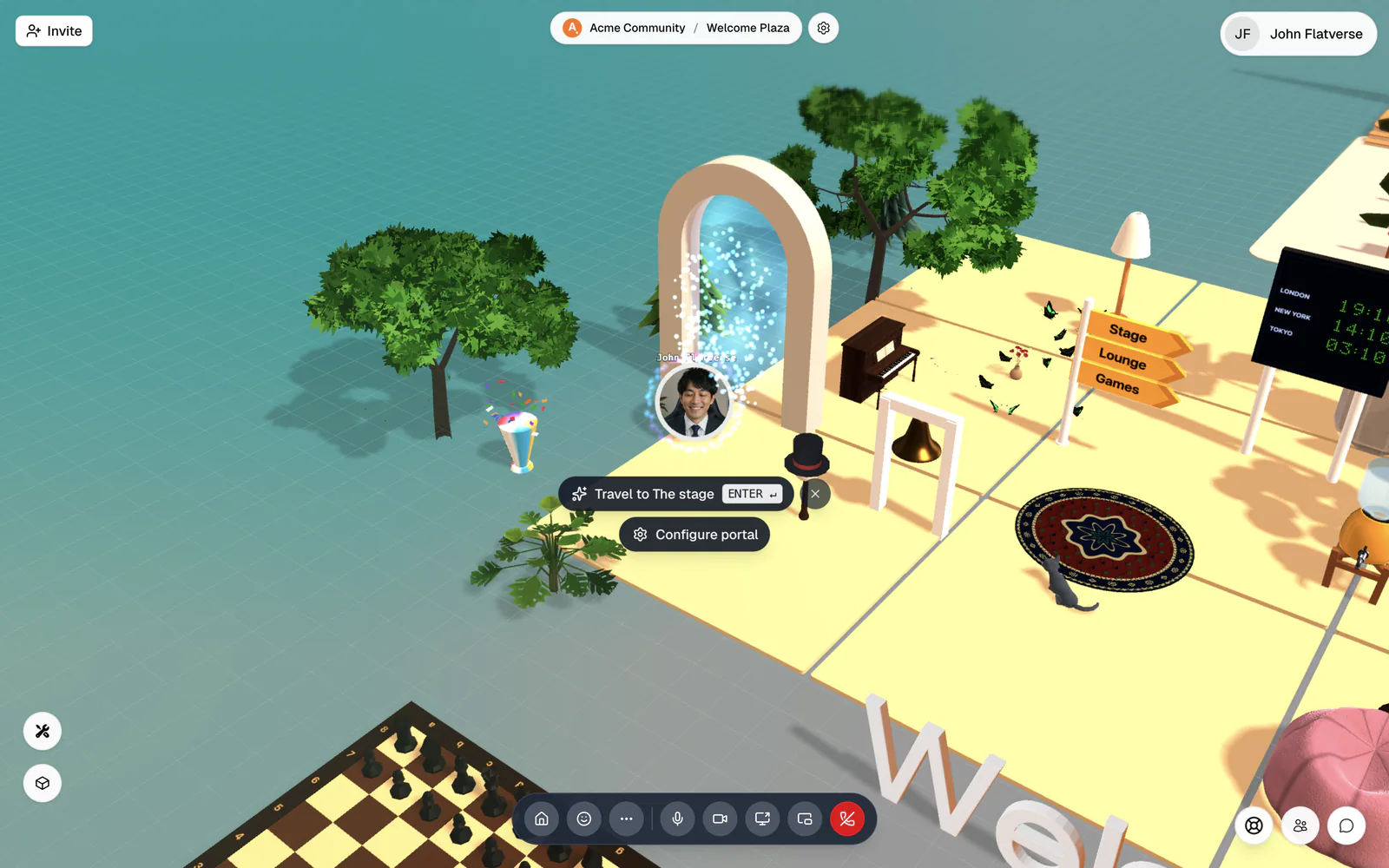
Ideas for portals
- Big maps: put a portal at the entrance that jumps to the stage, and another on the stage that jumps back.
- Event flow: link your main floor to a breakout room or a Conference room in the same flat.
- Partner flats: link to a sister community's flat for a joint event.
- Way home: a portal set to This flat gives everyone an easy way back to the lobby.
Portals also take a frame material. Select the portal in build mode and pick a Palette and Color, then click Save.
Short, clear labels work best, like "Main stage" or "Back to lobby". Pair portals with a street sign from Signs & Media so people know what is where. See Show content in your room.