Reactions and actions
Throw a heart, set off a firework, or light a torch.
Last updated:
How do I send reactions in flat.social?
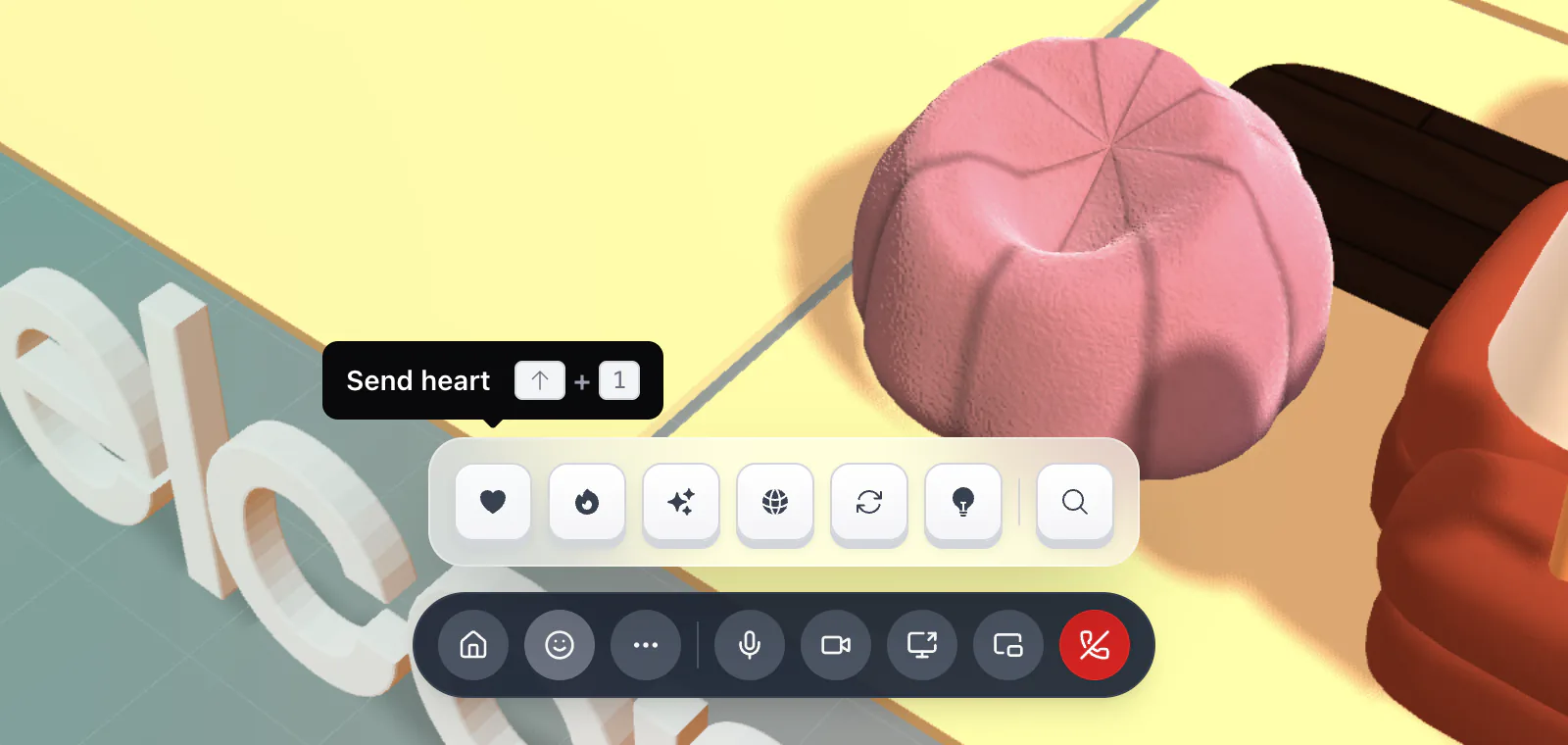
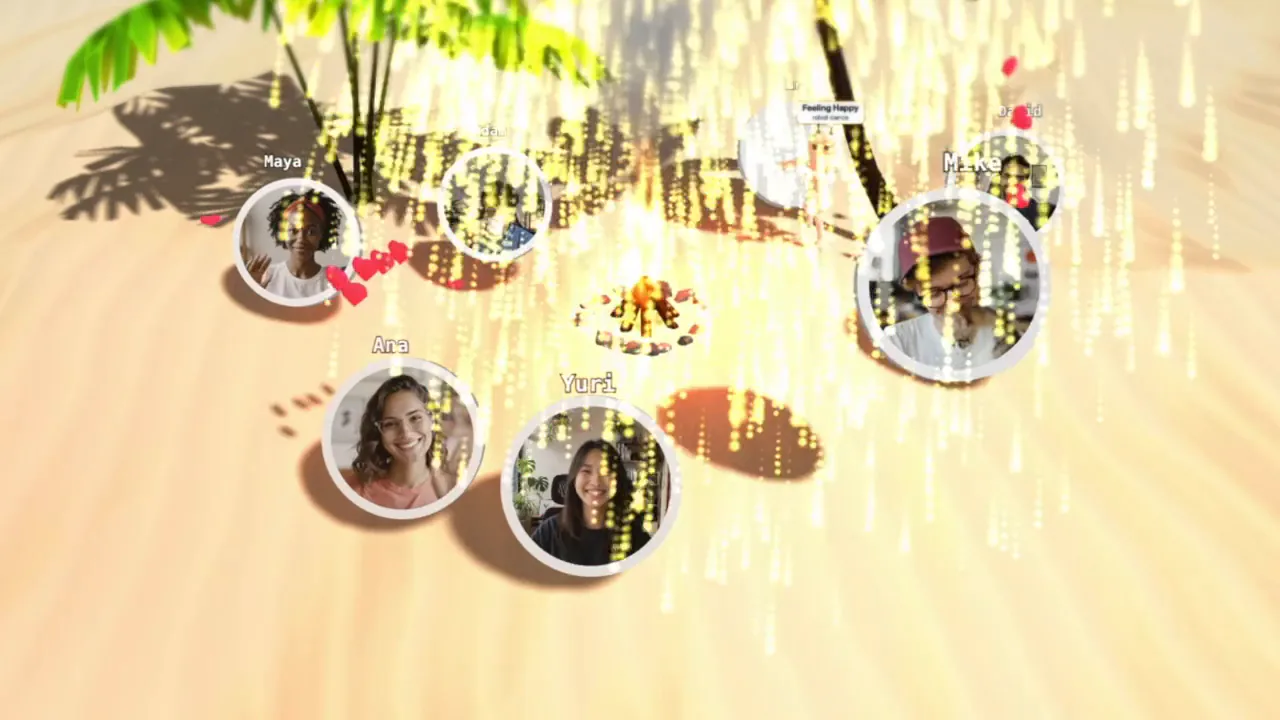
In an Open Spatial room, hold Shift to show the actions tray above the call bar, then press a number: Shift 1 sends a heart, Shift 2 a firework, and so on. Or click the smiley (Actions) in the call bar and pick one. Reactions play at your avatar, and anyone in the room who has you on their screen sees them.
How to send a reaction
- 1Open the tray
Hold Shift, or click the smiley in the call bar to keep the tray open.
- 2Pick a reaction
Press the number while holding Shift, or click a button. Hover a button to see its name and key, for example "Send heart ⇧ + 1".
- 3Watch it play
The effect appears on or around your avatar. Let go of Shift to close the tray.
The six reactions
- Shift 1 Send heart: float a heart above your avatar
- Shift 2 Firework: set off a firework where you stand
- Shift 3 Magic: a burst of sparkles around you
- Shift 4 Bubbles: blow a stream of floating bubbles
- Shift 5 Backflip: your avatar does a quick backflip
- Shift 6 Toggle torch: turn your torch on or off
The tray ends with a search button that opens Quick Access, where you can find every other action.
The torch: your personal light
The torch stays on until you switch it off. Its beam follows your mouse cursor across the floor, and other people see it too, which is handy in a dark room or for pointing at something. Press T (or Shift 6) to toggle it.
Reactions are an Open Spatial feature. They are hidden while a full-screen activity is open, and Conference rooms don't have them. On a phone, tap More and use the Reactions row. Hosts can turn reactions off for a role with the Reactions permission.