Get help and send feedback
Message the flat.social team, rate a call, or email us.
Last updated:
How do I get help with flat.social?
Open the support chat in any room or in your lobby and write to the flat.social team. Real people read and answer every message, and guests can use it too. You can also rate a call after you leave, send feedback from the join screen, or email [email protected].
How to message the support team
- 1Open the support chat
In a room on a computer, click the lifebuoy button at the bottom right (Help & support), next to the chat and people buttons. In the lobby, click the Support button. On a phone in a room, tap More in the dock, then Help.
- 2Write your message
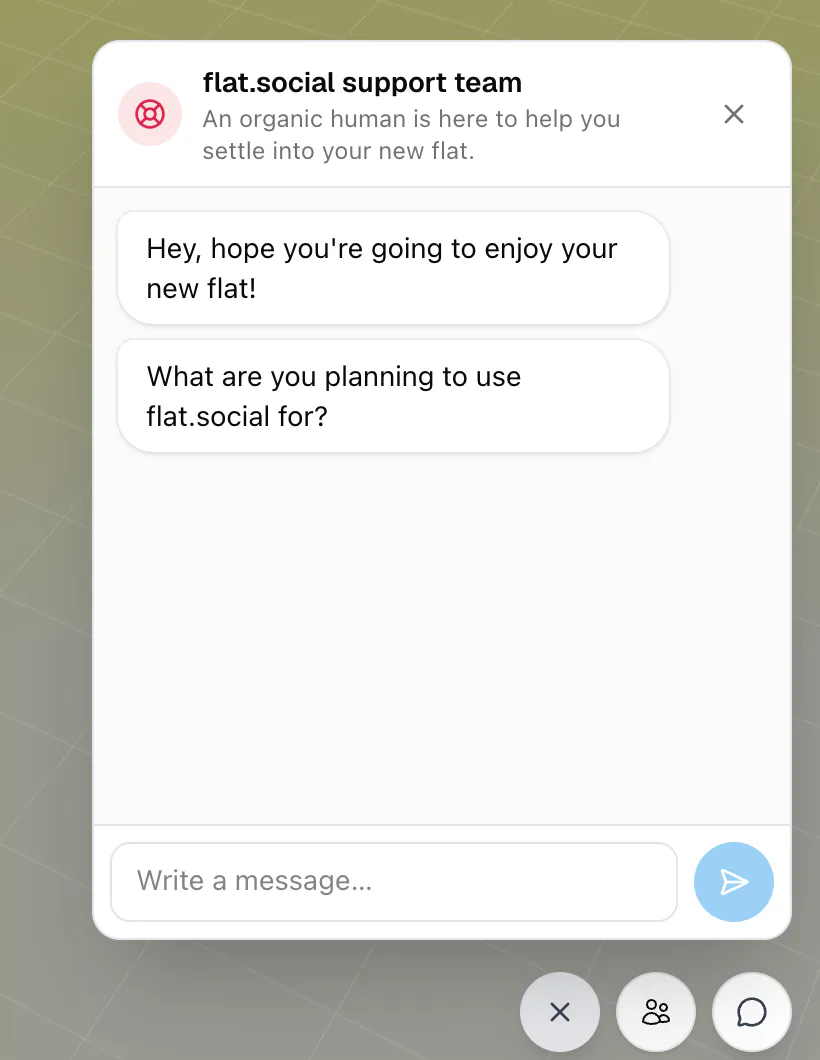
The panel is titled "flat.social support team". Type in "Write a message…" and press Enter to send. Shift+Enter adds a new line. A message can be up to 2,000 characters.
- 3Get your reply
A person replies in the same panel. When a reply arrives while you're in a room or the lobby, the panel opens by itself, and a red number on the button shows replies you haven't read.
- 4Close the panel
Press Esc or click the ✕. Your conversation is still there when you open it again.
Who answers?
People from the flat.social team, not a bot. Guests see the note "A human will read your message". Your message includes the flat and room you're in and some basic details about your browser and device, so you don't need to look them up.
Replies show up in the panel, not by email. Guests see replies in the same browser they wrote from. If you'd rather get an answer by email, write to [email protected].
Once per account, the panel may open by itself with a short hello from the team. If a message doesn't go through, you see "Couldn't send your message. Please try again."
The support chat doesn't show on join screens or while a full-screen activity is open. Use the feedback button on the join screen instead, or close the activity first.
Rate a call after you leave
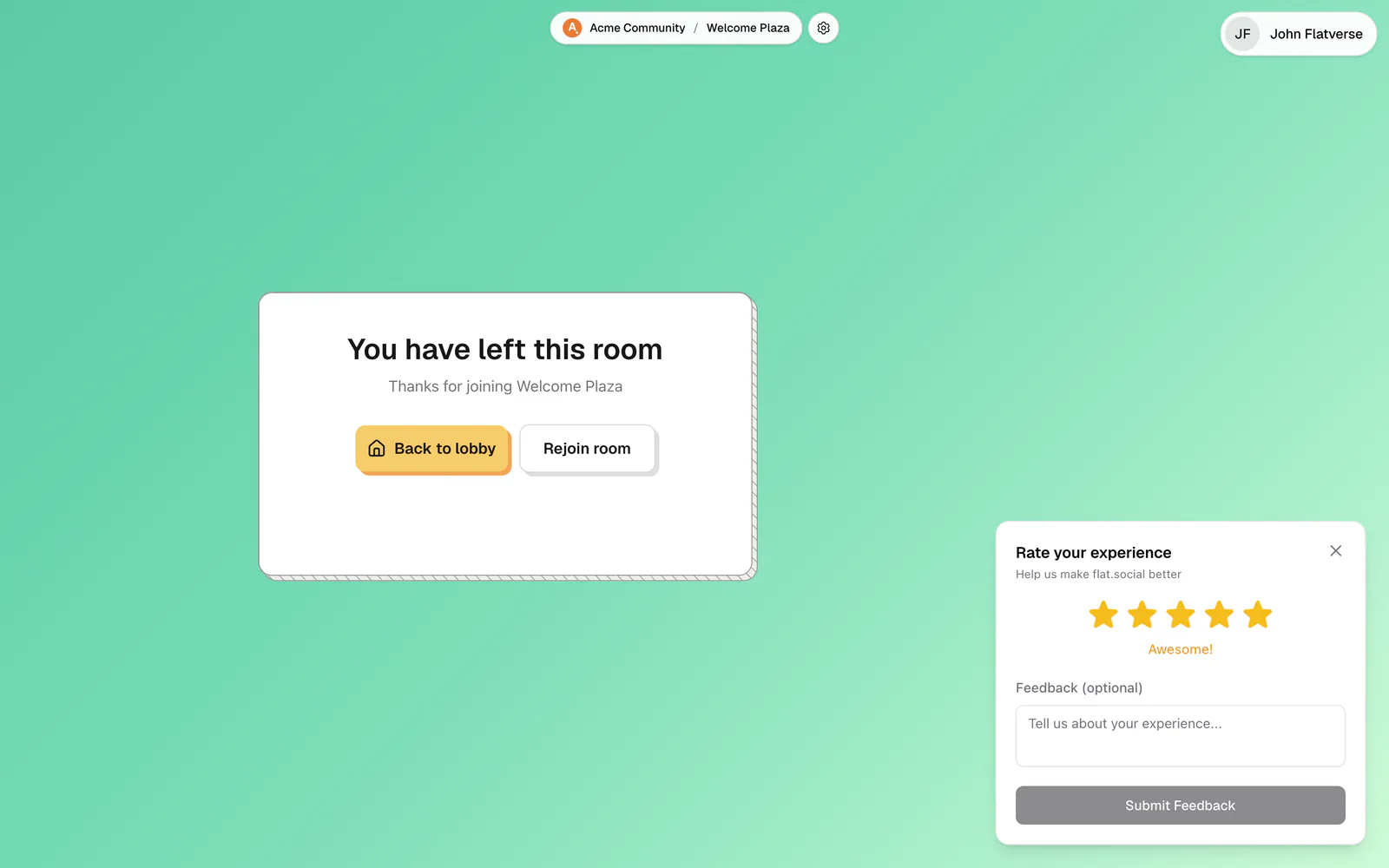
When you leave a room, the "You have left this room" screen ("You have left this call" in Conference rooms) shows a feedback card at the bottom right: Rate your experience, or Rate your call experience after a Conference call, with "Help us make flat.social better".
- Pick one to five stars: Poor, Fair, Good, Great, or Awesome!
- Add a comment in "Feedback (optional)" if you like.
- Click Submit Feedback. You see "Thank you for your feedback!"
You can send just stars or just a comment. On small windows the card starts folded up as a Give feedback button. The page takes you back to the lobby after 10 seconds; click Stay here, or start using the form, to stop the countdown.
Send feedback from the join screen or dashboard
- Join screen: click Support & Feedback (signed in) or Send Feedback (guest) at the bottom left. On a phone it's a round button at the top of the screen. Add stars, a note in "Your message (optional)", and click Submit Feedback. Signed-in users read "We reply by email when you need us."
- Dashboard: click 🤔 Give Feedback at the bottom of the left sidebar to open "Share your feedback".
Email us
Write to [email protected] for questions, feedback, or anything you'd rather not type into a chat. It helps to include your flat's link, the browser you use, and what you expected to happen.