Set your name and avatar
Pick a name, choose a username, and add a photo so people know you.
Last updated:
How do I set my name and avatar?
In a room, click your profile picture and name at the top right. Settings opens on the Profile tab, where you can change your photo, Name, and Username. From your dashboard, the same fields are under your name → My profile.
How to set your name and avatar
- 1Open your profile
Click your profile picture at the top right of a room. Settings opens on the Profile tab.
- 2Set your name
Type your Name (1 to 100 characters). A full name or a nickname both work.
- 3Pick a username
Choose a Username of 3 to 30 letters, numbers, and underscores. It must be unique, and it is the name shown above your avatar in Open Spatial rooms.
- 4Upload and crop a photo
Click the circle ("Click to change avatar"), pick an image, and frame it in the cropper.
- 5Save
Click Save Changes. People in the room see the update right away.
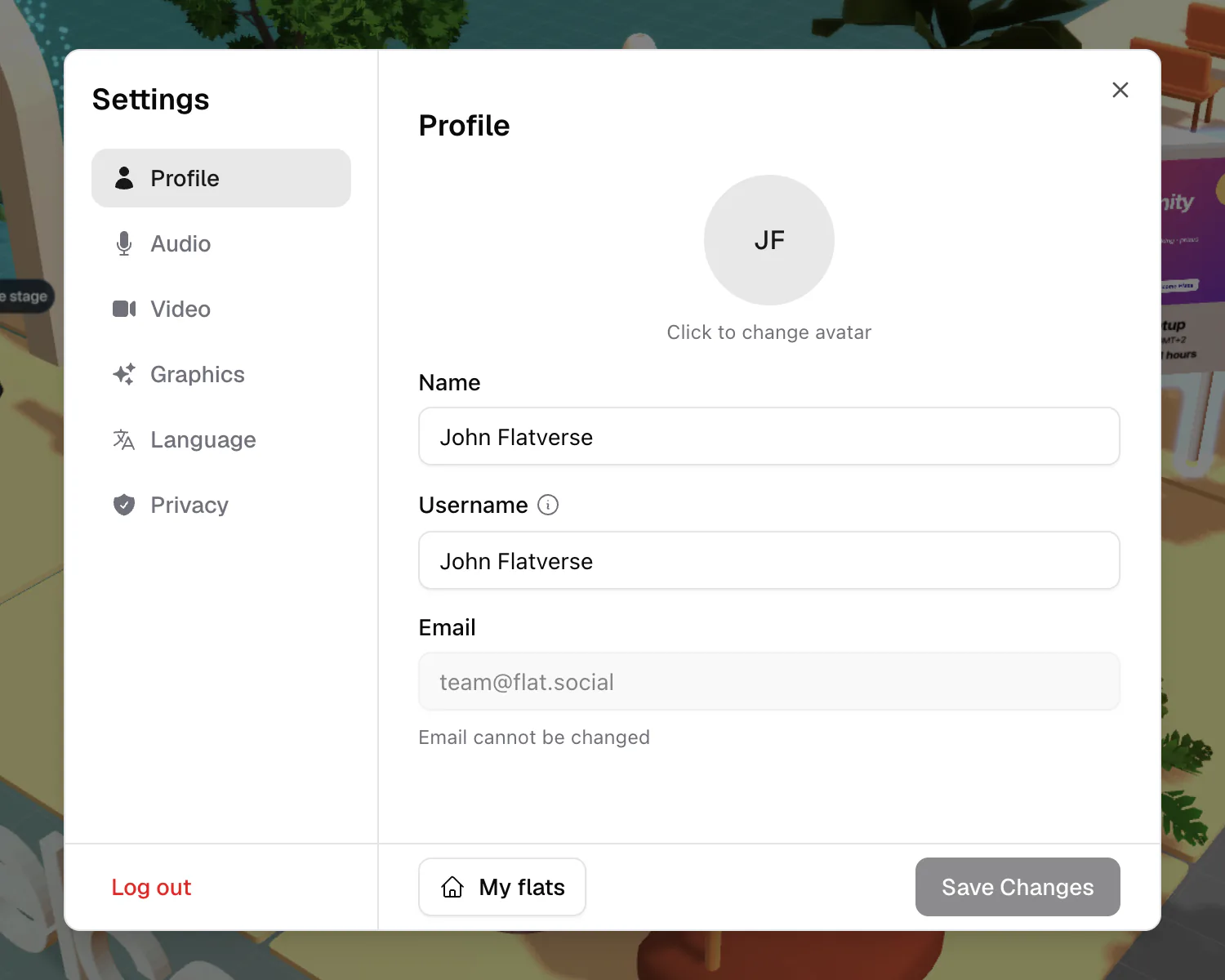
Name vs username
Your Name is the friendly label shown on your profile and in lists. Your Username is your unique handle; in Open Spatial rooms it's the label people see above your avatar, and it changes for everyone as soon as you save. If your first pick is taken, add a number or an underscore.
Your avatar photo
Use any image up to 20MB and at least 200 pixels across; it's cropped into a circle. Your photo shows on your avatar coin whenever your camera is off, in the people panel, and on your Conference tile. A square, well-lit photo of your face reads best at small sizes.
Guests pick a name of 2 to 10 characters the first time they join ("How can others call you?"). To change it later, open the profile button in the lobby: the Guest Profile window lets you edit your Display Name. Guests can't upload a photo; sign in to add one. On a phone, tap Change next to "Joining as {name}" on the join screen.