Share your screen
Present from your computer in Conference and Open Spatial rooms, and watch what others share.
Last updated:
How does screen sharing work in flat.social?
You can share a screen, a window, or a browser tab from a computer in both room types. In a Conference room your share becomes the big tile everyone sees. In an Open Spatial room a TV rises out of the floor beside you and shows your screen to the people around you. Only the picture is shared, not sound.
How to share your screen in an Open Spatial room
- 1Click Share screen
In the call bar at the bottom, click Share screen, right after the camera button. Inside an auditorium the button reads Share to the stage screen instead.
- 2Pick what to share
Your browser asks which screen, window, or tab to share. Choose one and confirm.
- 3Present
A TV rises out of the floor about 4 metres to your left, with a name plate like "● LIVE Sam's screen". It stays where it is if you walk around.
- 4Stop sharing
While you share, the button is green and reads Stop sharing. Click it, and the TV sinks back into the floor.
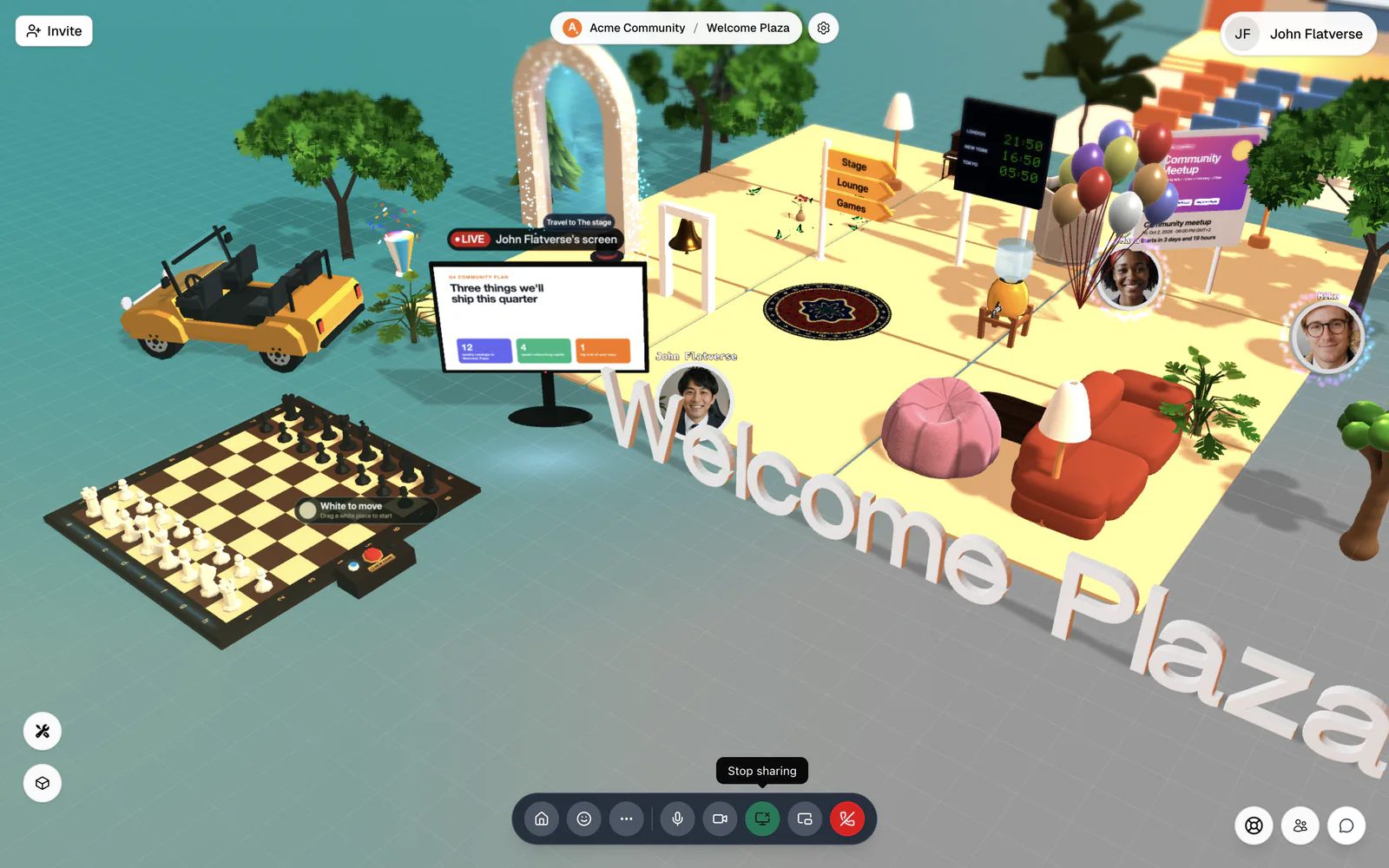
Who sees your share in an Open Spatial room?
Only people who can hear you can see your TV. If you're inside a private room or pod, your share stays inside it too; people outside simply don't see a TV. See Audio isolated rooms.
Several people can share at the same time, and each gets their own TV. The picture gets sharper as people walk closer, up to full HD.
Watch someone's screen
Walk up to a TV and the prompt under your avatar reads "Press Enter to watch Sam's screen". Press Enter, or click the TV. The camera frames the screen and a bar shows "F full screen · Esc back" with a View full screen button.
Full screen shows the shared screen as large as possible, with the presenter's camera in a circle in the corner and "Esc to close". Press Esc, click the back button (Back to the room), or start walking with W A S D to return to the room.
Watching a share
Share on a stage
In an auditorium, your share goes onto the big stage screen instead of a TV, and the button reads Share to the stage screen. Each stage shows one share at a time. If someone is already sharing there, you're asked "Take over the stage screen?" with Take over or Cancel, and the other person's share stops.
Your stage share stops when you leave the hall: "You left the auditorium, so your screen share stopped." For seats, stage views, and playing a YouTube video on the stage, see Stages.
Share your screen in a Conference room
Click Share screen in the toolbar. The room switches to the Speaker layout with your screen as the big tile, labelled with your name, for example "Sam's screen". Click the button again (Stop sharing screen) to stop.
Only one person can share at a time. If someone else is sharing, you're asked "Take over the screen share?" ("Sam is sharing their screen right now. Starting yours will stop theirs for everyone.") with Share my screen or Cancel. The other person sees "Alex took over the screen share, so yours was stopped."
While slides or an activity are on the stage, the button is greyed out with "End the current stage to share your screen". Webinar listeners can't share. People with the Mute Participants permission can click someone's tile and choose Stop their share. See Conference rooms.
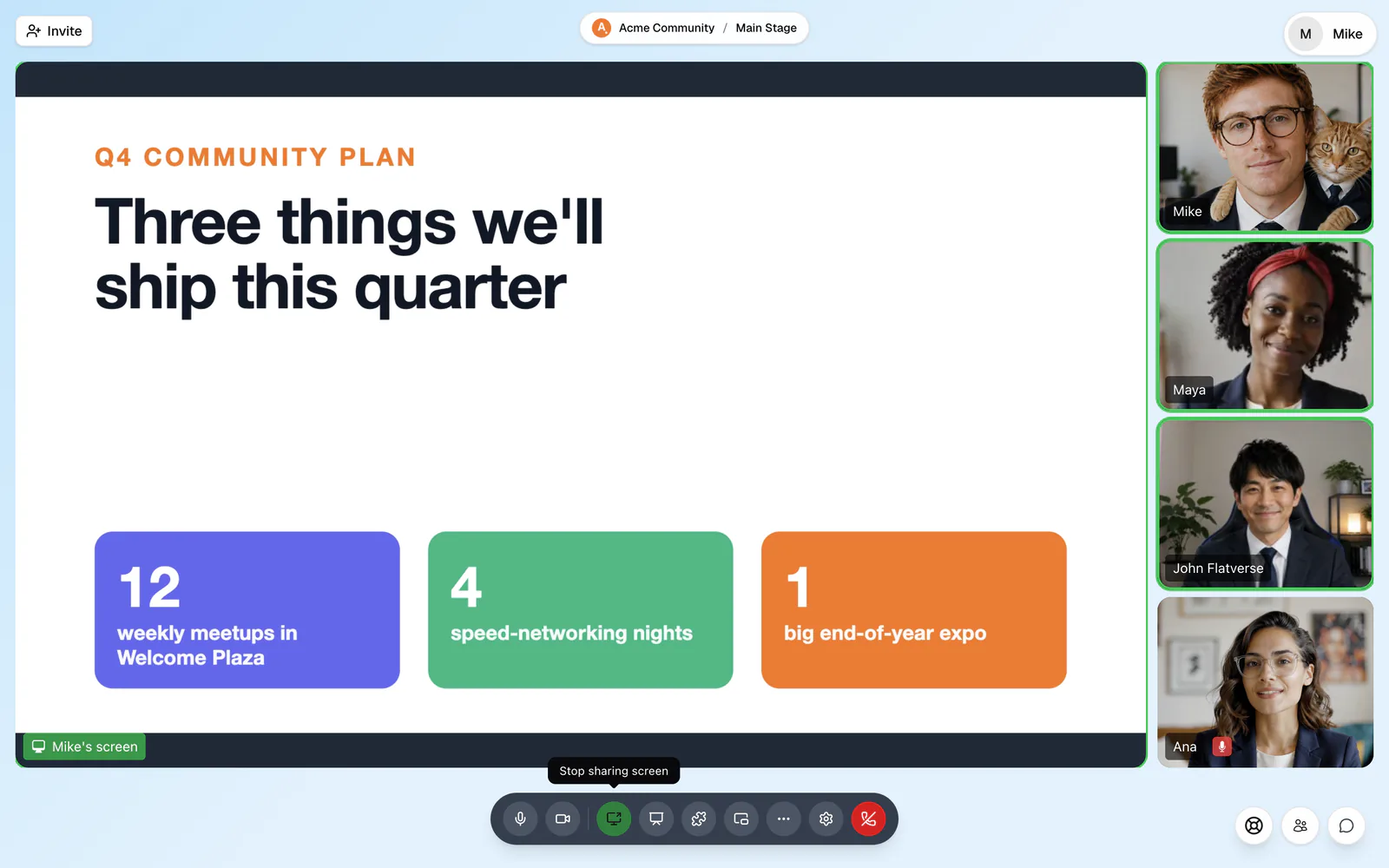
Who can share
In Open Spatial rooms, sharing needs the Screenshare permission. The default Guest, Member, and Moderator roles all have it. Without it, the button is greyed out: "You don't have permission to share your screen here". See Roles & permissions.
You can also start or stop a share from Quick Access: press ⌘/Ctrl+K and choose "Share / stop sharing my screen". Hosts can end every share at once with Stop all screenshares; see Host tools.
Screen sharing needs a computer. On phones and tablets the button doesn't appear, and if your browser can't capture the screen you see: "Screen sharing isn't supported in this browser. On phones and tablets, join from a computer to share your screen."
If your share won't start
- "Screen sharing didn't start. If you didn't cancel, allow screen recording for your browser in your system settings." On a Mac, open System Settings → Privacy & Security, find the screen recording setting, and turn it on for your browser. You may need to restart the browser.
- "Screen sharing couldn't start. Close other apps that are recording your screen and try again." Another app, such as a recording tool or another call, is holding the screen.
- "No screen or window is available to share." Open the window you want to share, then try again.
- "Hold on, you're still joining the room." Wait a moment until you're fully in the room.