Join a space
Open the link, check your devices, and walk in. No download needed.
Last updated:
How do I join a flat?
Open the link your host shared in a modern browser. A flat link shows the lobby, where you pick a room; a room link takes you straight to that room's join screen. You don't install anything, and most people are in within a minute.
How to join a space
- 1Open the link
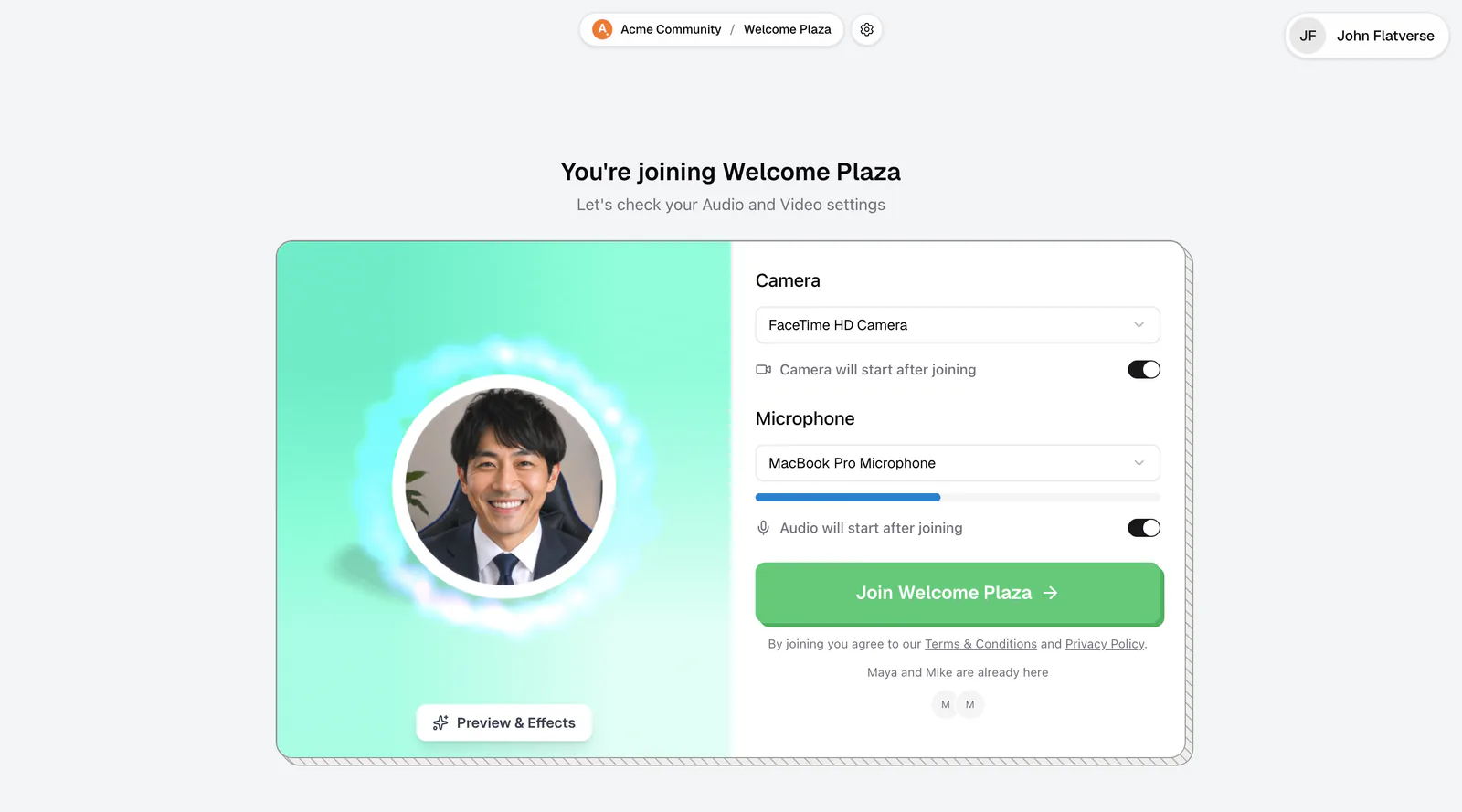
Click the link your host shared. The join screen says "You're joining {room name}".
- 2Connect your camera and mic
Click Connect Audio & Video and allow access when your browser asks. Prefer to just listen? Click Join without camera or mic.
- 3Check your devices
Pick your Camera and Microphone, talk to see the level bar move, and use the switches to join with either one off. Preview & Effects lets you check how you look and blur your background.
- 4Join
Click Join {room name} (in a Conference room, Join Conference). Under the button you can see who is already there.
- 5Pick your name (guests)
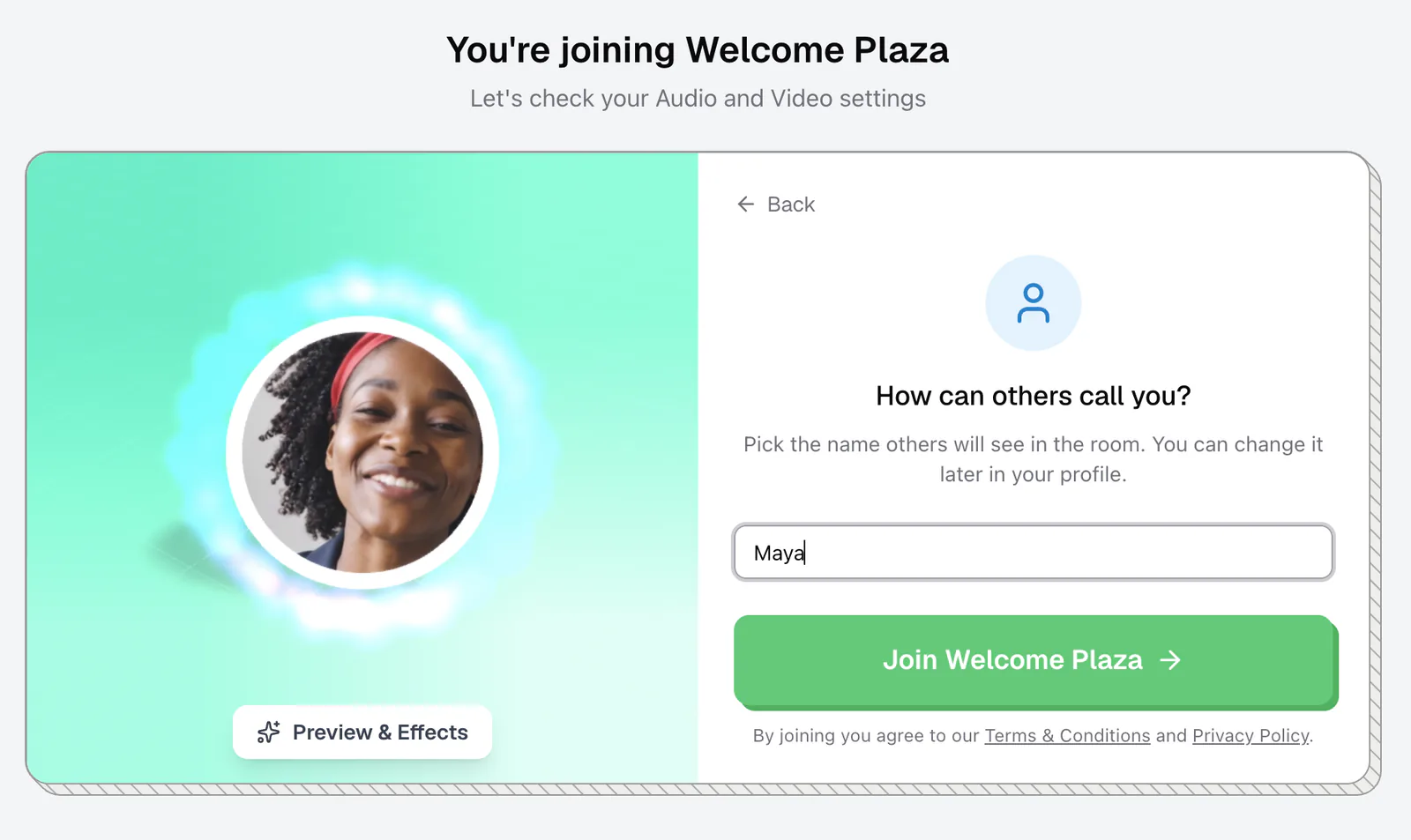
If you are not signed in, flat.social asks "How can others call you?" the first time. Type a name of 2 to 10 characters; you can change it later.
After you click Join
flat.social loads the room in a few steps ("Connecting to room", "Loading elements", "Preparing graphics") and drops you in as an avatar. The first time, a short card shows how to move around. See Move your avatar.
Do I need an account?
Not always. If the host allows guests, you join with just a name. Some flats need you to sign in, or only let in people with an email address at a certain company. If you can't get in, you'll see why, for example "This flat is currently closed" or "Sign in required". See Can't get into a flat or room.
If the flat is at capacity, you'll see "This space is full right now". Stay on the page: flat.social tries again every 10 seconds and lets you in as soon as a spot opens.
Apps like Instagram, Facebook, TikTok, and LinkedIn open links in a built-in browser that can't use your camera or mic. flat.social shows "Open in your browser to join": tap Open in Safari (or Open in browser), or Copy link and paste it into Safari or Chrome.