Camera views
See the room from four angles and pick the one that suits you.
Last updated:
How do I change the camera view in flat.social?
Hover the camera button at the bottom left of the room. Four round buttons fan out: Normal, Isometric, Top, and First Person. Click one to switch. You start in Isometric. You can also run Change camera view from Quick Access (⌘/Ctrl+K), or on a phone tap More → Camera view.
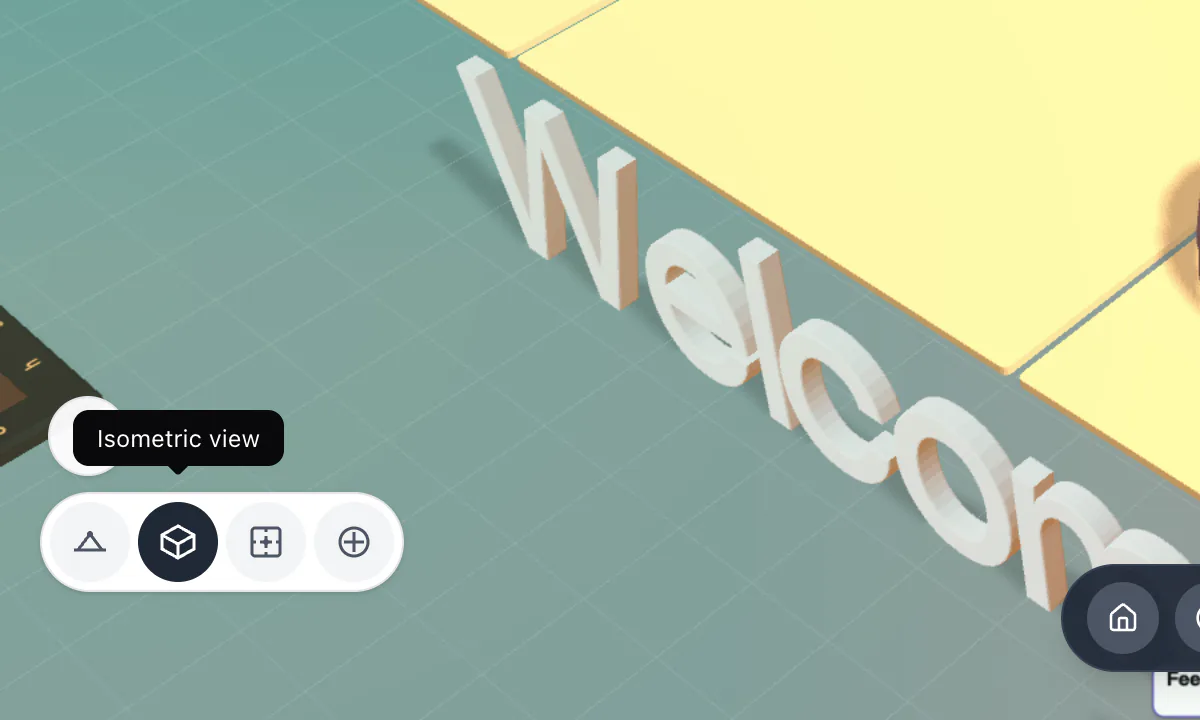
The four camera views
Each view changes how you see the room, not how others see you. The camera follows your avatar at a fixed angle; there's no need to rotate it.
- Normal: a lower, closer angle. Good for chatting face to face.
- Isometric: an angled overhead view, like a tabletop game. The default, and great for seeing where groups have gathered.
- Top: looks straight down. Best for navigating a busy map.
- First Person: see the room through your avatar's eyes.
Scroll (or pinch on a touch screen) to zoom in and out in any view.
How does First Person view work?
First Person shows the room through your avatar's eyes. Your mouse pointer is captured, so move the mouse to look around and use W A S D to walk where you're looking. Scroll to zoom the lens, from a wide 12 mm to a 135 mm telephoto. A pill at the top shows FPV Enabled; press Esc to leave and return to your previous view. First Person is available on computers only.
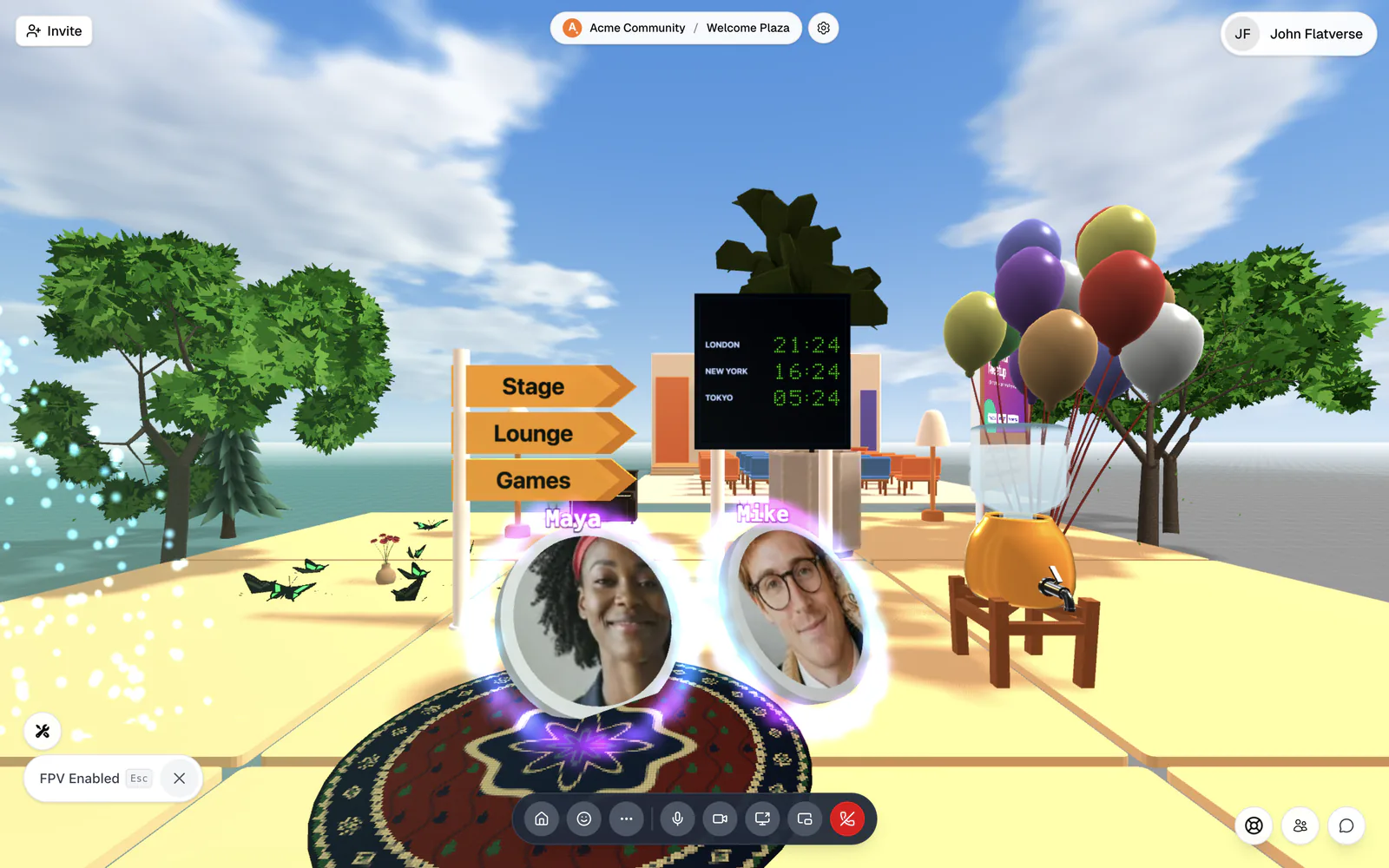
Other views you'll run into
- Focus on a person: click someone's avatar and the camera zooms to them, with their name in a pill and a menu of things you can do. Click Exit user view or press Esc to go back.
- Billboard view: click a billboard to fly the camera to it and see likes and comments. Close preview or Esc returns you.
- Screen and stage views: when you watch a screen share or sit in an auditorium. See Share your screen and Host a talk on a stage.
Some game rooms limit views; during a maze race, for example, Top view and far zoom are off.
New to a room? Zoom out in Top or Isometric to scan where people are, then switch to Normal once you've picked a group to walk toward.