Quick Access (⌘K): search every action
One search box for everything you can do in a room.
Last updated:
What is Quick Access?
Quick Access is a search box for the actions you can take in a room. Press ⌘K on a Mac or Ctrl+K on Windows, type a word like "mute", "home", or "invite", and press Enter. It's the fastest way to toggle your mic, find a person, switch rooms, or open a setting without hunting for a button.
How to use Quick Access
- 1Open it
In an Open Spatial or Conference room, press ⌘K (Mac) or Ctrl+K. You can also click the … button in the call bar or toolbar (tooltip Quick Access), or the magnifier (Search) at the end of the Actions tray you get by holding Shift. Press ⌘/Ctrl+K again to close it.
- 2Search
Type in "Type a command or search…". Results are grouped by category, such as Get around and My controls. If nothing fits, you see "No matching commands."
- 3Run an action
Use ↑ and ↓ to move and press Enter to run the highlighted action, or click it. Esc closes Quick Access.
- 4Finish any extra step
Some actions ask for more: a person, a room, or an option. Type to filter the list (for example "Go to a person — search people…"), press Enter to pick, or Backspace to go back. Actions that could disrupt the room, like muting everyone, ask you to Confirm first.
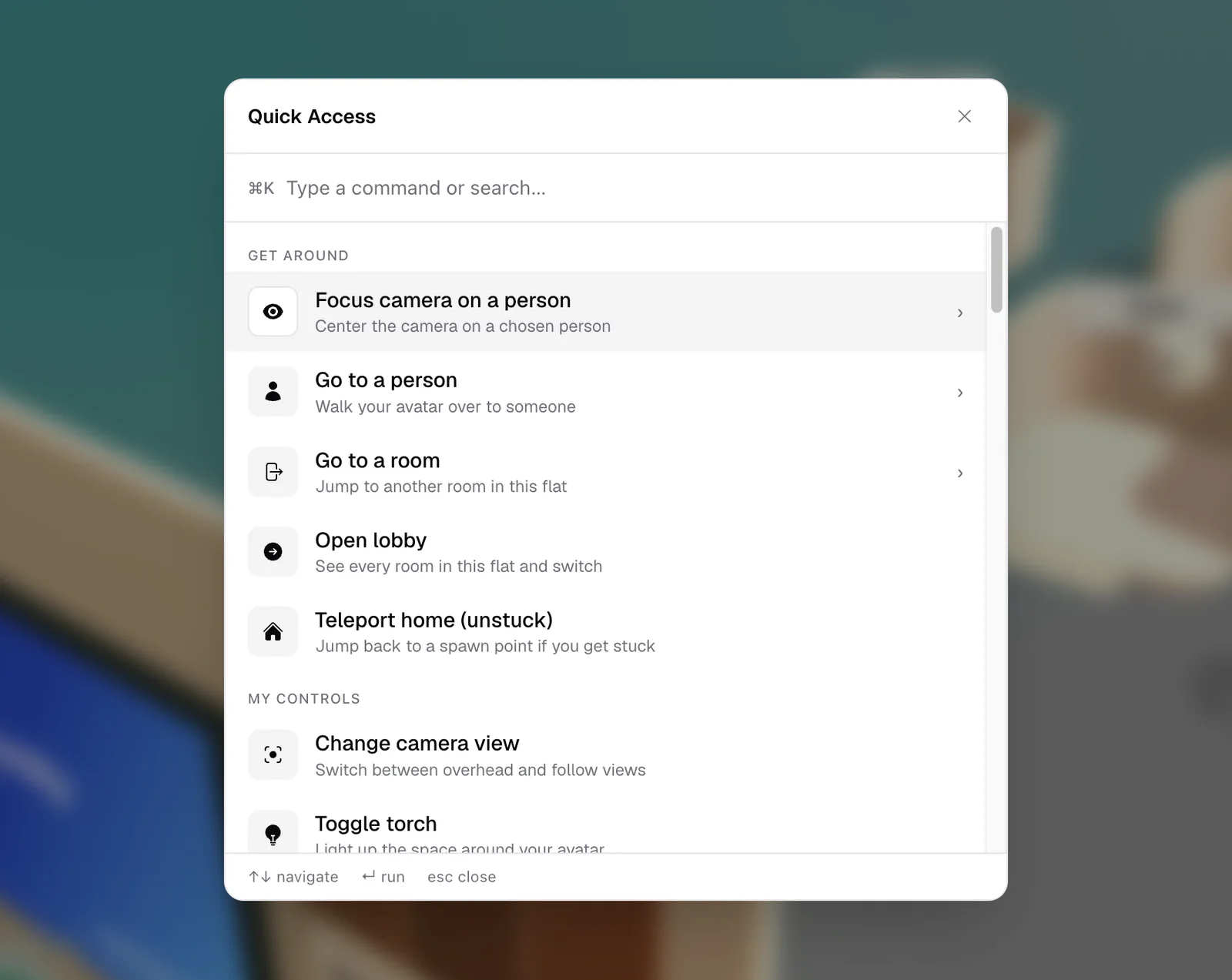
What can I do from Quick Access?
In an Open Spatial room, everyone with the default Guest role can use these:
- Get around: Teleport home (unstuck), Go to a person (puts you right next to them), Focus camera on a person, Go to a room, Open lobby
- My controls: Toggle my microphone, Toggle my camera, Share / stop sharing my screen, Change camera view, Toggle torch, and the reactions Send heart, Firework, Magic, Bubbles, and Backflip
- People & chat: Open chat, Show people in this room, Invite people, Invite people to this room, Invite people to another room, Invite someone to join me
- Settings: Audio & video settings, Keyboard shortcuts
There's no separate keyboard shortcut for muting. Press ⌘/Ctrl+K, type "mute", and press Enter on Toggle my microphone.
Extra actions in Conference rooms
Conference rooms add Leave the call, Open someone's video, Change view (gallery, speaker, dynamic), Pin / unpin a person, Pop out the call, Present slides, and Start an activity (whiteboard, webinar, standup). During a webinar you may also see Raise / lower my hand (if you're listening) and Show / hide the audience.
Actions that need the 3D room, such as teleporting, reactions, the torch, and Keyboard shortcuts, only appear in Open Spatial rooms.
What people see when you invite them
- Invite someone to join me (Open Spatial rooms): the other person sees "Sam invited you to join them" with Join and Dismiss for 15 seconds. Join puts them right next to you, or takes them to your room first if they're in a different one. You see "Alex is joining you".
- Invite people to this room and Invite people to another room: each person you pick sees "Sam invited you to Main Stage" with Join and Dismiss for 20 seconds, wherever they are in the flat. People already in that room are marked "Already here".
- Invite people opens the invite dialog with the room link, for people who aren't in the flat yet. See Invite people.
Host actions
Actions you don't have permission for stay in the list, dimmed, with "Need permission". Hosts see them unlocked in the groups Run the session, Move people, Arrange the space, Audio control, and Moderation & safety: sending announcements, gathering or splitting people, muting everyone, stopping screenshares, and removing or banning someone. The ones that could disrupt the room explain what will happen and wait for Confirm. See Host tools.
Quick Access keys
Quick Access works inside a room you've joined, not in the lobby or on the join screen. It isn't available on phones: use the More menu in the dock instead. See Use flat.social on phones and tablets.