Audio and video controls
Mute, unmute, toggle your camera, and switch devices without leaving the room.
Last updated:
Where are the audio and video controls?
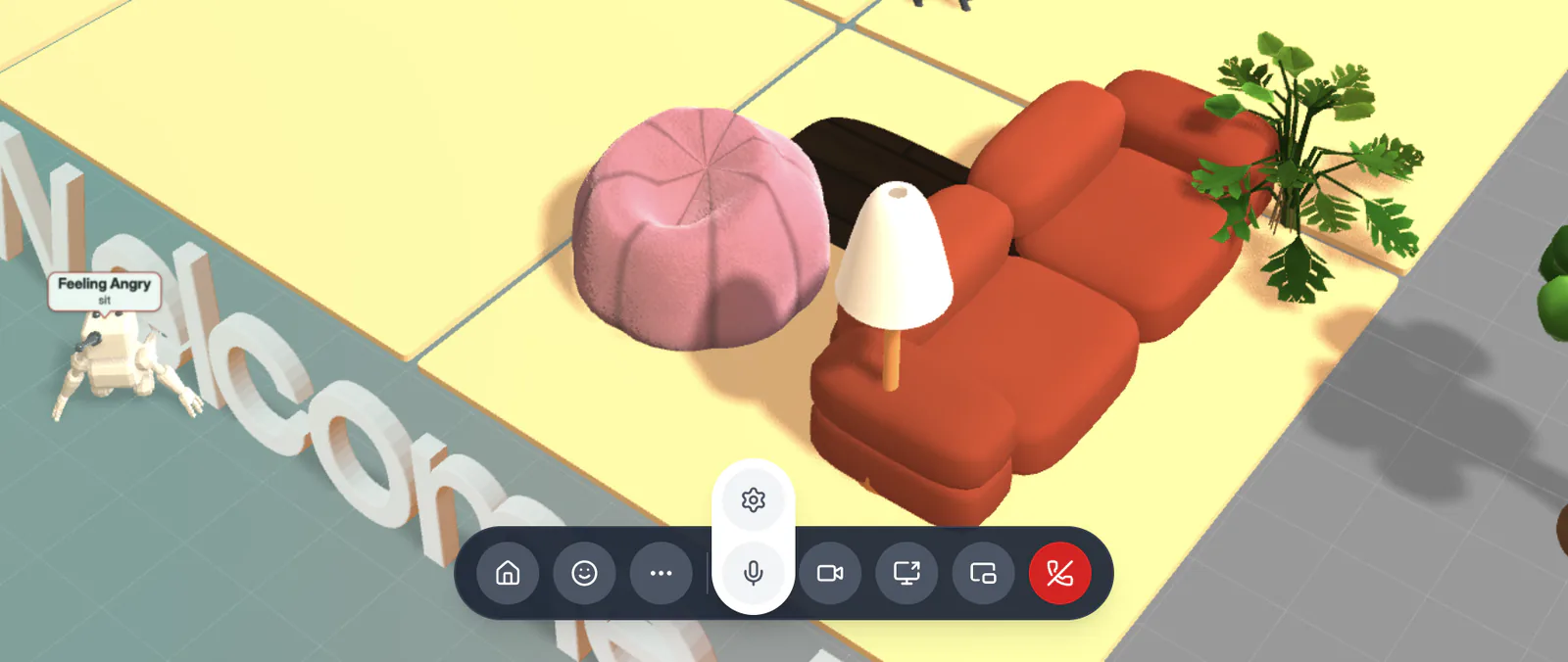
In an Open Spatial room, the call bar sits at the bottom centre of the screen. From left to right:
- Teleport home (the house)
- Actions (the smiley; hold Shift for the same tray)
- Quick Access (…, or ⌘/Ctrl+K)
- Microphone and Camera
- Share screen
- Pop out call (in browsers that support it)
- Leave call (red)
Chat and People are separate round buttons at the bottom right. Conference rooms have their own toolbar; see Conference rooms.
Mute and unmute your mic
Click the microphone button. The button shows whether you are live, so a quick glance tells you if people can hear you. There is no dedicated shortcut, but you can press ⌘/Ctrl+K and run Toggle my microphone.
Mute yourself when you are not talking in a busy room. Background noise carries, and spatial audio means anyone who walks up will hear it. If a host mutes you, you can unmute yourself again.
Turn your camera on or off
Click the camera button (or run Toggle my camera in Quick Access). With your camera on, your video shows on your avatar for people near you. Turn it off any time and your profile photo or initial shows instead.
Switch your microphone, camera, or speaker
Hover the mic or camera button and click the gear. Settings opens on the Audio tab (Microphone, Speaker, Noise cancellation) or the Video tab (Camera, Background blur, Pop-out call on tab switch). Plugged in headphones partway through? Pick them under Speaker, in browsers that allow it. On a phone, tap More → Audio & video.
The same Settings window also has Graphics for making the room run smoother. See Graphics and performance.
Share your screen and pop out the call
Share screen puts your screen on a TV that rises beside you, or on the big screen if you're in an auditorium. See Share your screen. Pop out call opens a small floating window with the nearest people's video, so you can keep talking while you work in another tab. See Pop out the call.
Leave the call
Click the red Leave call button. You'll see "You have left this room" with an option to rejoin, and a chance to rate your experience.