Use flat.social on phones and tablets
Join from your phone, get around with taps and drags, and know what needs a computer.
Last updated:
Can I use flat.social on my phone?
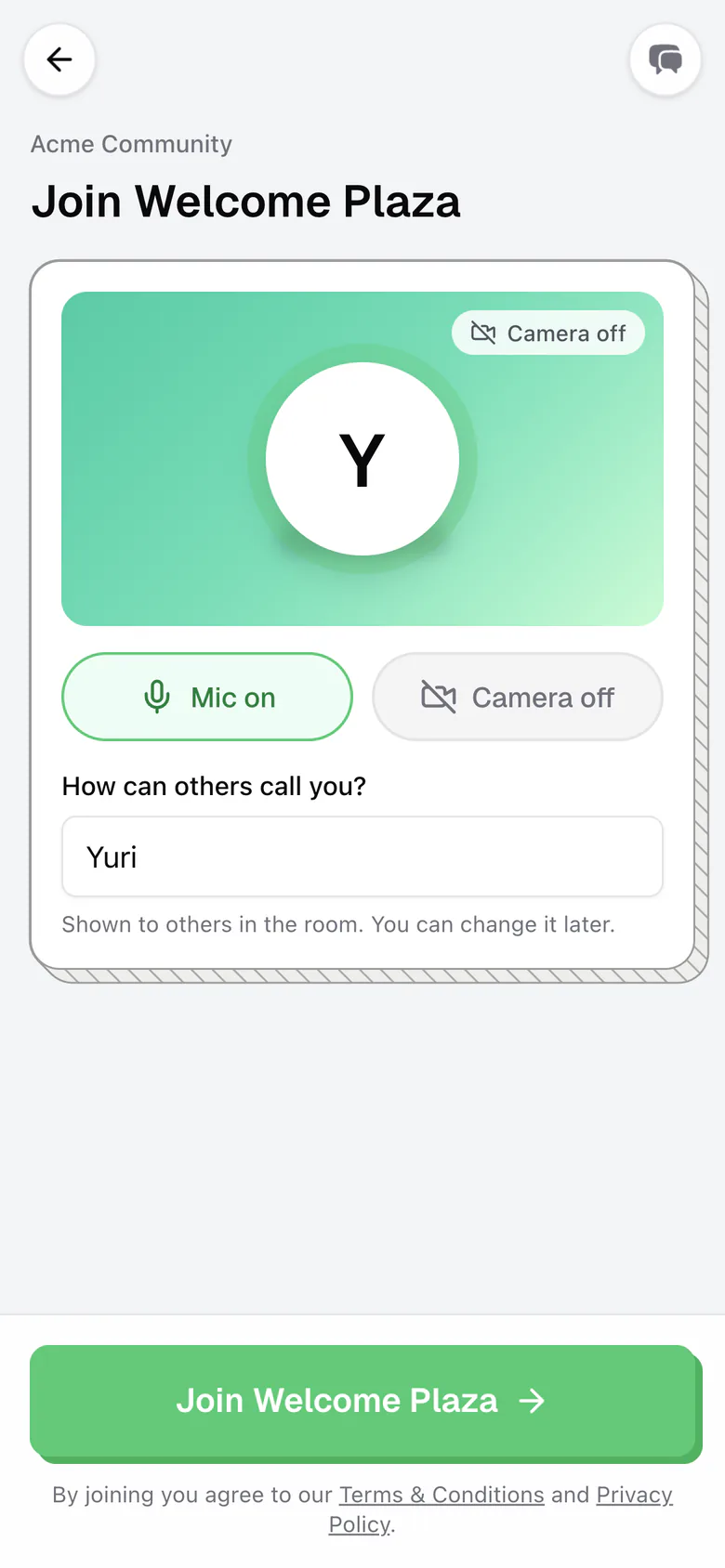
Yes. flat.social runs in the browser on iPhone and Android, with nothing to install. On a phone you get a layout made for touch: a single join screen, a dock at the bottom instead of the call bar, and a More menu for everything else.
Tablets whose screen is wider than 768 pixels, such as most iPads, get the same layout as a computer, with the call bar at the bottom. You can still tap and drag to move.
How to join a room on your phone
- 1Open the link in your browser
If you tapped the link inside Instagram, Facebook, LinkedIn, WhatsApp, or another app, you see "Open in your browser to join". That app's built-in browser can't use your camera or microphone. Tap Open in Safari (iPhone) or Open in browser (Android), or tap Copy link and paste it into your browser. Continue here anyway lets you in without camera and mic.
- 2Choose your name
Guests type a name under "How can others call you?" (2 to 10 characters). If you're signed in or have joined before, you see "Joining as" with your name and a Change link.
- 3Set your mic and camera
The chips show Mic on or Mic off and Camera on or Camera off; tap one to switch it. Phones start with the camera off and the mic on. Allow access when your browser asks.
- 4Join
Tap the join button at the bottom. If both your mic and camera are off, it reads Join and listen, and you can still hear and see everyone.
Get around with touch
- Tap the floor to walk there.
- Drag anywhere to steer, like a joystick. Let go to stop.
- Pinch to zoom in and out.
- Tap the round arrow button at the bottom right (Jump) to jump.
The camera always follows you at a fixed angle, so there's nothing to rotate. The first time you join on a phone, a "How to move around" card shows these moves: "👆 Tap the floor to walk there", "🕹️ Drag anywhere to steer", and "Tap the button to jump". Tap Got it to close it. See Move your avatar for more.
The dock and the More menu
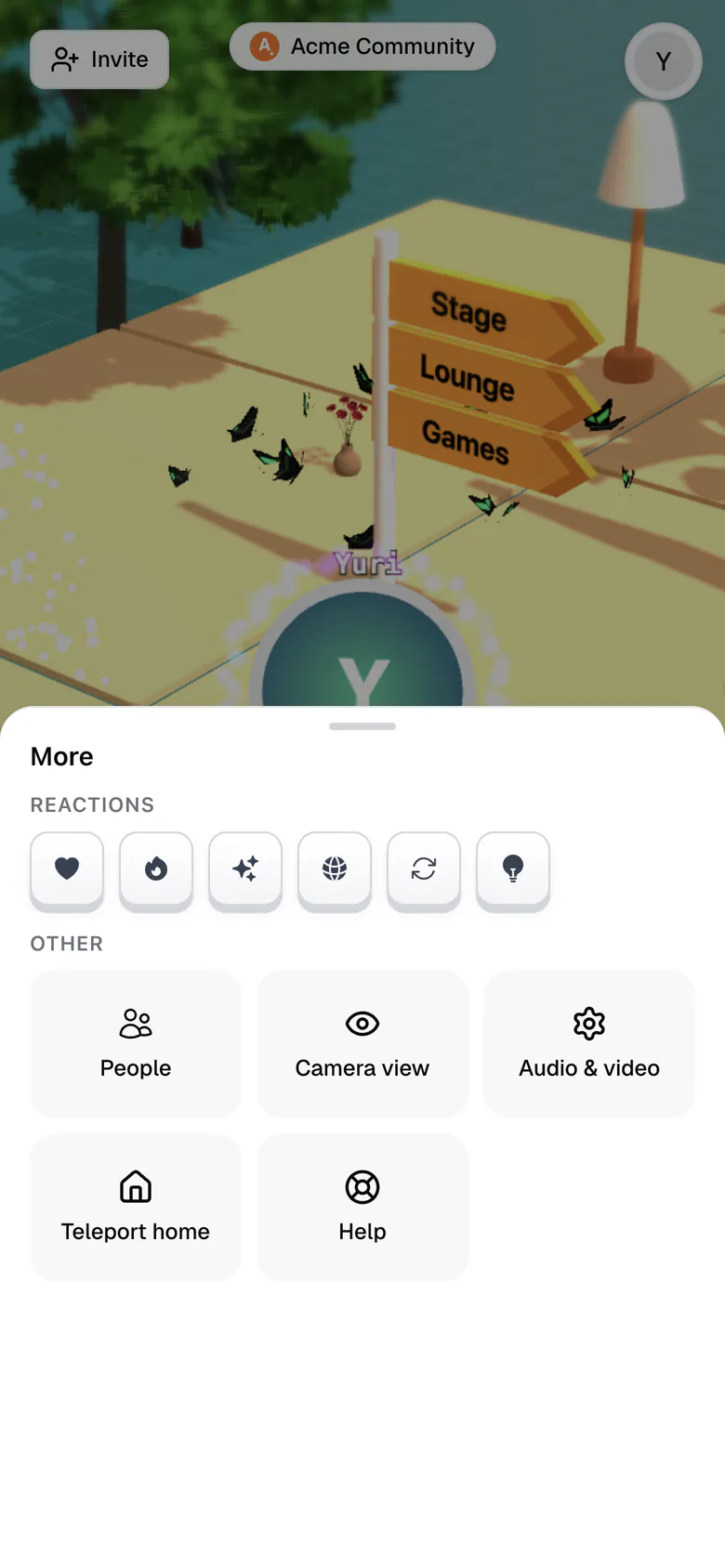
The dock at the bottom holds, from left to right: your microphone, your camera, Open chat (a dot means new messages), More, and Leave call.
More opens a sheet with the rest:
- Reactions: heart, firework, magic, bubbles, backflip, and the torch (Open Spatial rooms)
- People: who's here
- Camera view (Open Spatial rooms): Normal, Isometric, or Top. First Person shows "Desktop only".
- Audio & video: choose your microphone and camera
- Flip camera: switch between the front and back camera (when your phone has two)
- Teleport home (Open Spatial rooms): back to the spawn point if you get stuck
- Help: chat with the flat.social team (see Get help)
In Conference rooms, More also has Activities, and during a webinar, Audience.
Use things with a tap
When you walk up to something you can use, a pill appears under your avatar. Its text still says "Press Enter to…", but on a phone you just tap the pill. Tap the ✕ on the pill to hide it until you walk away.
You can also tap billboards, social buttons, screen-share TVs, stage screens, and other people to open them. See Things you can do in a room.
Getting up and getting out:
- On chairs, sofas, and bean bags, just drag to walk away and you stand up.
- In a car, helicopter, hammock, or on the Ferris wheel, dragging doesn't get you out (in a car it steers), so the pill is the only way out: tap "Press Enter to get out" (car), "Press Enter to jump out" (helicopter), "Press Enter to climb out" (hammock), or "Press Enter to hop off" (Ferris wheel).
Holding Space to brake a car or to climb in a helicopter needs a keyboard. See Sit, ride, drive, and fly.
Conference rooms on a phone
Conference rooms get their own phone layout, like a phone call app:
- The other people fill the screen. Your own video is a small thumbnail you can drag to any corner.
- With seven or more other people, they're split into pages of six. Swipe sideways to see the next page.
- A screen share, slides, or a whiteboard takes the top of the screen with people underneath. Tap Expand to give it the full height, and Collapse to bring the people back.
- Tap a tile to open that person's card.
The Gallery, Speaker, and Dynamic views only apply on computers. See Conference rooms.
What needs a computer
These features aren't available on phones:
- Screen sharing. A presenter on a stage sees "Share your screen from a desktop browser". It isn't available on iPad either. See Share your screen.
- First Person camera view
- Pop out call (picture-in-picture)
- Quick Access (⌘/Ctrl+K)
- Build mode
- Background blur ("Background blur isn't supported in this browser.")
- Noise cancellation
The Shift reaction keys are replaced by More → Reactions. Your phone's screen stays awake during a call, and if your phone locks, your camera starts again when you come back.
On iPhone and iPad, voices aren't directional: people you can hear play at a steady volume instead of fading with distance and panning left or right. This is a Safari limitation. Private areas still work, so you only hear the people you're meant to hear. See How spatial audio works.