Quickstart: create a space
The fast path for organizers: from zero to a shareable room in minutes.
Last updated:
How do I create a space on flat.social?
Sign up, tell flat.social what the space is for, and it creates your flat with a ready-made set of rooms. Make it yours, decide who can join, and share the link. This page is the short version; each step links to a deeper guide.
How to create a space
The organizer happy path, start to finish.
- 1Sign up and create your flat
Create an account with email, Google, or Facebook. The welcome setup asks what the flat is for and what to call it, then builds it with rooms that fit. Already have an account? Go to My flats → New Flat. Full guide: Create a flat.
- 2Open a room and make it yours
Your flat already has Open Spatial and Conference rooms. Walk into one, click the wrench to open build mode, and rearrange it, or click Add Room in the lobby to create a new one. More: Create and configure rooms.
- 3Set who can join
New flats are open to anyone with the link. To restrict them, go to Settings → Access. More: Privacy and access.
- 4Share the link
Click Invite in the lobby header and copy the flat link, or open a room and copy its link to send people straight in. More: Invite people.
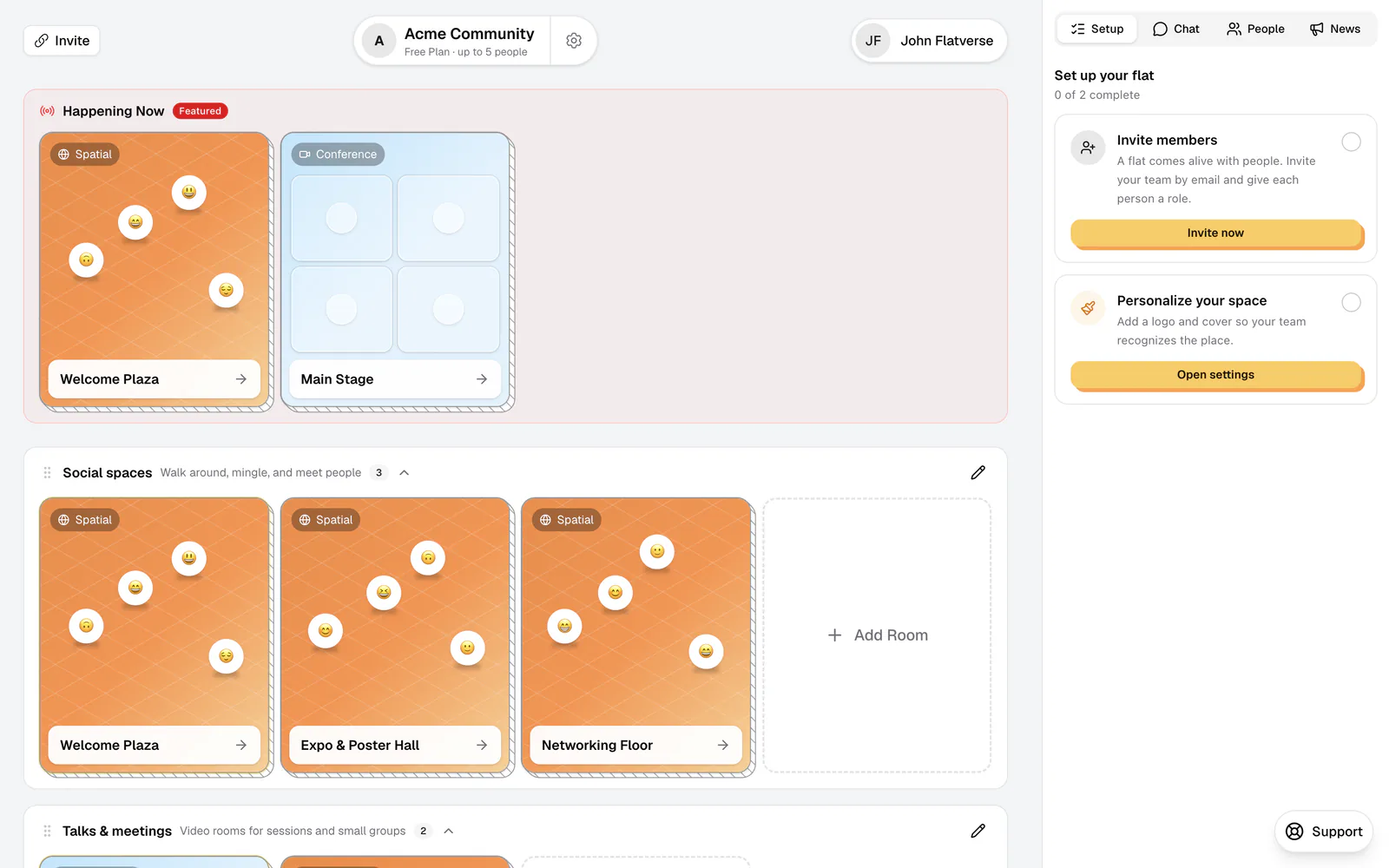
Want it to look like yours? Upload your logo, give rooms card covers and vibes, and organize your lobby into clear categories.
What to do before your event
A few extra steps make events run smoothly. Give co-hosts the Moderator role so they can help, feature the main room in Happening Now, and check your plan: the Free plan fits 5 people at once, so book a Day Pass or the Monthly plan for bigger groups. During the event, Host tools let you gather everyone, mute the room, or split people into groups.
Names, layouts, vibes, access rules, and roles are all editable after launch. Room URLs and room types are the exceptions, so choose those carefully.