Host a talk on a stage
Set up an auditorium, seat your audience, and present on the big screen.
Last updated:
What is a stage in flat.social?
A stage is an auditorium you place inside an Open Spatial room: a hall with a stage, a big screen, and (in most styles) seats. It is audio isolated, so only people inside the hall hear each other. Whoever stands on the stage is heard by everyone in the hall at full volume, like a PA system, and can put their screen or a YouTube video on the big screen.
Which stage styles are there?
All six live under Rooms & Stages in the element library:
| Stage | What it is |
|---|---|
| Minimal Stage | Seats for a talk, with a screen on stage |
| Theatre Stage | Curved stalls under a proscenium arch |
| Lecture Hall Stage | Raked rows with desks, whiteboards and a clock |
| Cinema Stage | Raked stadium rows facing the widest screen |
| Business Stage | A keynote stage with a podium and flat seating |
| Festival Stage | An open dance floor with a DJ booth and stacks |
The Festival Stage is a standing hall with no seats. The others seat up to 30 people.
How to set up a stage
- 1Place the stage
Open build mode (this needs Build Map), go to Rooms & Stages, pick a stage, and click where the hall should go. Leave space around it: halls are big.
- 2Set the seats
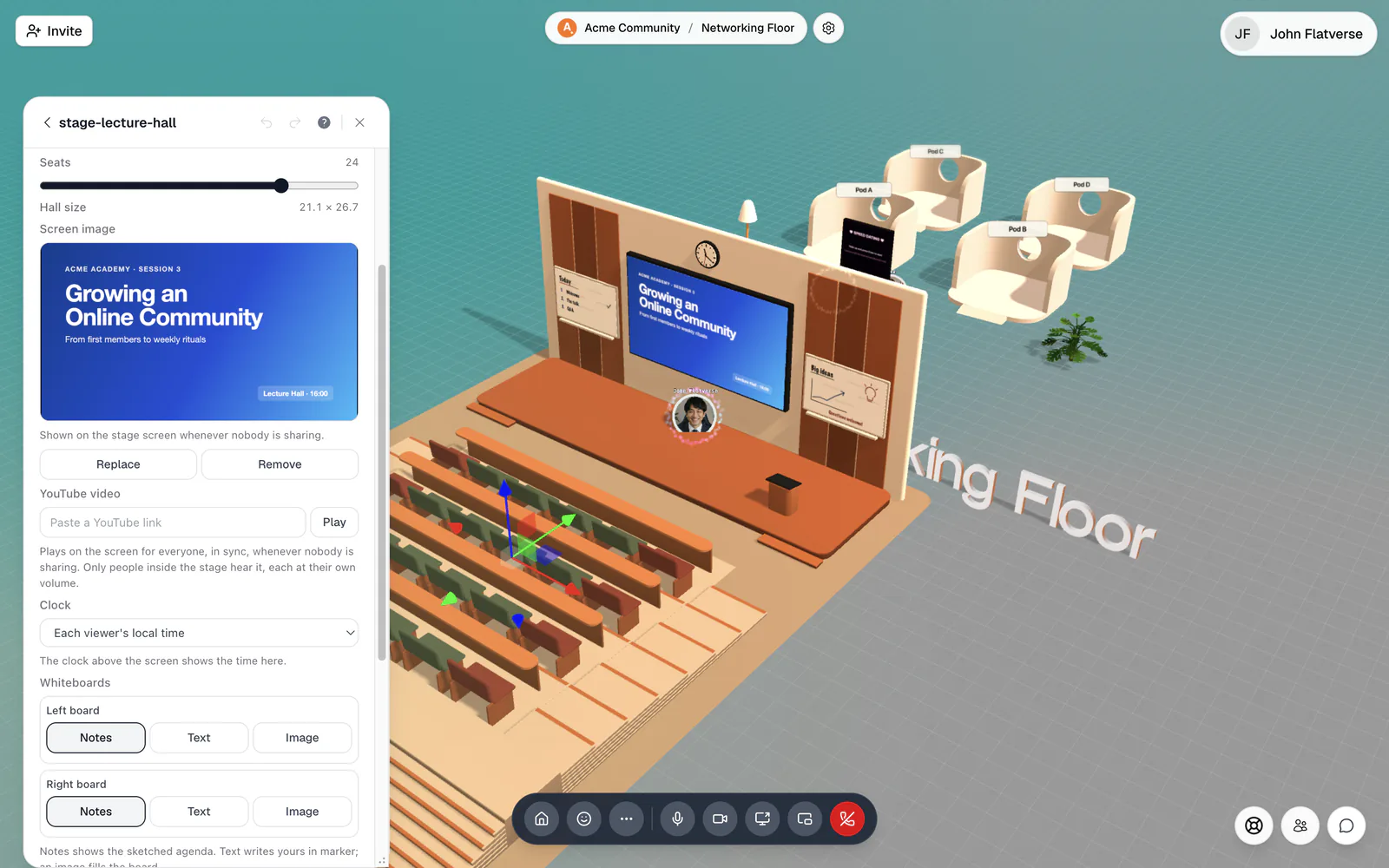
Select the stage and drag Seats (4 to 30; the Festival Stage has no seats). The hall grows or shrinks with the seat count, and Hall size shows its footprint.
- 3Add a screen image
Under Screen image, click Upload image and pick a PNG or JPEG under 20 MB, like your event title card. It is "Shown on the stage screen whenever nobody is sharing."
- 4Add a YouTube video (optional)
Under YouTube video, paste a link and click Play. It plays on the screen for everyone, in sync, whenever nobody is sharing. Use Restart or Remove to control it.
- 5Set up the lecture hall extras
The Lecture Hall Stage also has a Clock (a city, or Each viewer's local time) and two Whiteboards. For the Left board and Right board, choose Notes (a sketched agenda), Text (your words in marker), or Image.
What does the screen show?
The big screen shows, in order of priority: a live screen share, then the stage's YouTube video, then your Screen image. With none of those, it reads "Waiting for a presenter" and "Step on stage to share your screen".
Watch from the audience
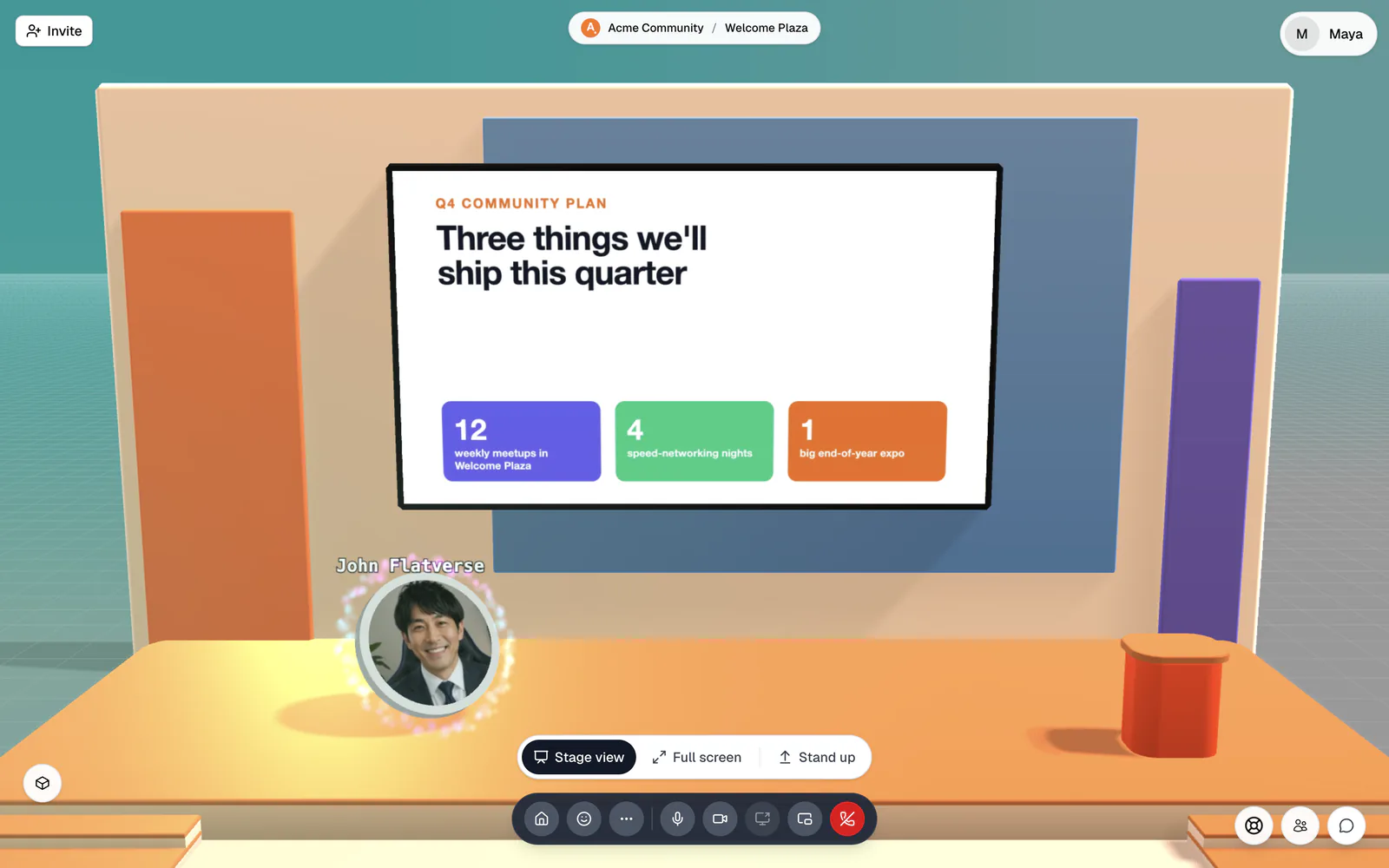
Walk up to a seat and press Enter ("Press Enter to take a seat"); on a phone, tap the prompt. Sitting down switches to Stage view, which frames the screen and the people in front of it. The stage bar above the call bar gives you:
- Stage view: toggle between the stage and the normal room camera. The mouse wheel zooms.
- Full screen: the screen at full size, with the presenter's camera in the corner. Press F while seated to open it.
- A volume slider for the stage video. It's your own volume and is remembered on this device.
- Stand up: leave your seat. Pressing Enter also stands you up.
You don't have to sit. Click the stage screen from anywhere in the hall to open the stage view, or stand in the aisles or on the Festival dance floor.
How to present from the stage
- 1Step onto the stage
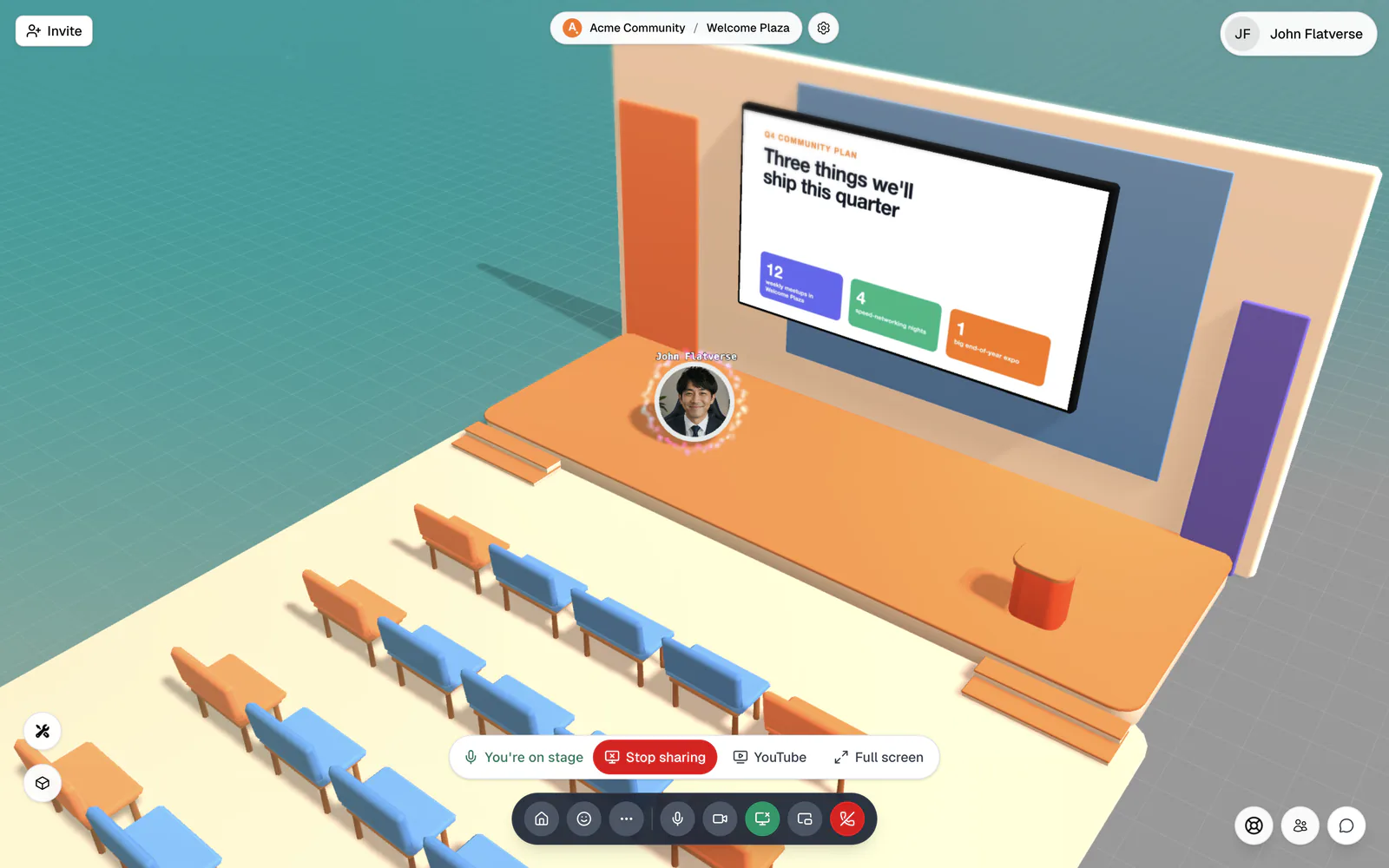
Walk up onto the stage platform. The stage bar changes to "You're on stage", and everyone in the hall now hears you at full volume, wherever they sit.
- 2Share your screen
Click Share screen and pick a screen, window, or tab. It goes straight to the big screen, and the button turns into Stop sharing. Inside a hall, the call bar button also reads Share to the stage screen.
- 3Or play a YouTube video
Click YouTube, paste a link in Share a YouTube video, and click Play. It "Plays on the stage screen for everyone here, in sync. You can pause and skip through it." Use the controls above the bar to pause, seek, or Stop video.
- 4Hand over or finish
Click Stop sharing when you're done, then step off the stage. Leaving the hall stops your share automatically: "You left the auditorium, so your screen share stopped."
One screen, one presenter at a time
Each stage has one big screen. If someone is already sharing when you click Share screen, flat.social asks "Take over the stage screen?" with "{name} is sharing on this stage right now. Your screen will replace theirs." Click Take over to switch, or Cancel. The previous presenter sees "Someone else took over the stage screen, so your share stopped."
Only people inside the hall see the share and hear the stage, because the hall is audio isolated. People outside can't eavesdrop, and you can run other conversations in the same room.
Presenting from a phone
Phones and tablets can't share a screen; the stage bar says "Share your screen from a desktop browser" instead. The YouTube button works on phones, so a phone presenter can still play a video.
Sharing a screen or a YouTube video on stage needs the Screenshare permission, which the default roles include. Without it, the button is greyed out with the hint "You don't have permission to share your screen here". People with Mute Participants can end every share at once with Stop all screenshares in Quick Access. See Roles & permissions.