Customize rooms
Give each room its own card cover, gradient, and lighting vibe.
Last updated:
How do I customize a room in flat.social?
Each room has three style settings:
- Card Cover: what the room's card looks like in your lobby and in the room switcher
- Background Gradient: the color wash behind the room
- Vibe (Open Spatial rooms): the lighting of the whole 3D scene
The card cover and gradient live in the room's edit panel. The vibe is set from inside the room in build mode. Every room is styled on its own, so your main floor can feel like a beach while your Q&A room stays calm and dark.
How to set the card cover and gradient
- 1Open the room editor
Hover over the room card in your lobby and click the pencil (Edit room), or go to Settings → Rooms and click the room.
- 2Choose a card cover
Under Card Cover, keep Default artwork or pick Custom image and click Upload image. You can upload a PNG or JPEG (cropped to fit), an animated GIF, or a short MP4 or WebM video.
- 3Pick a gradient
Under Background Gradient, click Change and choose a preset, or open Custom Colors, set the Top Left and Bottom Right colors, and click Apply.
- 4Save your changes
Click Save Changes. The new card appears in the lobby right away, and the gradient updates in the live room.
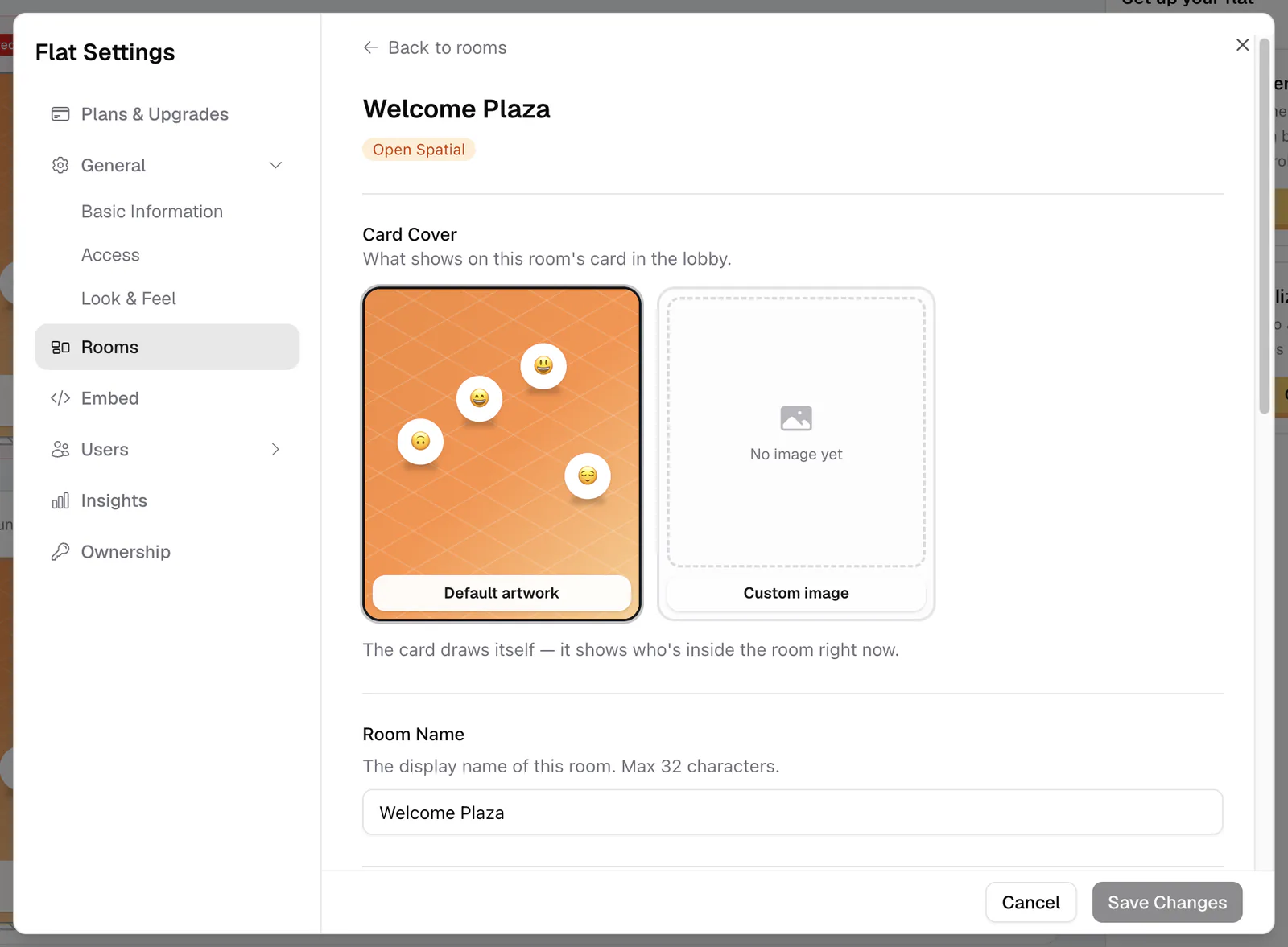
Card covers: default artwork or your own
Default artwork draws itself: Open Spatial rooms show a little 3D scene with whoever is inside right now, Conference rooms show a call grid, and game rooms show artwork of their game.
Custom image lets you upload your own cover: a still image, an animated GIF, or a looping video. The cover appears on the room's lobby card and in the in-room room switcher, not inside the room itself.
Set the lighting with a vibe
A vibe is a one-click lighting preset for an Open Spatial room. It sets the ambient light, sun, fog, glow, and color grade of the whole scene. There are eight: Daylight, Synthwave, Island Bright, Island Sunset, Island Warm, Sunset, Soft Night, and Matrix.
To change it, enter build mode in the room, open the Vibes tab, and click a vibe. It saves instantly for everyone in the room. Map templates come with their own vibe and gradient, so a new room may already have one set.
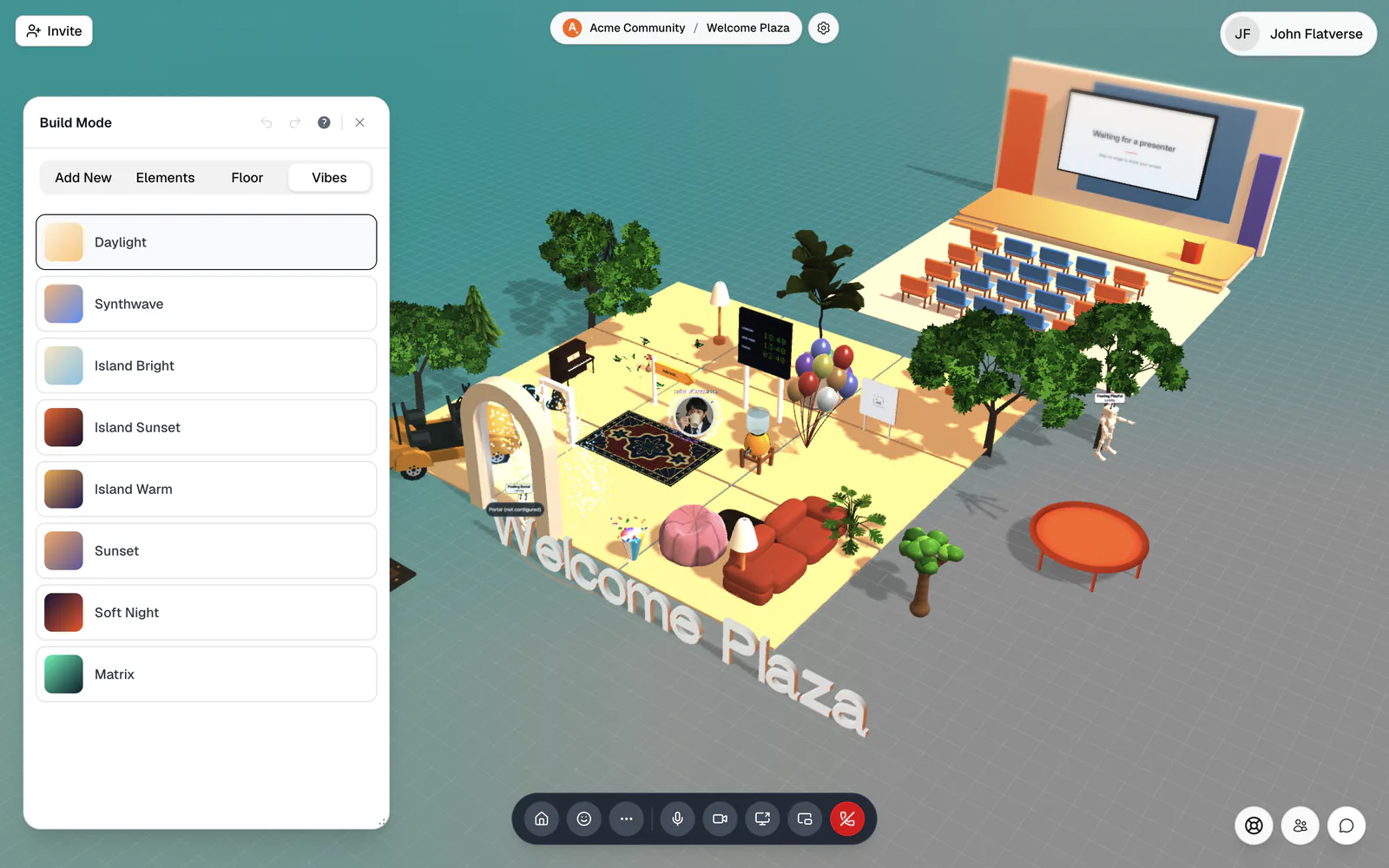
You need Build Map to open build mode and Edit Rooms to save a vibe. Without Edit Rooms you see "Couldn't save the vibe — you need room-edit permission." See Roles & permissions.
Use Island Bright for a daytime mixer and switch to Soft Night for an evening wind-down. Pair it with your logo and look & feel for a consistent brand.