Spawn points & getting around
Choose where people arrive, get back when lost, and move a crowd in one click.
Last updated:
What is a spawn point?
A spawn point is an element that people land on when they join an Open Spatial room. Any element can be one. With several spawn points, flat.social picks one at random for each arrival, so a crowd spreads out instead of piling up in one spot.
How to set a spawn point
- 1Open build mode
In the room, click the wrench (Build mode). You need the Build Map permission, and a computer.
- 2Select the element
Click the element people should arrive on, like a rug by the entrance or a welcome platform.
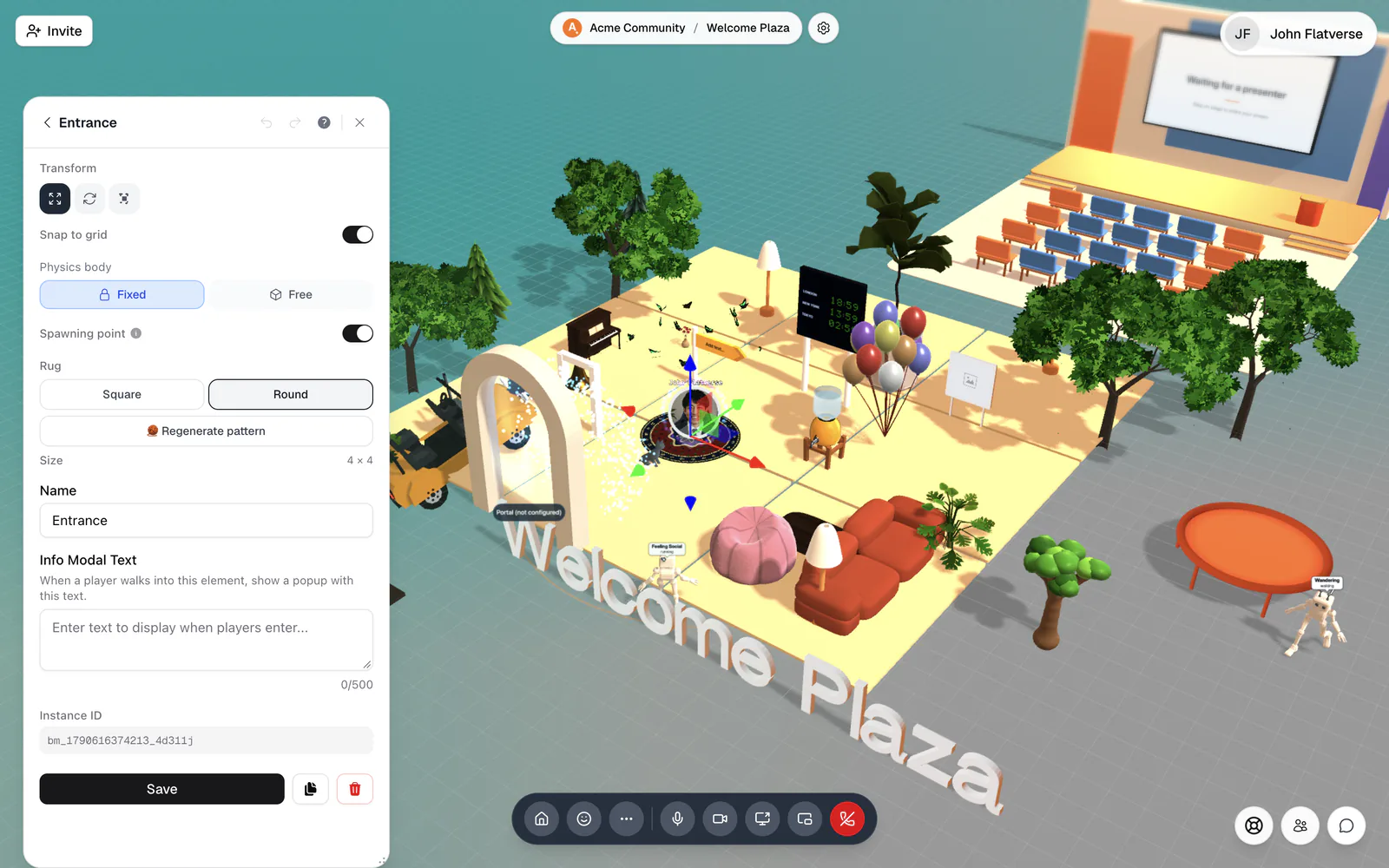
- 3Turn on Spawning point
In the element panel, switch on Spawning point. It takes effect right away: "Players joining the room spawn on top of this element. With several spawning points, one is picked at random."
- 4Add more (optional)
Repeat for other elements to spread arrivals out. To stop using an element, switch Spawning point off.
Where do people land by default?
A new Walk & talk room created without a map template starts with a white spawn disc in the middle, already marked as the spawning point. If you remove every spawn point, people appear at a default spot instead, which may not be where you want them.
Game rooms place players themselves when a round starts; football rooms come with their own team starting spots. See Game rooms.
Name important elements
Every element has a Name field ("Give this element a name..."). Names make elements easy to find in the Elements tab, show up when you point a portal at "A place in this room", and label the prompt for elements with an info popup. Click Save after naming.
How do I get back if I'm lost or stuck?
Use Teleport home. It drops you on one of the room's spawn points.
- Computer: click the house button at the left end of the call bar, or open Quick Access (⌘/Ctrl+K) and run Teleport home (unstuck): "Jump back to a spawn point if you get stuck".
- Phone: tap More in the bottom dock, then Teleport home.
Get to people faster
Quick Access has a few ways to skip the walk:
- Go to a person (Get around): lands you right beside someone.
- Invite someone to join me (People & chat): "Ask someone to teleport over to you".
- Go to a room (Get around): jump to another room in this flat.
You can also click someone's avatar and choose Follow. Your avatar trails theirs, and a "You're following {name}" bar with a Stop button appears. For fixed routes, place portals.
Move everyone as a host
If your role has the Move Participants permission (the default Moderator role does), Quick Access has two groups of host moves in Open Spatial rooms.
Move people
- Gather everyone to me: "Pull all participants next to you"
- Summon selected people to me: pick people from the list (Space to select, Enter to confirm)
- Send everyone to spawn: "Send everyone, you included, to the spawn points"
Arrange the space
- Arrange everyone in a grid: "Line everyone up in a neat grid", centered on you
- Split everyone into 2 groups, 3 groups, or 4 groups: small groups spread around you, for quick breakouts
A confirmation like "Moved 12 people" or "Arranged 12 people" appears when it's done. People can walk away freely afterwards.
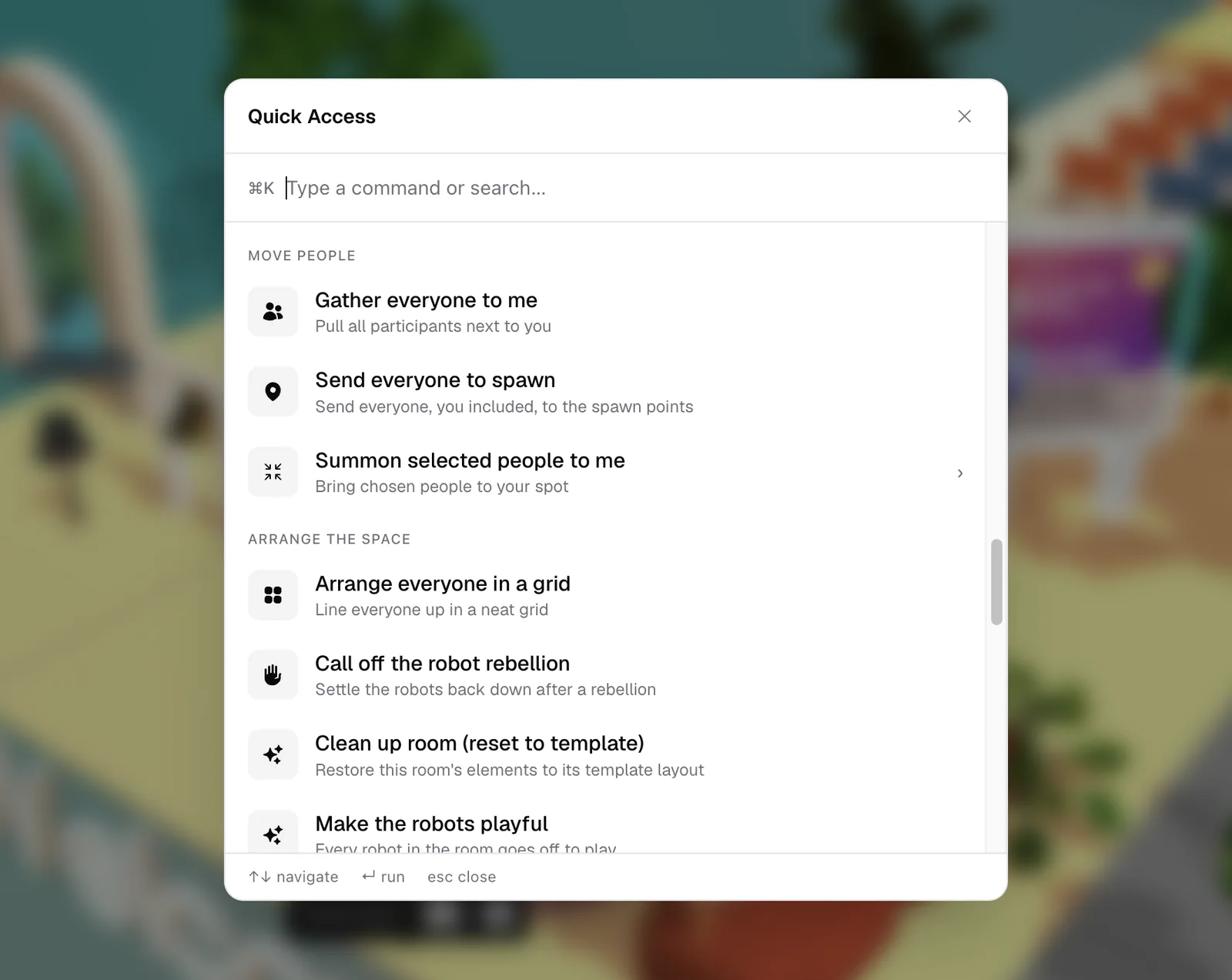
Start a talk with Gather everyone to me, split into groups for a discussion round, then Send everyone to spawn to reset. Combine it with an announcement so people know what is coming.