Branding, logo & look
Add your logo and choose how your flat is presented.
Last updated:
How do I add branding to my flat?
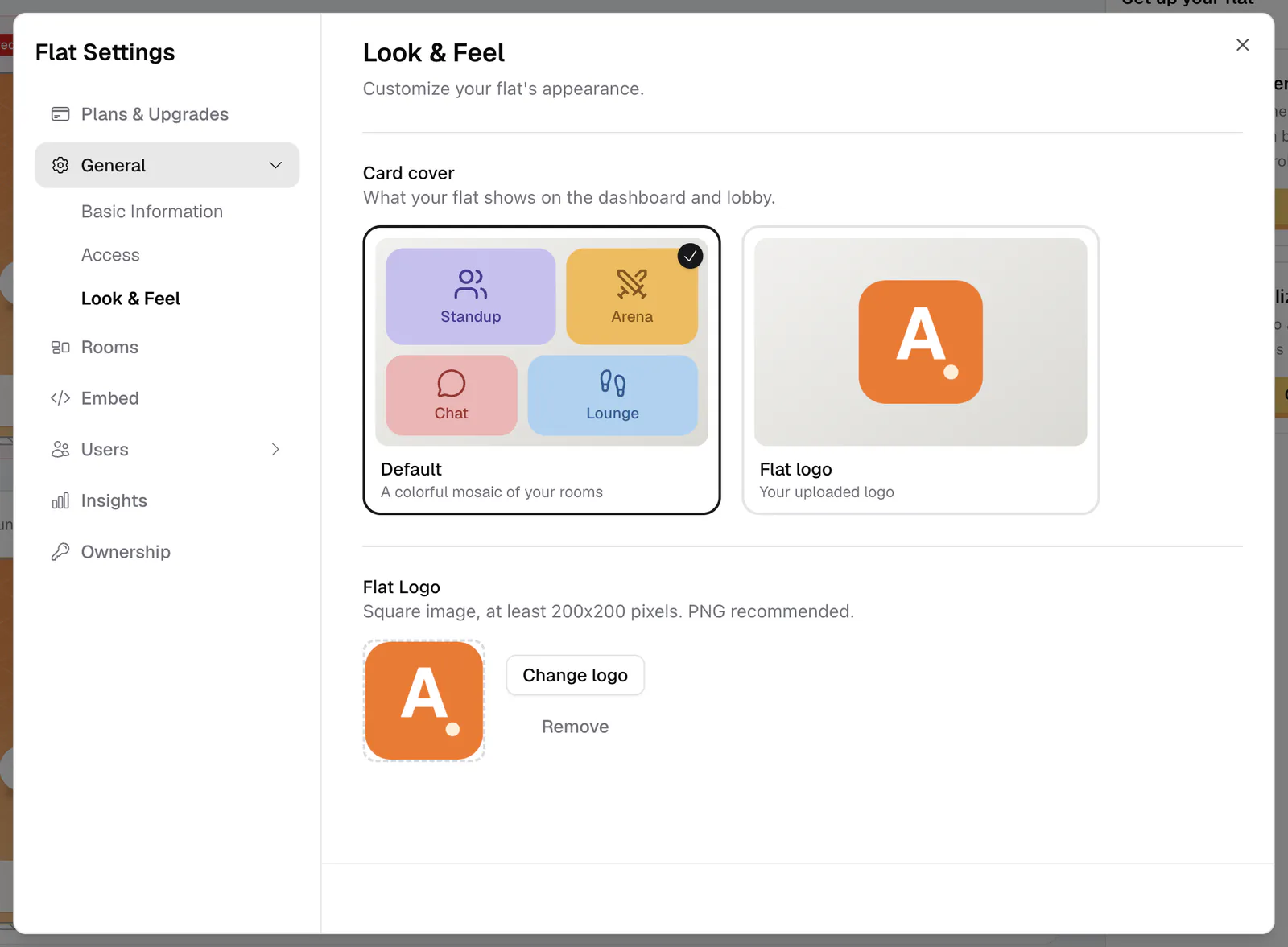
Open your flat's settings (the gear in the lobby header) and go to General → Look & Feel. You can also get there from Personalize your space in the lobby setup checklist. Look & Feel has two settings: your Flat Logo and your flat's Card cover. You need the Edit Look & Feel permission.
The look of each room (card cover, gradient, and lighting vibe) is set per room. See Customize rooms.
How to upload your logo
- 1Open Look & Feel
Go to Settings → General → Look & Feel.
- 2Choose your logo file
Under Flat Logo, click Upload logo and pick a square image, at least 200×200 pixels. PNG is recommended so a transparent background looks clean.
- 3Crop it
Frame the logo in the square crop tool and confirm. flat.social saves it right away.
- 4Replace or remove it later
Come back any time and click Change logo for a new file, or Remove to clear it.
Where your logo appears
Your logo shows up wherever people meet your flat:
- At the top of your lobby
- In the flat and room name pill at the top of every room, and in the room switcher
- On the page people see when they can't get into a closed flat
- On your flat's card, if you choose Flat logo as the card cover
Without a logo, flat.social shows the first letter of your flat's name instead.
Logo specs that look good
Use a square image between 200×200 and 3000×3000 pixels, under 20MB. PNG is best because it supports transparency. The logo is displayed in a circle, so keep your mark centered with a little padding around it; corners get cut off.
Choose your flat's card cover
The Card cover decides what your flat's card shows in My flats, Recently visited, and the Community list. Default is a colorful mosaic of your rooms; Flat logo shows your logo instead. It saves as soon as you click.
Match each room's card cover, gradient, and vibe to your colors for a space that feels designed. To send visitors from your own website, add a flat.social join button.