Show content in your room
Billboards, countdowns, notes, signs, clocks, and links people can walk up to.
Last updated:
What can I show in my room?
Open Spatial rooms can carry your own content, placed like any other element in build mode. Most of it lives under Signs & Media in the element library, with a few pieces under Office & Tables:
- Billboard: your image, GIF, or video, with an optional live countdown, likes, and comments
- Flag: a waving flag with your image
- Sticky Note: a big note with a short message
- 3D text and Balloon Letters: words in the room
- Street Sign and Timezone Clock: directions and world times
- Watercooler: icebreaker questions
- Social Button: a floating button that opens a web page
- Bell and Megaphone Tower: ways to get everyone's attention
Any fixed element can also show an info popup when someone walks into it.
Placing and editing elements needs the Build Map permission, and build mode works on computers only. After changing an element's settings, click Save in the element panel. See Roles & permissions.
How to put up a billboard
- 1Place a billboard
In build mode, open Signs & Media, pick Billboard ("Show your own image, video or GIF"), and click where it goes.
- 2Upload your media
Select the billboard and click Upload Media. Use a PNG, JPEG, or GIF up to 20 MB, or an MP4 or WebM video up to 50 MB. Billboards take uploads only, not links.
- 3Shape it
Choose Legs (None, 1 Leg, or 2 Legs), turn the Border on or off, and drag Size between 0.1x and 4x. Align to front turns it to face the camera.
- 4Add a name and description
Fill in Name and Description (up to 500 characters). Both show in the billboard view.
- 5Save
Click Save. Everyone in the room sees the billboard update.
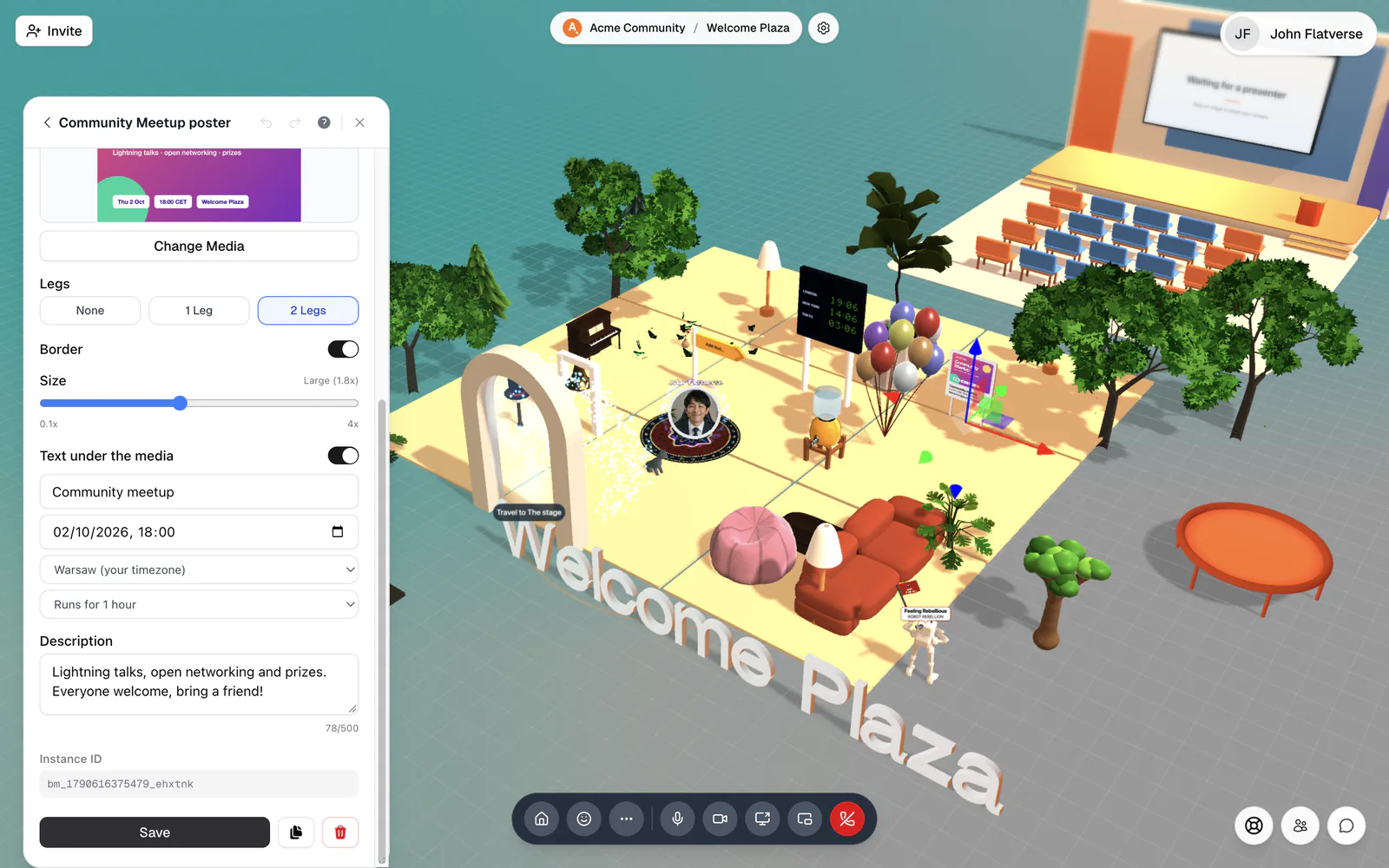
Turn a billboard into an event countdown
Switch on Text under the media and type a line of text ("What's happening?"). Leave the date empty for a plain caption, or add a date to make it a live countdown. Once there's a date, pick the timezone (yours is listed first) and how long the event runs, from 30 minutes to 24 hours.
Under the media, visitors then see "Starts in …" counting down, "Starting any moment" just before, "Live now!" while it runs, and "Completed" after.
Likes and comments
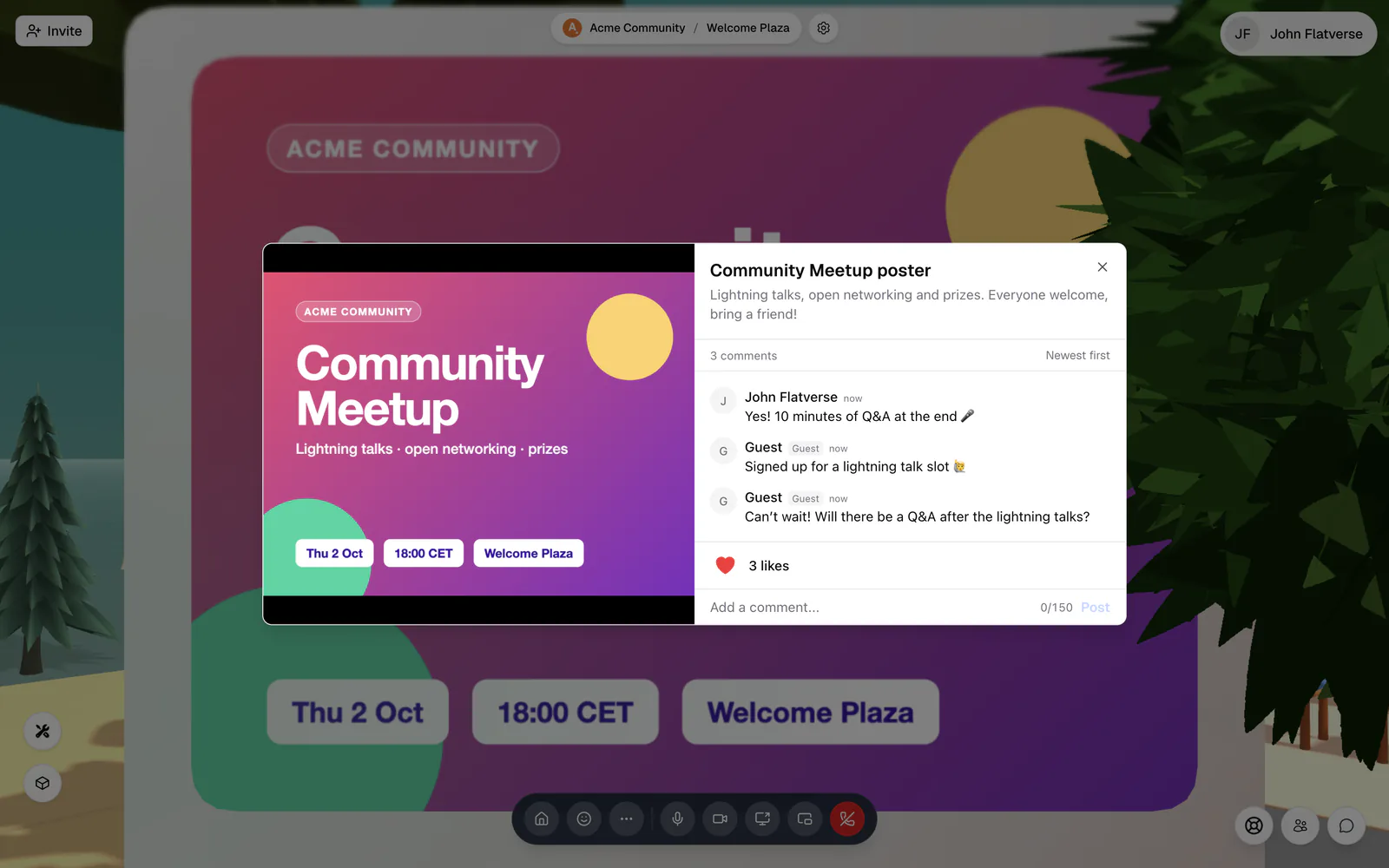
Click or tap a billboard to open the billboard view: the media large, its name and description, a like count, and comments. Anyone in the room can like it and leave a comment of up to 150 characters with Add a comment... and Post. Guest comments carry a Guest badge. Sort with Newest first or Oldest first, and click anywhere in the room to go back.
Flags
A Flag waves your image. Click Upload Image and pick a PNG or JPEG. "Flags only support static images (PNG or JPEG)." Like billboards, flags have Align to front.
Sticky notes
A Sticky Note (under Office & Tables) holds up to 280 characters. To write on it, select the note in build mode and click Edit note. Choose a color (Yellow, Pink, Blue, Green, or Orange) and a Text size (Small, Medium, Large, or Extra large), then Save. The note shows who wrote it and who edited it last. Outside build mode, notes are for reading, so in practice anyone with Build Map can edit them.
3D text and balloon letters
Click Add 3D Text in the Add New tab. Type up to 50 characters, set the Font, Size, Depth, and Color, and click Add Text. Use it for room names and welcome messages.
Balloon Letters spell a Word of up to 16 characters in foil balloons: letters, numbers, a few symbols, plus hearts and stars (Add a heart, Add a star). Pick the Foil color and the Display: floating or standing on the floor.
Street signs and timezone clocks
A Street Sign is a fingerpost with up to five boards. Click Add board, type the text ("Where to?", up to 24 characters), and choose an arrow: Point left, Point right, Point up, Point down, or No arrow (plain board). Set the Sign colour and Post colour to match your room.
A Timezone Clock (under Office & Tables) shows the time in up to five cities. Click Add a city… to add each one. Until you do, it reads "Add timezones in build mode". Handy for teams spread across time zones.
Watercooler icebreakers
A Watercooler serves conversation starters. Visitors walk up and press Enter ("Press Enter for a question"), and a question appears in a speech bubble for everyone around it. In build mode, write your own under Watercooler questions, one per line (up to 50 questions of 160 characters each), or click Use generic questions for the built-in set.
Social buttons
A Social Button floats a clickable button in the room that opens a web page, such as your website or a social profile.
- Link URL: an https:// link. "Clicking the button opens this page in the room."
- Icon: click Choose an icon… to open Button style. The Social tab has network icons, which always use the network's brand color with a white icon and name. The Icons tab has general icons, and Upload takes your own SVG or PNG up to 4MB.
- Button color: your own color when you use a custom icon.
Visitors click the button, or walk up and press Enter at a prompt like "Press Enter to view @yourhandle on Instagram". The page opens in a Website preview inside the room. Some sites don't allow embedding; for those, people see a preview card and Open in new tab.
Info popups on any element
Most fixed elements have Info Modal Text in the element panel: "When a player walks into this element, show a popup with this text." Write up to 500 characters. When someone walks into the element, a prompt with the element's Name (or "Info available") appears, and pressing Enter opens the popup. Use it to explain a zone, a game, or house rules. Billboards, flags, and portals don't have it.
Get everyone's attention
- Bell: walk up and press Enter ("Press Enter to ring the bell"). It rings out, and everyone in the room gets a notice saying who rang it.
- Megaphone Tower: press Enter to start yelling and again to stop. Your voice carries about ten times as far as usual. People inside audio-isolated rooms, pods, and stages still won't hear you, and walking away from the tower stops the yell.
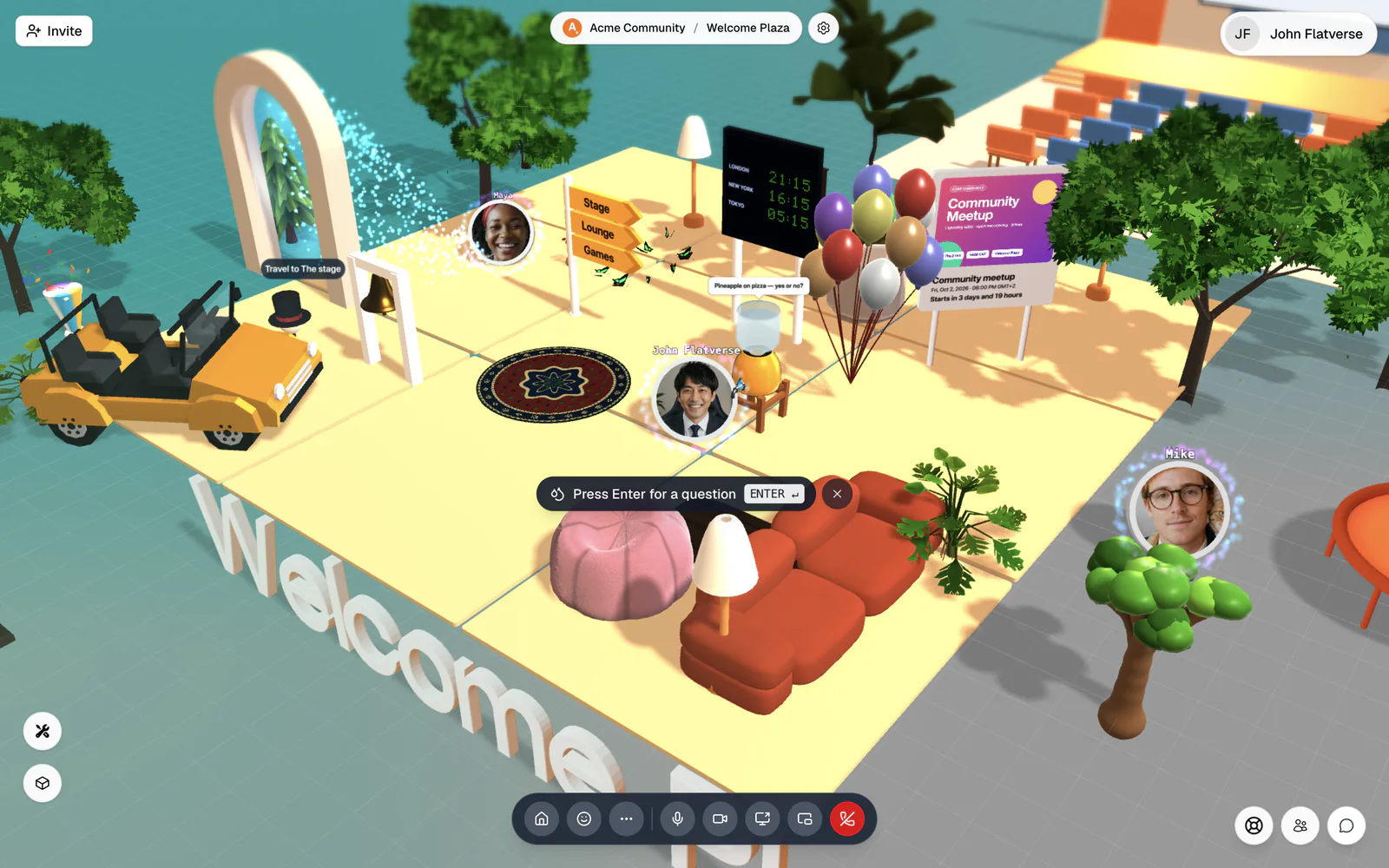
Put a billboard with your event countdown near the spawn point, a street sign pointing to the main areas, and a watercooler nearby. New arrivals know what is happening, where to go, and have something to talk about. See Spawn points & getting around.