When your flat is full
How capacity is counted, what everyone sees, and how to let more people in.
Last updated:
When is a flat full?
A flat is full when the number of people inside its rooms reaches the capacity of its plan: 5 on Free, your seat count on Monthly, plus any Day Pass seats. Each room also has its own limit. When either limit is reached, new people wait at the door. Nobody who is already inside is affected.
How capacity is counted
- Only people in rooms count. Someone browsing the lobby doesn't take a spot until they enter a room.
- Everyone counts the same, including the owner and moderators. The Always Access Flat permission gets someone past your access rules, not past the capacity limit.
- There are two limits: one for the whole flat and one for each room. Joining a room needs a free spot in both.
| Limit | Free | Monthly, or during a Day Pass |
|---|---|---|
| Whole flat | 5 people | Your seats, plus Day Pass seats (up to 100) |
| Each Open Spatial room | 5 people | 50 people |
| Each Conference room | 5 people | 25 people |
There is no per-room capacity setting; room limits come from your plan. 100 people per flat is the hard ceiling on every plan.
Warnings before it fills up
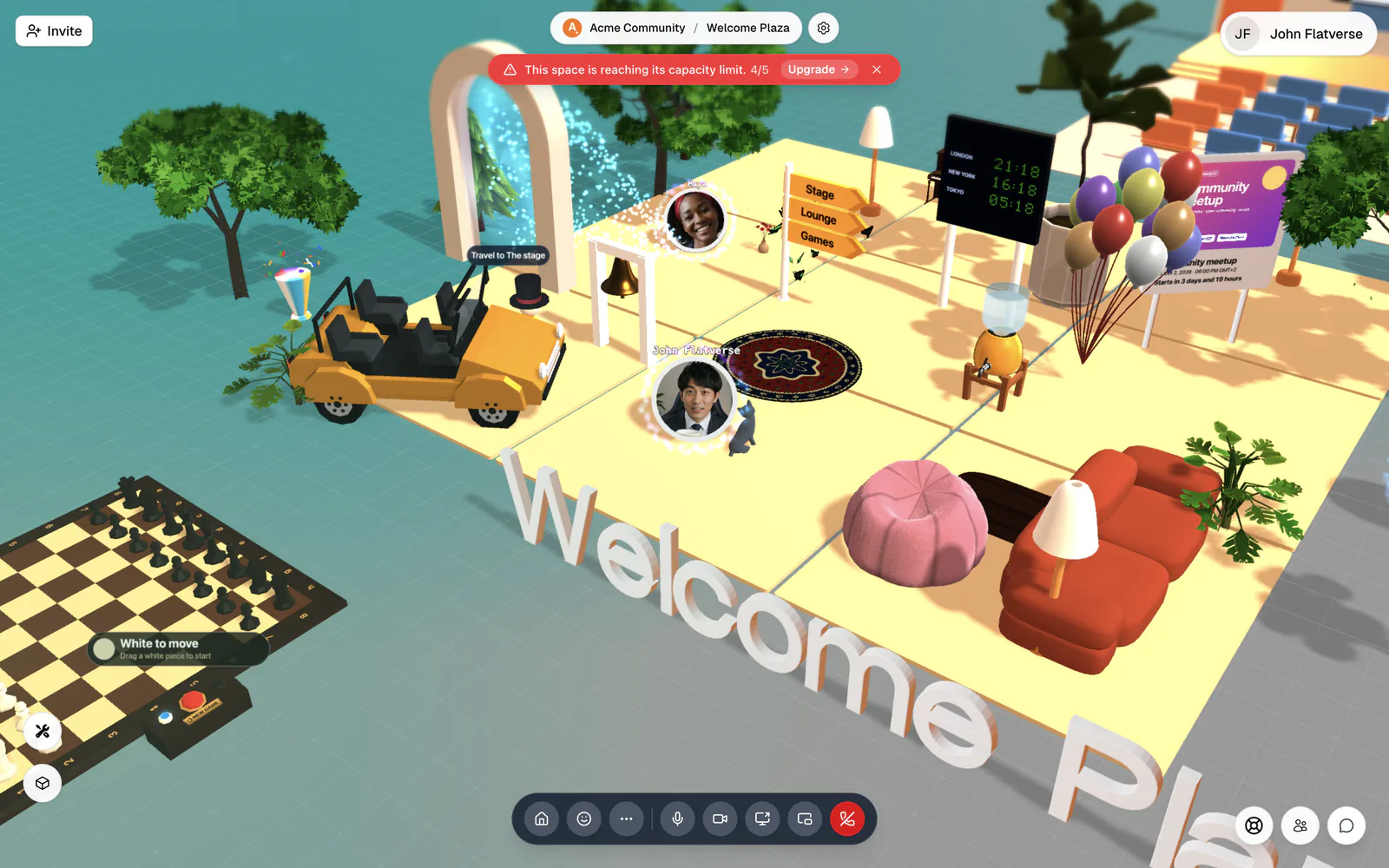
At 80%, a red notice appears at the top of the screen for everyone in the flat, in rooms and in the lobby: "This space is reaching its capacity limit." with the current count, for example 4/5. The owner sees an Upgrade button in the notice. People who can open Flat Settings also get a note in the lobby, for example "4 of 5 spots filled — your space is filling up."
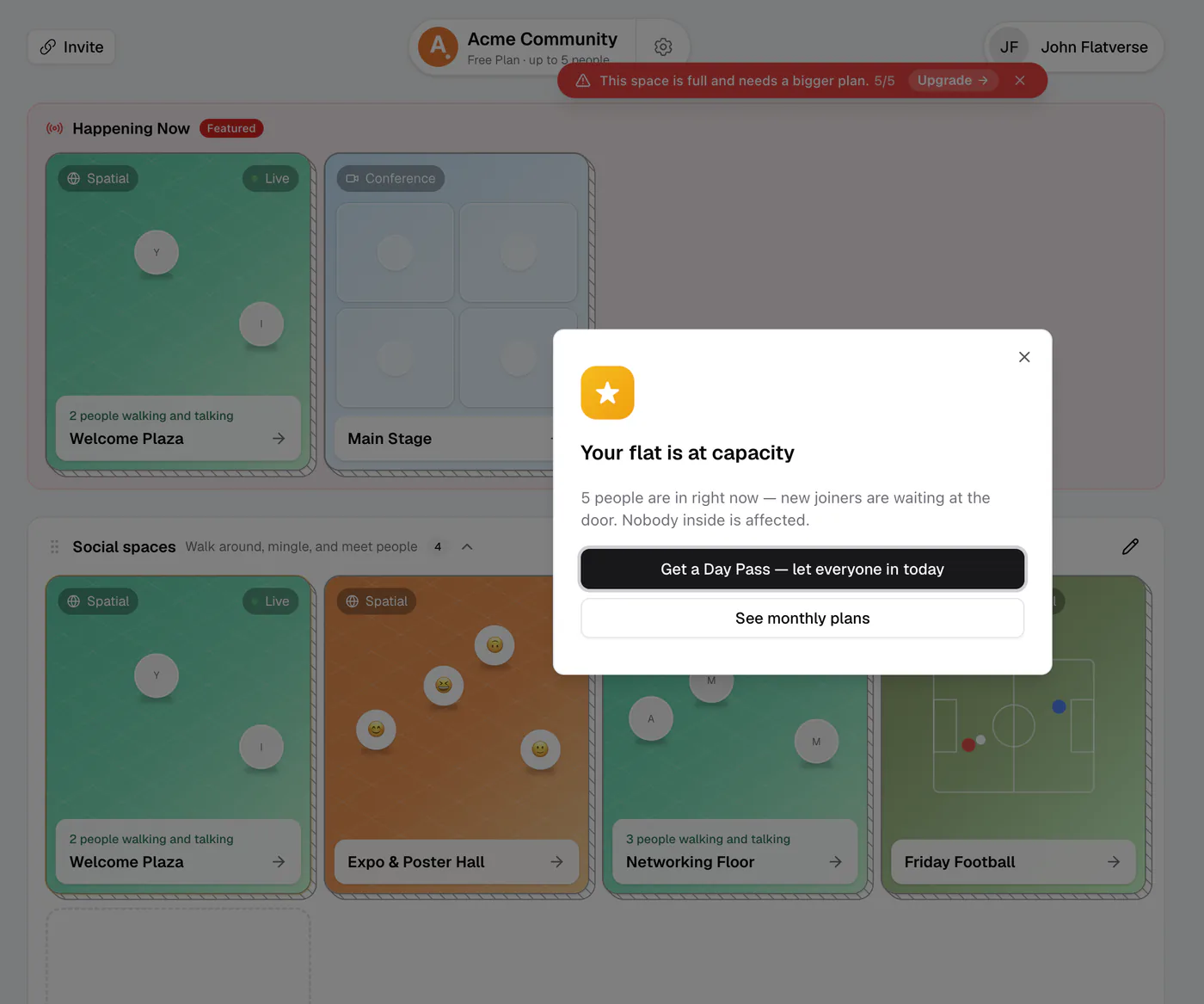
At 100%, the notice changes to "This space is full and needs a bigger plan." In the lobby, the owner and other managers see the Your flat is at capacity dialog: "5 people are in right now — new joiners are waiting at the door. Nobody inside is affected." It offers Get a Day Pass — let everyone in today and See monthly plans. For the owner, both open Plans & Upgrades; other managers can't open that page, so they should ask the owner.
The notices can be dismissed, and the dialog appears once per session. flat.social doesn't email you when someone is turned away, so these notices are how you find out.
What people at the door see
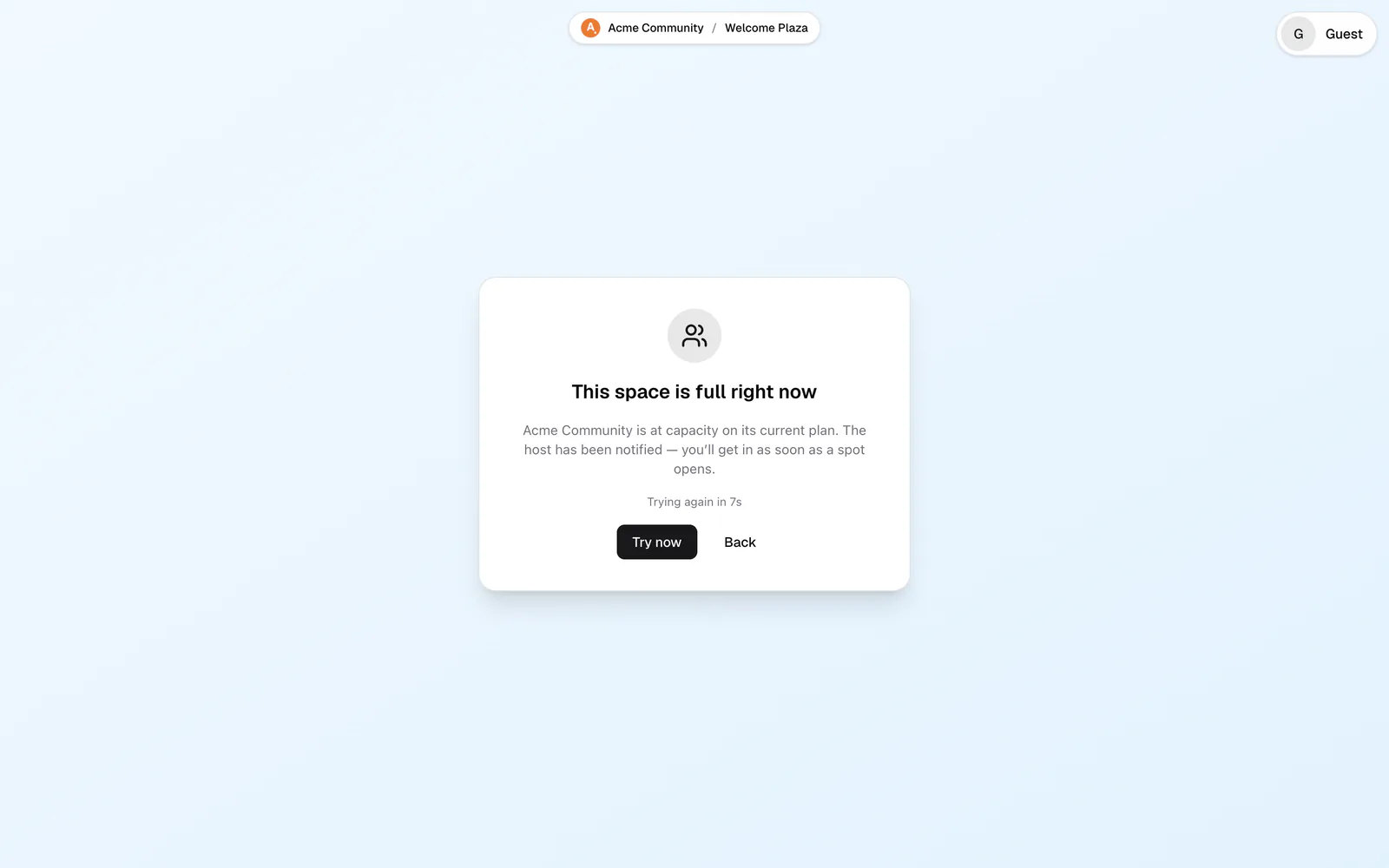
Someone who tries to enter a room when there's no spot sees This space is full right now, sometimes on the join screen before they even click Join: "{your flat} is at capacity on its current plan. The host has been notified — you'll get in as soon as a spot opens."
The screen tries again every 10 seconds on its own ("Trying again in 10s"), or they can click Try now. There is no waiting list: when a spot opens, whoever tries next gets it. Back leaves the waiting screen.
They see the same screen when the flat still has space but the room they picked has reached its own limit. In that case, going Back and choosing another room works right away.
Nobody inside is removed
The limit only applies at the door. People already in a room stay put when the flat fills up, when a Day Pass ends, or when the owner lowers the number of seats.
Make room for more people
Only the owner can change the plan. Everyone else, moderators included, should ask the owner.
- For one event, buy a Day Pass. It can start the same day: set the start time a few minutes from now and the extra seats switch on at that time.
- For regular use, move to the Monthly plan and pick 6 to 100 seats. The new capacity is live right after checkout.
- If one room is full but the flat isn't, open a second room and point people to it, for example with Invite everyone to another room in Host tools.
Book capacity before the event, not during it. A Day Pass can be scheduled up to 90 days ahead and rescheduled for free until 5 minutes before it starts.