Activities: whiteboard, standup, slides, and webinars
Put a shared tool on the stage of a Conference room, or pin one to a space in an Open Spatial room.
Last updated:
What are activities in flat.social?
Activities are shared tools that take over a room's stage: a whiteboard everyone draws on, a standup that passes the mic, a slide deck with live polls and quizzes, or a webinar with speakers and an audience. In Conference rooms you start them from the toolbar. In Open Spatial rooms you pin them to a pod or an audio isolated room, and people walk in to join.
Which activities run where
| Activity | Conference room | Open Spatial pod or room |
|---|---|---|
| Whiteboard | Start from Activities | Pin to the space |
| Standup | Start from Activities | Pin to the space |
| Webinar | Start from Activities | Not available |
| Slides | Start from Present slides | Pin to the space |
| Conference ("A plain video call for everyone in this space.") | Not needed | Pin to the space |
A Conference room's stage holds one thing at a time: an activity, a slide presentation, or a screen share. End the one that's running before you start another.
Who can start, pin, and end activities
| To do this | You need |
|---|---|
| Start a whiteboard or a standup | Present Slides |
| Present slides in a Conference room | Present Slides |
| Start a webinar | Manage Activities |
| Pin or unpin an activity in a Conference room | Manage Activities |
| Pin or unpin an activity in an Open Spatial pod or room | Build Map or Manage Activities |
| Drive a Collaborative pinned deck | Moderate Slides |
| End someone else's activity | Manage Activities or Stop Presentations |
| End someone else's slide presentation | Stop Presentations |
Whoever starts an activity can always end it, and the flat owner can do everything. The built-in Guest role includes Present Slides, and Moderator includes all of the above. Roles apply to people signed in with a verified email that has a role assigned. People without one, including guests who join with just a link, can take part in activities but can't start them; they see "You don't have permission to start activities in this flat." See Roles & permissions.
How to start an activity in a Conference room
- 1Open the picker
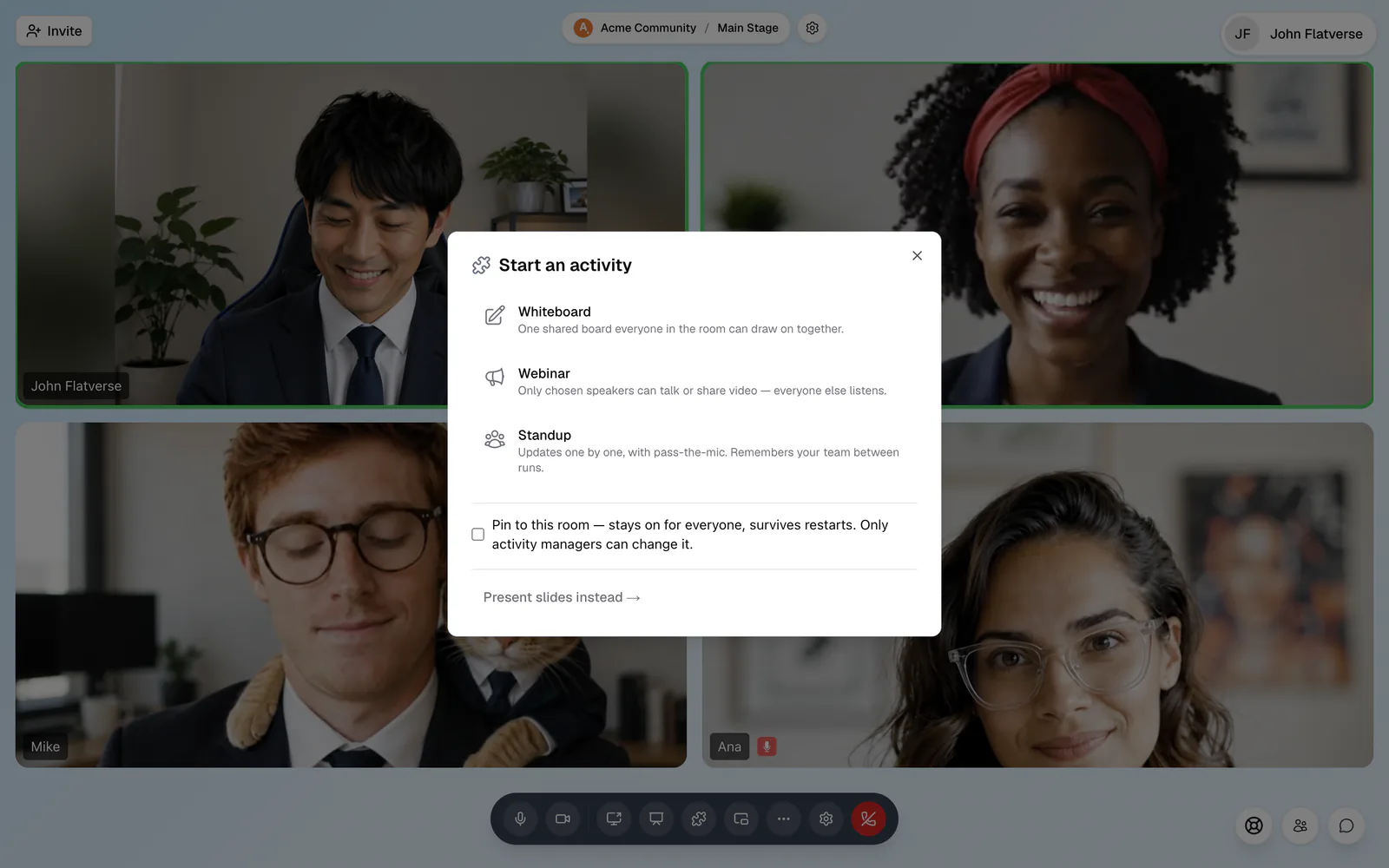
Click Activities (the puzzle icon) in the toolbar. On a phone, tap More → Activities. You can also press ⌘/Ctrl+K and run Start an activity (whiteboard, webinar, standup).
- 2Decide whether to pin it (optional)
With Manage Activities, tick Pin to this room first if the activity should stay on for everyone and survive restarts. The stage chip then reads Always on.
- 3Pick an activity
Click Whiteboard to open a board right away. Standup and Webinar open their options first. To show a deck instead, click Present slides instead →.
- 4Set it up
For a standup, choose a Soft timer per person (nudges, never cuts off) and click Open standup lobby. For a webinar, add Speaker emails if you like and click Start webinar.
- 5End it
Open the activity's chip in the toolbar and choose End for everyone, or click End activity on the stage, then confirm with Stop for everyone.
Anyone can hide a running activity just for themselves from its toolbar chip (for example Hide Whiteboard for me) and bring it back with Show Whiteboard. Webinars can't be hidden. A manually started activity ends on its own 10 minutes after the room empties.
Pin an activity in an Open Spatial room
Open Spatial rooms have no Activities button. Activities live in spaces instead: audio isolated rooms and pods.
- Walk into the pod or room. With Build Map or Manage Activities, a Configure activity prompt appears under your avatar.
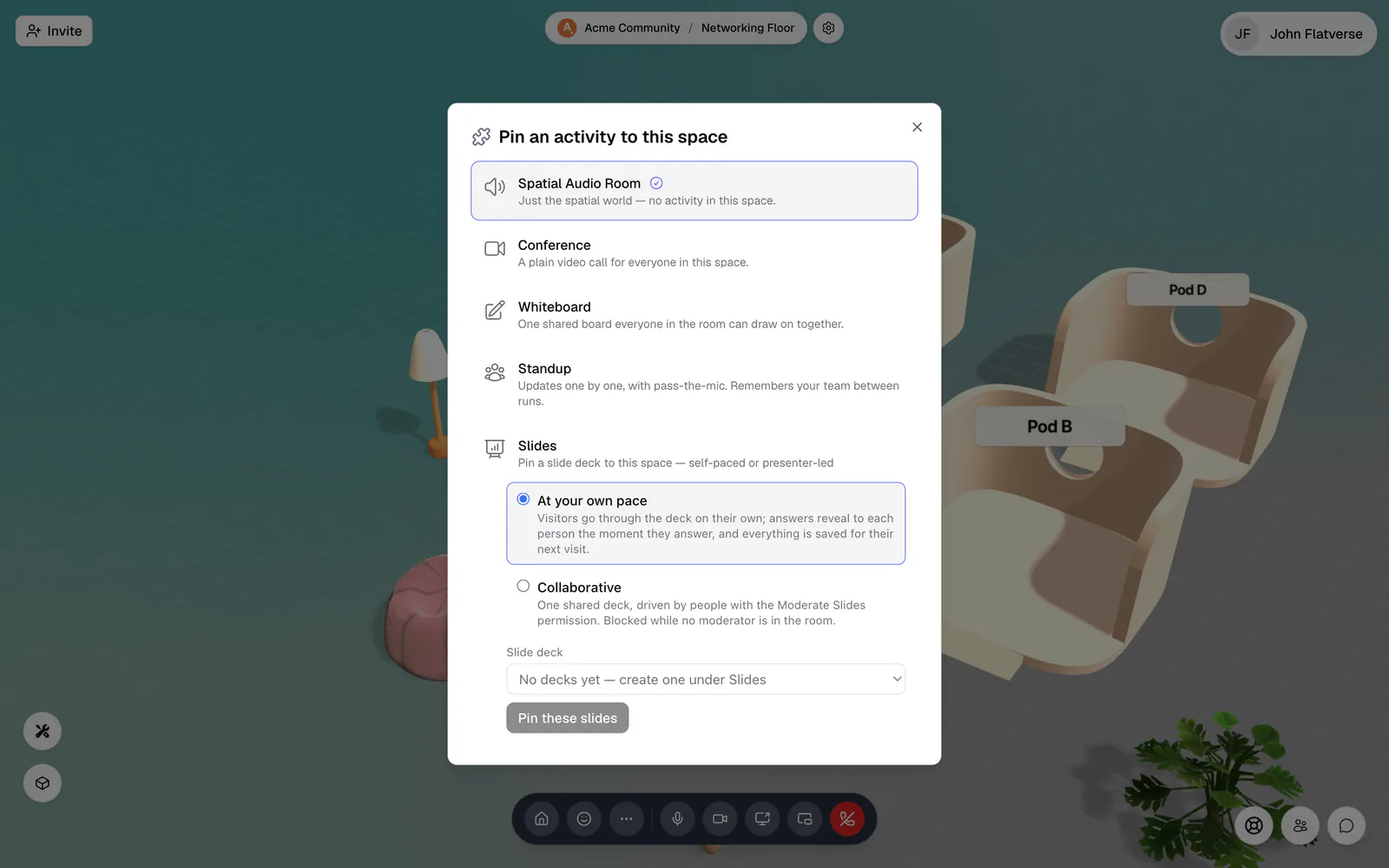
- Press Enter or tap it. The Pin an activity to this space dialog opens.
- Click Conference or Whiteboard to pin it right away. For Standup, pick a timer and click Open standup lobby. For Slides, choose a mode and a Slide deck, then click Pin these slides.
To change it later, walk in and choose Edit activity. To remove it, pick Spatial Audio Room ("Just the spatial world — no activity in this space.").
Everyone else who walks in sees Enter plus the activity's name, like Enter Whiteboard. Pressing Enter or tapping it opens the activity full screen. Click Close or press Esc to get back to the room; walking out of the space leaves the activity. The pin stays for the next visitors.
Whiteboard
A large shared board where everyone sees each other's named cursors live. The toolbar at the bottom has Select & move, Pan the board, Pen, Eraser, Sticky note, Text, Shape (drag to size), Connector arrow, and Add image.
- Pens come in six colours and adjustable thickness. The eraser removes whole pen strokes.
- Sticky notes show who wrote them and hold up to 280 characters. Double-click a shape to give it a label.
- Add PNG, JPEG, GIF, or WebP images up to 5 MB by clicking the board or dragging files onto it. Guests without an account see "Create an account to add images".
- Zoom with the + and − buttons, ⌘/Ctrl+scroll, or a pinch. Delete or Backspace removes the selection, and Esc returns to Select & move.
- The person who started the board, or anyone with Manage Activities, can lock it with Everyone can draw — click to lock to presenter; others then see "Only presenter can draw". The same people can Clear board, which can't be undone. On a pinned board, only Manage Activities holders can do this.
- Save board as PNG downloads the whole board. Anyone can use it.
The whiteboard has no undo. A board holds up to 800 pen strokes, 300 sticky notes, 300 shapes, 200 connectors, 200 text boxes, and 30 images, then shows "Board limit reached".
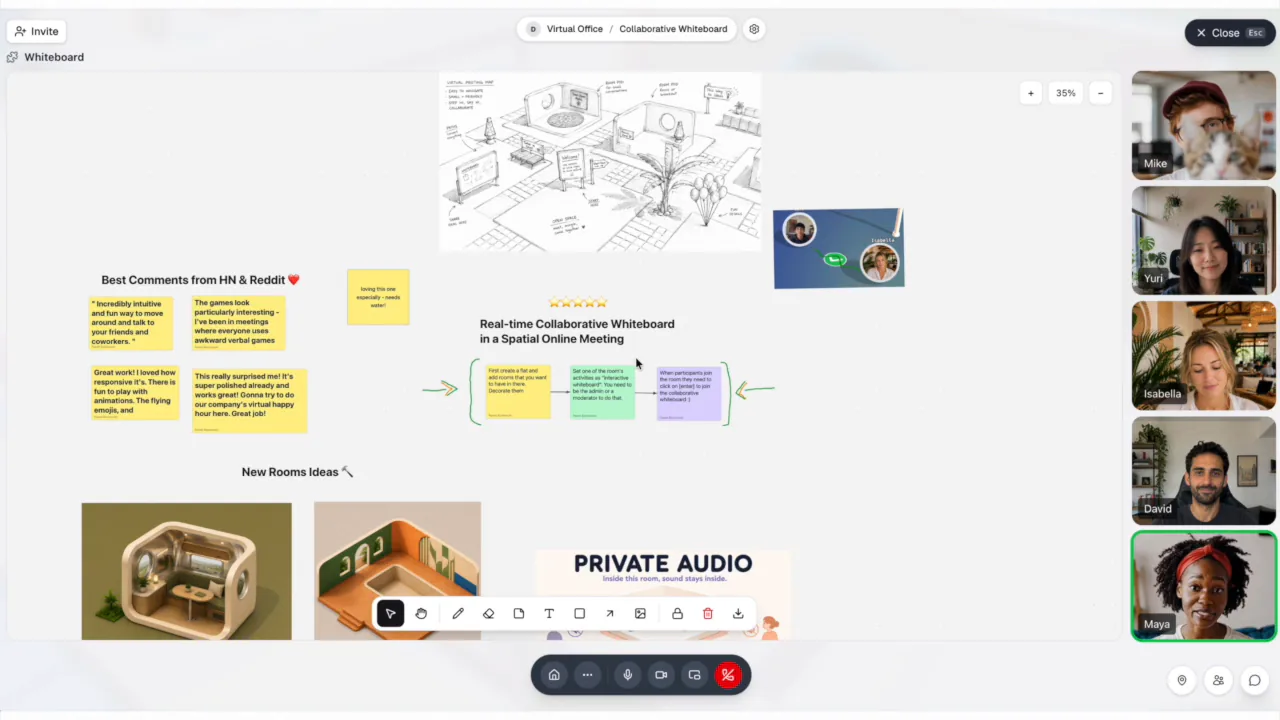
A whiteboard started from Activities is temporary. It starts empty and is gone once it ends, or 10 minutes after the room empties, and nobody can reopen it. Click Save board as PNG first. A pinned whiteboard is saved and waits for the next visitors.
Standup
A round of updates, one person at a time.
- Choose a Soft timer per person: No timer, 1 minute, 1.5 minutes, 2 minutes, or 3 minutes. Then click Open standup lobby.
- In the lobby, set the order with the arrows and untick anyone skipping today. Click Start standup. If someone on the list hasn't arrived, choose Start anyway or Wait.
- Each turn is labelled Update from and the speaker's name. The speaker, or whoever runs the standup, clicks Pass the mic → or Skip. The Up next list shows who's done, who's speaking, and who's still to come.
- The timer never cuts anyone off. When it runs out, the speaker sees "Time's up — pass the mic when you're ready."
- At the end, "That's a wrap 🎉" shows everyone's speaking time, with Run another round or Back to lobby.
The standup remembers your team for that room, so the list is ready next time. In a Conference room, when someone new joins mid-round, whoever runs the standup is asked whether to add them.
Webinar (Conference rooms only)
A webinar splits the room into speakers and an audience. Only speakers can talk, show video, or share their screen; everyone else listens.
- When you start it, add Speaker emails (optional — you speak either way) and keep Listeners can raise a hand to ask to speak on if you want questions.
- Listeners get Raise hand to speak. You see "{name} raised their hand" with an Invite to stage button.
- The People button opens Speakers and Audience tabs, where you can Invite to stage, Move to audience, or Remove someone.
- An invited person sees "{name} invited you to the stage" and chooses Join the stage or Not now. Speakers can step down with Leave stage.
See Conference rooms for the rest of the call controls.
Slides
Make a deck
Decks belong to your account, not to a flat. Open Slides ("Interactive presentations") from your dashboard; you need a verified account to create one. Click New presentation to start from scratch, or Other templates to copy a ready-made deck.
The editor saves as you go ("All changes saved"). Add text, images, tables, sticky notes, shapes, and arrows, and use New slide to add interactive slides such as Poll, Quiz question, Leaderboard, Word cloud, Q&A, Open text, Mood check-in, Retro board, or a Whiteboard slide. Images can be PNG, JPEG, GIF, or WebP up to 10 MB. There's no PowerPoint, Keynote, or PDF import. Preview plays the deck, Share gives others view or edit access, and Responses shows everything people answered, with a CSV export.
Present in a Conference room
On a computer, click Present slides in the toolbar and pick one of your decks, or one shared with you. It fills the stage for everyone. Move with Previous slide (←) and Next slide (→) or the arrow keys, click Reveal to show answers on interactive slides, and use the Laser pointer to point. The audience answers polls and quizzes right on the slide and can't skip ahead. Click Stop Presentation to finish; responses so far are saved to your results.
Pin slides in an Open Spatial room
Pin a deck to a pod or room (see above) and pick a mode:
- At your own pace: "Visitors go through the deck on their own; answers reveal to each person the moment they answer, and everything is saved for their next visit." The deck ends with "You're all caught up".
- Collaborative: one shared deck, driven by people with Moderate Slides. While no one who can drive it is in the room, visitors see "Presenter needs to join the room for these slides to run."
Visitors walk in and choose Enter Slides.